
Reframe a Podcast Clip to Vertical Without Losing the Speaker

To reframe a podcast clip to vertical without losing the speaker, let auto-reframe do the first pass, it tracks the active face and slides a vertical crop to follow it, then check the four moments it reliably breaks: two guests talking at once, fast back-and-forth, an off-center seating rig, and a single wide two-shot. Switch those segments to a split or manually keyframe the crop, and confirm the face sits in the upper-middle third so captions clear the chin.
Auto-reframe is the step between a wide 16:9 recording and a 9:16 clip that belongs on a phone. It works by deciding, frame by frame, which face is talking and keeping that face inside a tall crop window. On a clean single-speaker stretch it is close to flawless. The failures are predictable, they cluster in specific setups, and once you know the four you can fix a whole episode's clips in one short pass instead of discovering a half-cropped chin after you post.
How auto-reframe actually keeps the speaker in frame
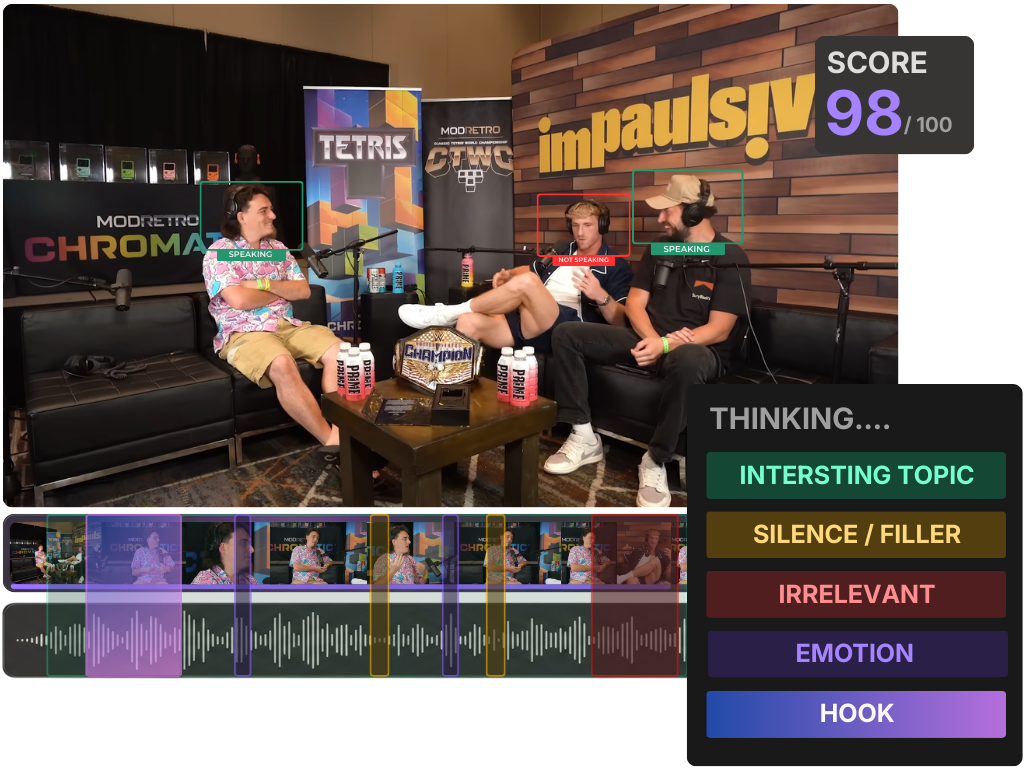
Auto-reframe treats your wide frame as a canvas and the vertical clip as a smaller window sliding across it. The tool detects faces, decides who is speaking, usually by combining mouth movement with which audio channel is active, and moves the crop so the talker stays centered. When the conversation switches, the window glides (or cuts) to the new face. That is the entire mechanism, and understanding it tells you exactly when it will struggle.
The reason to care about the crop, specifically: it's the only part of your wide recording a vertical viewer ever sees. The framing, the headroom, the half-visible chin, that's the whole composition on a phone, decided by where a sliding rectangle happened to be. And the vertical clip is usually the front door to the show: one studio's client data puts clips at 20–40% of new audience and reach lifts of 2–5× for video shows (Podcast Studio Glasgow). That's a directional range from a single source, not a platform-wide audit, but the thrust holds. A face sliced in half at the door is a bad first impression, and it's one of the few you fully control.
The four setups where auto-reframe loses the speaker
Auto-reframe doesn't fail randomly. It fails in four specific situations, all of them tied to its one job: deciding who is talking and where their face is. Knowing the four lets you scrub straight to the risky segments instead of watching every clip end to end.
1. A single wide two-shot
The most common podcast setup and the hardest for auto-reframe: both hosts in one wide camera, side by side. The tool has to keep snapping a vertical window between two faces in the same frame, and on a lively back-and-forth it lags the conversation, you get a half-second of the listener's face before it jumps to the talker. The fix: for any segment where both people are actively trading lines, switch that part to a vertical split (two stacked crops, one face above the other) so both stay on screen and the viewer never waits for the window to catch up. Reserve the single-face crop for monologue stretches where one person holds the floor.
2. Fast speaker switches
Even with separate cameras, a rapid exchange, "no, wait, but that's the thing, ", moves faster than the tracker's smoothing. To avoid jittery jumps, most reframers add a short delay before they commit to a new speaker. On fast cuts that delay means the crop is reliably a beat behind: it shows the person who just finished, not the one now talking. The fix: for the punchiest exchanges, either drop the switch-sensitivity (commit to a face faster, accepting slightly more movement) or hard-cut the crop manually at each turn. Those overlapping, interrupting moments are often the best clips, see when AI misses your best moment, so they're worth the extra minute.
3. Multi-guest crosstalk
Three or more people, two of them laughing or talking over each other, is the case where "who is the active speaker" has no single right answer. The tool picks one and pins the crop there, dropping whoever it didn't choose, frequently the person whose reaction made the moment. The fix: for a panel, a single roaming crop almost always disappoints. Use a layout that holds the people who matter for that beat, a two-up split for the main pair, or a wider crop that keeps the group than a tight single face. If your rig records separate camera angles, this is where they earn their keep; you can cut deliberately instead of letting the tracker guess.
4. An off-center recording rig
If a host sits well to one side of the frame, or the camera is angled so a face lives near the edge, the crop has less room to breathe and tends to clip an ear, a shoulder, or the top of the head. The tracker centers on the detected face, but a face already near the frame edge leaves no margin. The fix: this one starts at the source, center your subjects in the wide frame when you record, with headroom above and space on both sides. After the fact, nudge the crop's horizontal position manually so the face sits comfortably inside the safe area rather than kissing the edge.
Get the face and captions in the right place
A centered face isn't quite the finish line. Vertical clips have a specific safe zone, and the most common avoidable mistake is letting the auto-placed captions land on the speaker's mouth or chin.
Aim the face at the upper-middle third of the vertical frame, not dead center. Phones crowd the bottom of a Reel or Short with the caption bar, username, and engagement icons, and TikTok's right-side buttons eat the lower-right corner. A face parked in the vertical center ends up looking low once the platform UI loads. Lifting it leaves clean room below for captions, which need to sit clear of the chin, never across the mouth, so the words read instantly. Captions are doing the heavy lifting here: most social video is watched muted (cited around 85%, Digiday, directional, it traces to 2016 publisher data and studies range roughly 69–85%). If your reframe pushes the face down and the caption onto the jaw, you've broken the two things a muted scroller relies on. While you're checking placement, read the caption text too, the five recurring AI caption errors hide in exactly the clips you're reframing.

Common mistakes when reframing to vertical
Trusting the auto-crop on every segment. Auto-reframe earns its first pass, but the four setups above need eyes. Scrub the two-shots and the fast exchanges specifically; that's a 60-second check, not a full re-watch.
Using one crop style for the whole clip. A monologue wants a single centered face; a heated exchange wants a split. Forcing one mode across a clip that changes energy is why some reframes feel lifeless and others feel chaotic. Match the layout to what's happening on screen.
Centering the face vertically. Dead-center looks low once the platform stacks its UI and captions on the bottom. Lift the face to the upper-middle third and you'll read as composed instead of cramped.
Reframing before you've picked the right moment. Cropping is the last step, not the first. Lock the cut points and the moment, then reframe, see picking the best AI-suggested clips so you're not polishing the crop on a clip that shouldn't ship.
Fixing the crop clip by clip instead of in the batch. If your tool reframes a whole episode in one pass, set your default layout and safe-zone once and let it apply across clips, the same logic that makes batch-clipping a full episode pay off. Re-cropping each export by hand is wasted motion.
Which tools handle reframing well
Most AI reframers converge on the same core: face detection, active-speaker tracking, and a sliding vertical crop. The mechanism mirrors how AI clip detection tools mostly agree on which moments to cut, the real difference is in the editing surface, and the editing surface is exactly what the four failure setups demand. Don't shop for the smartest tracker; every tracker handles the easy 70–80% and stumbles on the same hard cases. Shop for the four overrides that fix those cases:
- A manual crop override with keyframes, the only fix for fast switches and off-center rigs. If you can't pin a face for a two-second window, you can't fix the tracker; you can only re-roll it and hope.
- A one-click split layout, the answer to the wide two-shot and crosstalk. A tool that auto-reframes beautifully but can't stack two faces leaves you re-cropping the most common podcast setup by hand.
- An adjustable safe zone or grid, so you can park the face in the upper-middle third on purpose instead of eyeballing it against an imagined caption bar.
- A batch default for layout and safe zone, set it once, apply it across the episode. Without this, every fix from the list above is per-clip busywork.
A tool missing the first two isn't a reframer you'd trust on a multi-guest show; it's an auto-cropper that's right until it isn't, with no recovery.
QuickReel auto-reframes to vertical with active-speaker tracking, lets you switch a segment to a split or move the crop by hand, and applies your layout across the clips from an episode. Like every AI reframer, it gets the easy stretches right on its own and still wants a human on the two-shots and crosstalk, that judgment about which face carries the moment is yours, not the model's. Treat the auto-crop as a fast first draft and yourself as the editor who signs off. And don't read the virality score as permission to skip the crop check; a strong moment with a half-cropped face still underperforms.
FAQ
What does "reframe to vertical" actually mean? It means cropping a wide 16:9 recording down to a tall 9:16 frame for Reels, Shorts, and TikTok, while keeping the person who's talking inside the smaller frame. Auto-reframe does this by tracking the active speaker's face and sliding the crop to follow them, so you don't manually re-center every second.
Why does the crop keep cutting to the wrong person? Because the tracker adds a short delay before committing to a new speaker, to avoid jittery jumps. On fast back-and-forth that delay shows the person who just finished talking instead of the one now speaking. For punchy exchanges, lower the switch sensitivity or hard-cut the crop at each turn, or use a split so both faces stay on screen.
How do I keep two hosts in frame in a vertical clip? Use a vertical split layout: two stacked crops, one face above the other. A single roaming crop on a two-shot lags the conversation and drops the reactor. Reserve the single-face crop for monologue stretches where one person clearly holds the floor.
Where should the speaker's face sit in a vertical clip? In the upper-middle third, not dead center. Phones stack captions, usernames, and buttons across the bottom and lower-right of the frame, so a centered face reads as low once the UI loads. Lifting the face leaves clean room for captions to sit below the chin.
Can auto-reframe replace manual cropping entirely? No. It handles clean single-speaker stretches well and saves real time, but it loses the speaker in four setups, wide two-shots, fast switches, multi-guest crosstalk, and off-center rigs. Those need a manual pass. The honest framing is the same as the rest of AI clipping: an accelerant for the easy 70–80%, with you on the moments that actually carry the clip.