
Switching Podcast Clip Tools Without Losing Work


You can switch podcast clip tools without losing work, but only if you treat it as a migration with a sequence, not a same-day cancel-and-resubscribe. Export your finished clips and any downloadable brand assets first, accept that caption styles and brand templates usually have to be rebuilt by hand in the new tool, run both tools in parallel for one full episode, and cancel the old plan only after the new one has shipped a week of clips. The only thing that genuinely doesn't transfer is the work-in-progress sitting in the old editor, so finish or export it before you move.
This is the part tool reviews skip. They rank detection quality and price; almost none of them tell you what actually breaks when you leave. The honest answer: your rendered clips are portable, your style is not. No clip tool exports a "brand kit" the next one can import, there is no shared format. Below is a portability matrix, a five-phase switch sequence, and a contract-exit checklist that covers the billing and file-retention traps that cost people money on the way out.
What actually transfers when you switch clip tools?
Almost nothing transfers automatically. Finished, downloaded clips and the source files you uploaded are yours and play anywhere. But the configured work, caption styles, brand templates, logo placement, fonts, auto-reframe presets, lives in each tool's proprietary format and has no export path to a competitor. You rebuild it by hand.
The upside: rebuilding a caption style is a 15-minute job once, not a per-clip job.
The reason there's no clean transfer is structural, not malicious. There is no industry-standard schema for "caption style #3 with this font, this highlight color, and this safe-zone margin." Each tool stores it differently, so even a generous vendor couldn't hand you a file the next one would read. Plan to recreate, not import.
Before you cancel: the export-everything pass
Do this while you still have a paid login, because the access you need to export your work disappears the moment your plan lapses. Some tools cut access fast, with Opus Clip, your projects stop being accessible three days after you cancel, per its own help docs (Opus Clip plans & credits), and a downgraded paid account can lose access to assets behind the tier you dropped. Pull everything down first.
The pass, in order:
- Download every finished clip you still want in the highest resolution your current plan allows. These are the only fully portable assets you have.
- Export your transcripts and SRT files for any episode you may re-clip later. An SRT carries word timing, which a new tool can ingest, this is the one piece of "configured" work that has a real transfer format.
- Screenshot or document your caption style and brand template settings, exact font, hex colors, highlight color, position, animation type, logo placement. You're not exporting a file; you're writing a rebuild spec for yourself. Fifteen minutes here saves an afternoon of guessing later.
- List your scheduled-but-unposted queue. Scheduling almost never migrates. Note what was queued, for which platform, and when, so you can re-queue it in the new tool.
- Save your source files if the tool was your only copy. Most creators keep originals elsewhere; confirm it before you assume.
Skip step 3 and you'll spend the first week of the new tool fighting to match a look you used to have. The brand assets that do download cleanly, logo PNGs, intro/outro clips you uploaded, pull those too.
The five-phase switch (so nothing drops)
The single rule that prevents lost work: never cancel the old tool before the new one has shipped a real week of clips. A few days of overlapping subscriptions is cheaper than a week with no clips going out, and a steady publishing rhythm is one of the traits that separates shows that last from the roughly 47% that stop at three episodes or fewer (Amplifi Media analysis). Here is the sequence.
Phase 1, Audit. Spend twenty minutes listing what you have in the old tool: finished clips, source files, caption styles, brand templates, scheduled posts. You can't carry what you haven't counted.
Phase 2, Export. Run the export-everything pass above. Do it before you touch the new tool, so you're not racing a billing date.
Phase 3, Rebuild. In the new tool, recreate your caption style and brand template from the spec you wrote in step 3 of the export pass. Most tools let you save a reusable template once you've set it, QuickReel offers 12+ caption styles and brand templates you adapt once and reuse (QuickReel pricing). Set it once, here, before you clip in volume.
Phase 4, Parallel run. Clip the same episode in both tools. Compare the moments each one picks, the caption accuracy, the reframe quality, and the touch count to a posted clip. In practice the leading AI clippers surface heavily overlapping moments from the same episode, so the clip selection rarely decides it, judge the workflow and the finished output instead. This is where a free tier earns its keep: you test on real footage at zero cost.
Phase 5, Cancel. Only after the new tool has carried a full posting week, and only after you've confirmed the contract-exit checklist below. Now the old subscription is a cost with no remaining job.

The contract-exit checklist most reviews skip
This is the section nobody writes, and it's where switching actually costs people money. Before you cancel, walk this list. Each item is a real trap.
- Check the billing cycle. Most clip tools bill monthly or annually with no proration on cancel, you keep access to the end of the paid period but rarely get money back. If you're on annual, time the switch near renewal, not the day after it.
- Confirm file retention after cancel. Some tools keep your clips available for a grace window; some cut access immediately on lapse. Opus Clip, for instance, says projects become inaccessible three days after you cancel (Opus Clip plans & credits), assume nothing, export first.
- Re-check watermark and license terms on clips you already posted. A clip made on a free or trial tier may carry a watermark or a usage condition that doesn't change retroactively when you switch. If brand-clean exports matter, that's a reason to move, we cover it in clip tools that export without a watermark.
- Cancel from inside the account, and get the confirmation. "I stopped using it" is not "I cancelled it." Recurring charges keep running. Screenshot the cancellation confirmation and the final-charge date.
- Downgrade before you delete, if there's a free tier. Dropping to free instead of deleting often preserves access to your finished clips as a safety net, at no cost. Delete the account only once you're sure everything's exported.
That last block, the contract exit, takes about 15 minutes and prevents the two failures that hurt: a charge you forgot to stop, and a clip library that vanished before you pulled it down.
How tools differ on the things that affect a switch
You don't pick a tool by its export options, but a few differences genuinely change how painful leaving, and arriving, will be. All prices verified live 27 June 2026; SaaS pricing moves, so re-check each vendor's page.
| Tool | Free tier to parallel-test | Entry paid price |
|---|---|---|
| QuickReel | Yes, watermark-free clips to test on real footage | $9/mo Starter |
| Opus Clip | Yes, but watermarked; projects drop 3 days after you cancel | $15/mo Starter ($29 Pro for editor) |
| Vizard | Yes, 60 credits/mo, 720p + watermark | ~$14.50/mo annual Creator |
| Klap | 1 free video | $28/mo Basic ($14/mo annual) |
Sources: QuickReel pricing, Opus Clip pricing and plans/credits, Vizard pricing, Klap pricing.
The honest read: the tool with the most usable free tier is the easiest to arrive at, because you can run phase 4, the parallel test, without paying. A watermarked or restricted free tier still works for testing; you just can't post what you make on it. And every tool here, including QuickReel, produces clips that still need a human review pass before posting, trimming a pause, fixing a caption, retiming a hook. A switch doesn't remove that pass, so don't switch expecting it to.
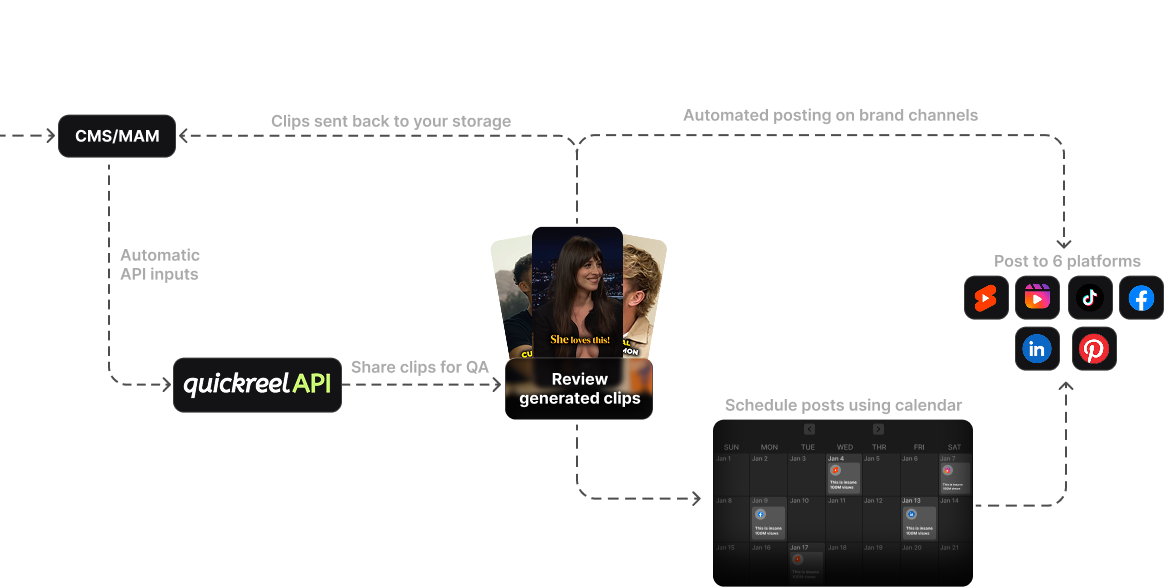
One thing a switch genuinely can fix: if your old tool made you export and re-upload to each platform by hand, a tool that schedules to your platforms in one place removes those touches permanently. QuickReel schedules to multiple platforms from inside the tool, which is the kind of structural step-removal worth switching for, see the best AI podcast clip generators for how the major tools compare on that, and the best Opus Clip alternatives if Opus is the tool you're leaving.
Who should switch, and who should stay
Switch if your current tool is costing you avoidable touches every episode, manual re-uploads, captioning you redo by hand, scheduling outside the tool, or if it watermarks clips you need clean. Those are structural problems a different tool actually solves. Stay if your only complaint is clip selection: detection is roughly equal across tools, so you'll spend a switch's worth of effort to land in the same place.
For a one-person show, the migration math favors the lowest-touch, cheapest-to-test option, the full version of that argument is in the best clip tool setup for solo podcasters. For a team, the switch is heavier because seats, shared brand kits, and review workflows all have to be rebuilt, what teams should compare in multi-seat clip tools and choosing a podcast clip tool for an agency cover the parts that change when more than one person clips.
FAQ
Will I lose my caption styles and brand templates when I switch clip tools? Yes, there's no export path for caption styles or brand templates between tools, so you rebuild them in the new tool. The fix is to document your exact settings (font, hex colors, highlight color, position, animation) before you cancel, then recreate them once. It's about a 60-minute job, done a single time, not per clip.
Can I move my finished clips to a new tool? You don't need to. Finished, downloaded clips are standard MP4 files, they're yours and play anywhere, no migration required. Download every clip you still want in your highest available resolution while your paid login is active, since some tools cut access or delete files when a plan lapses.
Should I cancel my old clip tool before setting up the new one? No. Run both in parallel for at least one full episode and ideally a posting week, then cancel the old plan last. A few days of overlapping subscriptions costs less than a gap with no clips going out, and it lets you confirm the new tool works on your real footage before you commit.
Do transcripts or SRT files transfer between clip tools? Partially, yes, SRT caption files carry word timing in a standard format, so a new tool can usually ingest them. Export your transcripts and SRTs before you leave for any episode you might re-clip. They're the one piece of configured work with a real transfer path, unlike caption styling.
How long does switching podcast clip tools actually take? Budget roughly three hours, once: about 20 minutes to audit, 30 to export, an hour to rebuild your styles, 45 minutes for a parallel-run test, and 15 minutes for the contract-exit checklist. The largest block is rebuilding your look in the new tool, not moving files, which is the part most people overestimate.
Switch without losing momentum
Switching podcast clip tools is low-risk if you sequence it: export your portable assets, write down the styles you can't export, rebuild them once, run both tools on a real episode, and cancel last. The only work you can truly lose is the in-flight project sitting in the old editor and the clips you didn't download before access lapsed, both avoidable with the export pass. Treat the move as a controlled migration, and the worst case is a few overlapping subscription days. The thing to protect through the move is your posting cadence: Podcast Studio Glasgow puts the payoff of consistent clipping at 2–5× discovery reach (Podcast Studio Glasgow, a producer's own estimate), so the goal of any switch is to keep clips going out the door, never to pause them.