
Clip a Podcast That Includes Screen Sharing


To clip a podcast that includes screen sharing, decide one thing per moment first: is the screen the point, or is the talking worth more without it? If the screen is the point and you can keep its text legible, show it; if not, go face-only and rebuild the one number as large text. Then caption and post. Most screen-share moments clip better as a talking head than as a cropped screen.
The trap in a screen-share episode is that the screen looks like the most clippable thing in the file, a chart, a live demo, a tour of a dashboard, and it's usually the part that breaks worst in a vertical clip. A screen built for a 27-inch monitor becomes a postage stamp at 9:16, and the small text you actually needed read disappears. Below is a per-moment decision rule for crop-to-screen, show-both, or face-only, a concrete legibility test you can apply in two seconds, and the three layouts that fix it.
What "screen share in a podcast" actually means here
A mixed-content episode has two visual modes that alternate, and each one clips differently. Talking-head mode is the host or guest on camera, the intro, the back-and-forth, the reaction. Screen-share mode is a shared window filling the frame: slides, a spreadsheet, a code editor, a product demo, a browser tab. The same hour flips between them a dozen times, and your clip strategy has to flip with it.
This is the difference between a podcast screen-share and a webinar. A webinar is mostly slides with the presenter in a corner; a podcast that shares a screen is mostly conversation with the screen cut in for a few minutes at a time. So the default unit you're clipping is a talking moment that happens to reference a screen, not a slide deck with narration. That changes which layout you reach for, and it's why "just show the screen" is wrong more often than it's right.
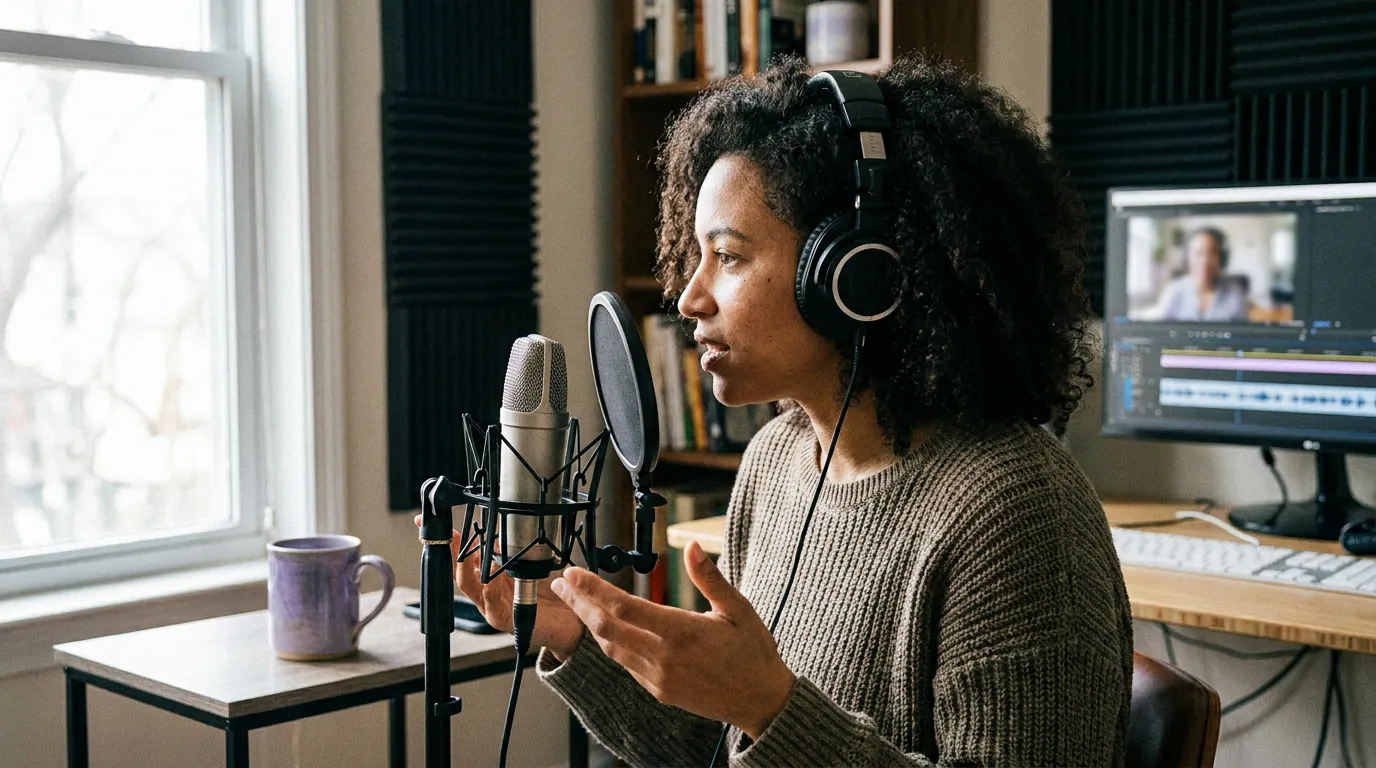
Why screen-share moments are worth the trouble
A live demo or a real chart is the kind of proof a plain talking-head clip can't fake, and that's exactly what makes screen-share moments worth clipping when you get them right. Short-form clips drive an estimated 20–40% of new audience for video shows and can lift reach 2–5× (Podcast Studio Glasgow, one studio's client data, so read it as directional, not a platform-wide audit). A clip where the audience watches a number move on screen, or a tool do the thing, converts skeptics that talking heads don't.
The audience is also primed to watch rather than read. 53% of new US weekly podcast listeners now prefer to watch a show, up from 30% in April 2022 (Backlinko). A screen-share moment is the most visual asset in your episode, when it's legible. The whole game is keeping it legible after the crop.
The decision rule: screen-only, both, or face-only
Run every screen-share moment through one question before you touch a crop tool: does the viewer need to read the screen to get the point? Most of the time, no, the host is explaining what's on screen, and the explanation is the clip. Three outcomes follow.
Face-only is the default. If the host is narrating what's on screen, "so this dashboard shows churn dropping after we changed onboarding", the sentence is the clip and the screen is decoration. Crop to the speaker, drop the screen, and let the line land. Most screen-share moments resolve here, which surprises people who assumed the screen was the star.
Screen-over-face is for the moment where seeing it is the payoff: a number ticking up live, a before/after, a product doing the thing. Stack the screen in the top portion and the speaker below. Use it only when the screen passes the legibility test in the next section.
Rebuild as text is the underrated option: the screen matters, but its text is too small to survive a phone. Don't show the screen, retype the one number or the single line as large, clean text over the speaker. "Q3 churn: 12% → 8%" as a bold overlay reads better on a phone than the original spreadsheet ever could.

The legibility test: can a phone actually read it?
Here's the part most guides skip. A vertical clip is roughly 1080 pixels wide, and it's watched on a screen held at arm's length. The rule I use: the smallest text the viewer must read should be at least ~4% of the frame's height, on a 1920-tall vertical clip, that's about 75 pixels tall, or text that looks comically large on your editing monitor. If the smallest necessary text is under that, the screen fails the test and you rebuild it.
Two fast checks that don't require a ruler. The thumbnail check: shrink your editor preview to phone size, if you can't read the key text at that scale, neither can your audience. The squint check: lean back from the monitor; whatever text blurs first is what you rebuild. A demo where the cursor moves through tiny menu items will fail every time, which is why most "watch me use this tool" moments are better cut as a face-only reaction plus one rebuilt headline of what the tool did.
The steps: screen-share episode to posted clips
- Get the highest-resolution recording with separate tracks if you can. Pull the full-quality MP4 from your recording platform. If you recorded in Riverside, Zoom, or a similar tool, grab the separate participant and screen-share tracks, having the screen as its own clean source beats cropping it out of a composite. See the platform-specific gotchas for clipping a Riverside recording and clipping a Zoom podcast recording.
- Mark each candidate moment's mode. Skim the transcript and tag every strong moment as talking-head or screen-share. The talking-head moments are your fast wins; flag the screen-share ones for the decision rule.
- Run the decision rule per screen-share moment. Ask whether the screen needs to be read. No → face-only. Yes and legible → screen-over-face. Yes but tiny → rebuild as text.
- Apply the legibility test before you commit. Thumbnail-check the screen at phone size. If the must-read text fails, switch to rebuilt text, don't ship a clip with an unreadable chart and hope.
- Reframe to vertical. Face-only crops tight to the active speaker. Screen-over-face stacks the screen on top, speaker below. Keep faces and key text out of the platform UI zones.
- Caption everything. Most social video plays on mute, so a screen-share clip without captions loses viewers in the first seconds. Burn captions in and protect the first three seconds, that opening carries the most engagement (castmagic).
- Trim the setup. Screen-share moments start with "let me share my screen, can you see this?" Cut to the point. Export at 1080 × 1920 and schedule across Shorts, Reels, and TikTok.
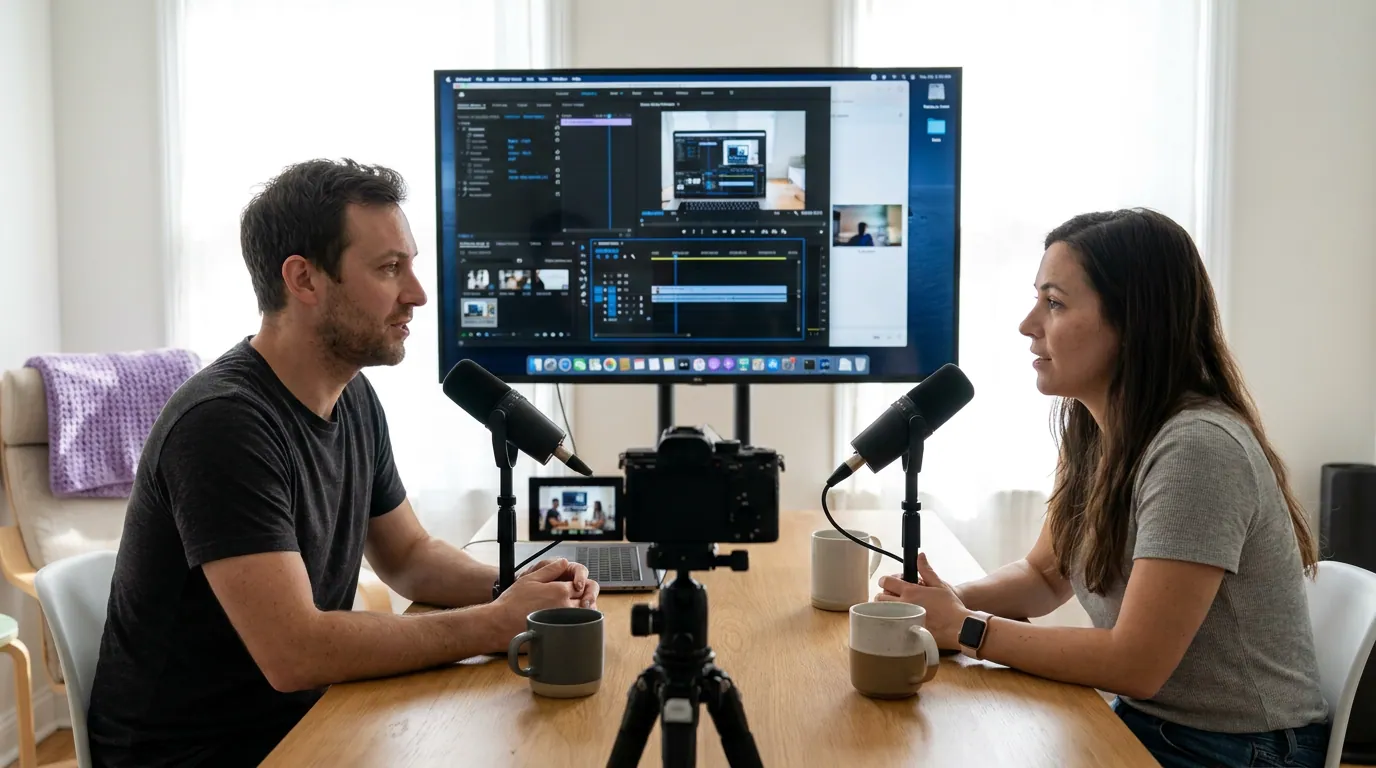
Three layouts for a screen-and-speaker moment
When the screen earns its place, you have three vertical layouts. Pick by what the viewer needs to see.
When two hosts are both on camera during the moment, the speaker-framing logic gets its own wrinkle, covered in how to frame two speakers in one vertical clip.
Common screen-share-clip mistakes
- Cropping a dense screen to vertical and calling it done. A spreadsheet or code editor built for a monitor becomes an unreadable strip at 9:16. Run the legibility test; rebuild the one number if it fails.
- Assuming the screen is the clip. Most screen-share moments are the host explaining the screen, the explanation travels, the screen doesn't. Default to face-only.
- Leaving the share-setup in. "Let me share, can you see this?" is dead air. Cut to the point; the clip is ten seconds shorter and tighter.
- Showing a five-minute demo as one clip. A long demo is a segment. Clip the 30–60 seconds where the thing actually works, the payoff, and rebuild the headline of what happened.
- Skipping captions because there's a visual. A screen-share clip is still watched on mute. Caption it, and keep the captions clear of the screen text so they don't collide.
The tools: by hand vs an AI clipper
By hand, a screen-share episode is the slowest source there is. You drop the MP4 into CapCut, Premiere, or DaVinci Resolve, scrub the full episode to separate talking-head moments from screen-share ones, manually reframe each speaker, then rebuild any screen text you want kept. Budget 30–60 minutes per finished clip, more if you're recreating a chart.
An AI clipper collapses the finding step: it transcribes the episode, surfaces candidate moments, reframes the active speaker to vertical, and auto-captions, so an hour becomes a batch of drafts you review instead of build. QuickReel does this, and so do alternatives like Opus Clip and Vizard. The honest framing: most modern tools detect roughly 80% of the same moments, the difference is how few clicks sit between your recording and a posted clip. One screen-share caveat that's specific to this source: AI clippers favor talking-head footage and under-surface screen-heavy demos, and none of them reliably rebuild tiny screen text, so check the screen-share stretches yourself and rebuild any number that fails the legibility test. Every clipper still needs 20–40% human review. It's an accelerant, not a replacement editor. For the review pass, see how AI clip detection actually finds the moment and how to pick the best AI-suggested clips.
FAQ
How do I make clips from a podcast that shares a screen? For each screen-share moment, decide whether the viewer needs to read the screen. If not, go face-only and let the spoken point carry the clip. If yes and the text is legible at phone size, stack the screen over the speaker; if yes but the text is tiny, rebuild the one number as large overlay text. Then caption and post.
Should I show the shared screen or the speaker in a vertical clip? Default to the speaker. Most screen-share moments are the host explaining what's on screen, and the explanation is what travels. Only show the screen when seeing it is the payoff, a live result, a before/after, and only if its text survives the legibility test.
How do I keep tiny on-screen text readable in a vertical clip? Apply the 4% rule: the smallest must-read text should be at least ~4% of the frame height (about 75 pixels on a 1920-tall clip). If it's smaller, don't crop the screen, retype the key number or line as large, clean overlay text over the speaker. It reads far better on a phone than the original.
Can I clip a live software demo from a podcast? Yes, but clip only the payoff, the 30–60 seconds where the thing works, not the setup. If the demo relies on tiny menu text or a moving cursor, cut it as a face-only reaction plus one rebuilt headline of what the tool did, rather than a cropped screen no one can read.
Will an AI clipper handle screen-share episodes automatically? Partly. It will transcribe, surface moments, reframe the speaker, and caption, but it favors talking-head footage, tends to miss screen-heavy demos, and won't rebuild tiny screen text. Review the screen-share stretches yourself and plan on a 20–40% human pass on any tool's output.
Related guides: turning a YouTube podcast into short clips, making clips from a Riverside recording, and making clips from an audio-only episode.