
How to Remove Pauses and Filler From Podcast Clips

Run a pacing pass with three separate targets: cut filler words ("um," "like," "you know"), remove dead air longer than about a second, and trim tangents that don't feed the payoff. Tighten pauses down to roughly 0.2-0.6 seconds, natural breathing room, and stop there. Cut tighter than 0.2 and the speech starts sounding clipped and robotic.
A clip with dead air isn't the same problem as a clip that's too long. Length is about which moment you keep; pacing is about the texture inside the moment you've already chosen. You can have a perfectly chosen 40-second clip that still drags because it's full of half-second silences, throat-clearing, and one tangent that goes nowhere. This is the pass that fixes that, and the line where tightening turns into damage. Below: the three targets, the pause-length thresholds for how tight is too tight, and how to smooth the jump cuts you create.
How do you remove pauses and filler from a video clip?
Edit on the audio, not the video. Open the waveform, find the flat silent stretches and the filler-word spikes, and delete them, most editors and AI tools can auto-detect both. Tighten remaining pauses to about 0.2-0.6 seconds, leave deliberate dramatic beats alone, and smooth the resulting jump cuts with a short cross-dissolve or a covering visual.
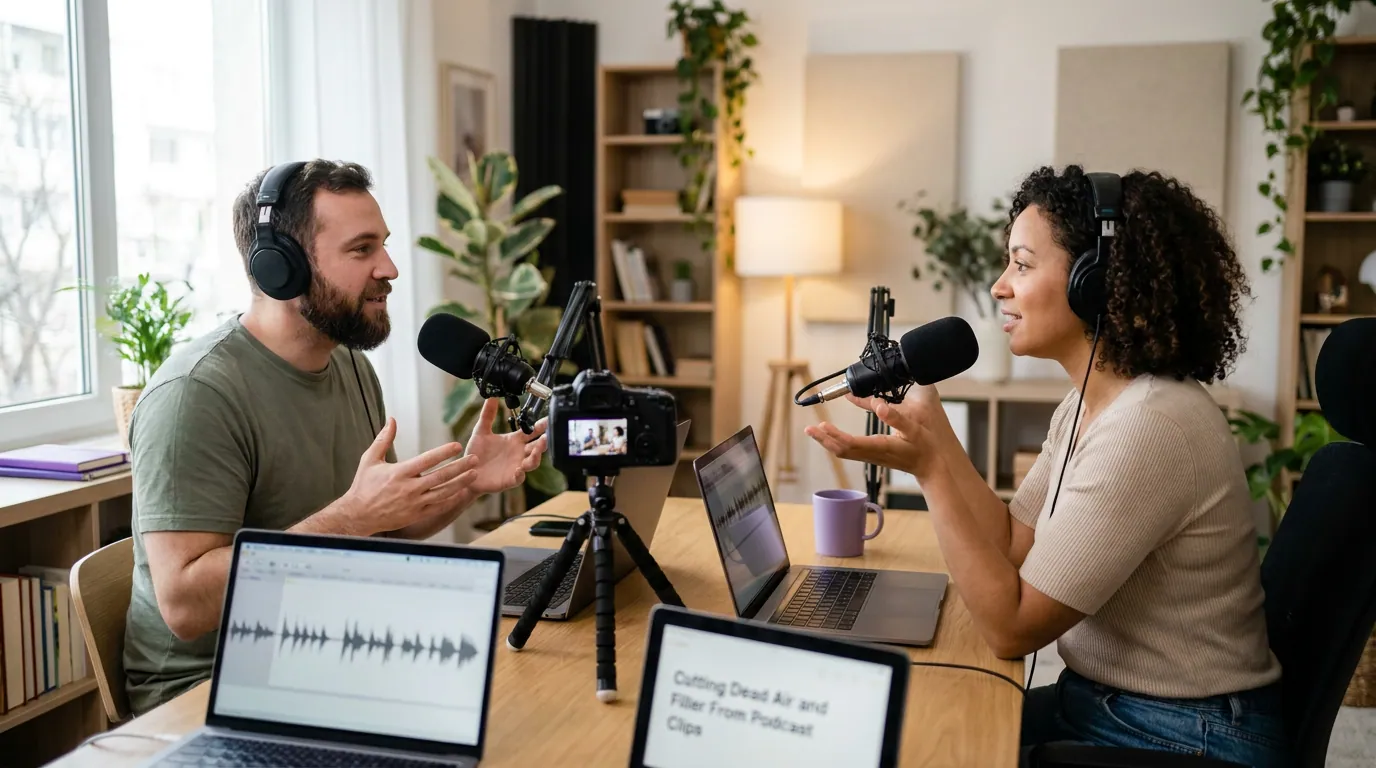
The waveform is the whole game. Dead air shows up as a flat line; filler words and breaths show up as small, low-energy bumps between the louder speech; the real content is the tall, dense stuff. Once you're looking at the waveform instead of the video, removing pauses stops being guesswork. You're deleting flat spots and small bumps and keeping the dense parts. The video follows the audio, and the jump cuts you create are a cosmetic problem you fix at the end, not a reason to leave the dead air in.

Why dead air and filler cost you the clip
A scroller decides in the first couple of seconds whether to stay, and watch-time, how much of the clip people actually finish, is what the feed rewards. Dead air and filler attack both. A slow, filler-heavy open gives the scroller an easy reason to leave, and every silent gap mid-clip is a moment someone's thumb starts moving again.
The cost compounds because most people are reading, not listening. A commonly cited figure puts roughly 85% of social video watched on mute (Digiday, directional; it traces to 2016 publisher data, and later studies range from about 69% to 85%). On mute, a one-second silence isn't a pause, it's a clip that looks frozen, captions stop, the face stops, and there's nothing to hold attention. And clips are often the front door to the whole show: one podcast studio, citing industry stats, puts 20-40% of new audience acquisition and 2-5x discovery-reach lifts on short clips for video shows (Podcast Studio Glasgow, directional ranges aggregated from third-party 2026 statistics, not a platform-wide audit). Pacing is how you protect that front door.
How tight is too tight? The pause-length thresholds
Too tight is below about 0.2 seconds between phrases, speech starts colliding and sounds robotic. The natural target is 0.2-0.6 seconds; that's breathing room, leave it. Pauses of 0.6-1.2 seconds slow the clip and can usually tighten toward half a second, and anything past 1.2 seconds is dead air worth removing.
This is where most filler-removal advice stops being useful, it tells you to "cut the silence" without saying how much. Cut too little and the clip still drags. Cut too much and speech sounds chopped, breathless, and slightly inhuman, the telltale sound of an over-zealous silence remover. Here's the range I edit to.
The simplest rule: tighten toward roughly half a second, not toward zero. Most editing tools that auto-remove silence default to leaving a small "padding" buffer around each cut, keep it set to about 0.15-0.25 seconds rather than zero, so speech keeps its natural rhythm. If you've ever heard a clip where the words slam into each other with no air, the padding was cranked too low.
The one threshold that overrides everything is the deliberate pause. A comedian's beat before the punchline, the silence after someone says something raw, those are the moments the clip exists for, and an automatic silence remover will happily delete them. Mark them, protect them, and let them run long.

How to run the pacing pass, step by step
- Pick the moment first, then pace it. Pacing won't save a weak clip. Choose the moment for its hook and payoff before you tighten anything, if you're not sure it's a strong one, start with how to pick the best AI-suggested clips. Pacing is the polish, not the selection.
- Switch to the waveform view. Look at the audio, not the picture. Flat lines are dead air; the small bumps between words are breaths and filler; the dense parts are content.
- Run filler and silence detection. Most AI clip tools and editors can auto-flag "um/uh" and silent gaps. Let it do the first pass, then review, auto-detection over-cuts and under-cuts in roughly equal measure.
- Delete filler and trim long silences. Cut the ums and false starts entirely. Tighten anything over ~1.2 seconds; nudge 0.6-1.2-second pauses down toward half a second; leave 0.2-0.6 alone.
- Protect the deliberate beats. Before you accept the auto-cuts, find the pause-before-the-punchline and the silence-after-the-hard-line and put any length back that the tool stole.
- Decide on the tangents. For any side story or caveat, ask: does the payoff still land without it? If yes, cut it. If it's the setup the payoff needs, keep it.
- Smooth the seams. Every cut you made is a jump cut. Decide how to handle each one (next section).
- Watch it cold, on mute. Play the finished clip with captions on and sound off, as a stranger would. If it feels rushed or breathless, you went too tight; add padding back. If it still drags, you left air in.
Smoothing the jump cuts you just created
Removing a chunk of speech leaves a visible jump, the speaker's head teleports slightly. You have three options, and the right one depends on the platform and the cut.
Leave the hard cut on TikTok, Reels, and Shorts. Jump cuts are the native grammar of short-form video, viewers read them as energy, not error, and chasing invisibility there wastes time. Add a short cross-dissolve of three to six frames when a single jump is jarring enough to pull focus, but don't dissolve every cut or the clip turns into a slideshow. Cover the cut with a punch-in (a small zoom that changes the framing across the seam), a piece of B-roll, or a caption word animating in exactly on the cut, the eye follows the motion and never registers the jump. The caption-pop trick is the cleanest: it does double duty since you're captioning anyway.
Common mistakes when cutting filler and dead air
Setting silence padding to zero. This is the number-one cause of robotic-sounding clips. Auto-remove tools let you keep a buffer around each cut, leave it near 0.15-0.25 seconds. Zero padding makes words collide and removes the breath that makes speech sound human.
Deleting the deliberate pause. Silence detection can't tell a dramatic beat from dead air. The pause before the punchline and the silence after a vulnerable line are the most powerful seconds in many clips. Protect them by hand before accepting the auto-cuts.
Cutting tangents that were the setup. Not every digression is filler. If the payoff stops making sense once you remove a side point, that "tangent" was load-bearing, this is the same story-break logic covered in where to cut when a clip is too long. Cut a tangent only when the punchline survives without it.
Confusing dead air with bad audio. A flat, low-level hum between words isn't silence, it's room noise, and tightening the gaps won't fix the underlying problem. If the clip sounds hollow or noisy even after pacing, the fix is cleanup, not cutting: see how to remove background noise from clips.
Pacing a clip that was never going to work. A tight edit of a boring moment is still boring. If a clip falls flat after a clean pacing pass, the problem is upstream, static framing or a weak hook. Work through why your podcast clips get no views and the movement fixes for boring clips before blaming the pacing.
Which tools handle this for you
Filler removal and silence cutting are among the most automatable parts of editing, and most AI clip tools do a real first pass. The honest caveat: auto-detection catches the obvious "ums" and the long gaps, but it mis-reads deliberate beats as dead air and occasionally clips a word too tight. Plan to review, every AI editing pass still needs a human eye on the result.
QuickReel detects the moment, auto-captions it, and trims the obvious dead air as part of generating the clip, so you start from a roughly paced cut rather than raw scrubbing. From there you protect the dramatic beats, set the padding to taste, and smooth the seams, usually a couple of minutes per clip. If you want to understand why the AI chooses the cut points it does so you can predict where it'll over-trim, how AI clip detection actually works explains the mechanics. The judgment about which silence is a beat and which is dead air stays yours; that's the part the model can't feel.
FAQ
How do I remove silence from a podcast video clip? Edit on the audio waveform: flat stretches are silence. Use an auto silence-remover or delete the gaps manually, tightening pauses to about 0.2-0.6 seconds rather than zero. Keep a small padding buffer around each cut so speech sounds natural, and leave deliberate dramatic pauses alone.
How tight is too tight when cutting pauses? Below about 0.2 seconds of pause, speech starts sounding clipped and breathless, that's too tight. The natural target is 0.2-0.6 seconds between phrases. Anything over roughly 1.2 seconds is usually dead air worth removing, with one exception: a deliberate pause before a punchline or after a heavy line is content, and it earns its length.
Should I remove every "um" and "like" from a clip? Cut the filler that carries no meaning, false starts, "um," "uh," repeated "like" and "you know." But don't sterilize natural speech; an occasional "like" or a real breath keeps the speaker sounding human. The goal is a clip that flows, not one that sounds like a teleprompter read.
How do I fix the jump cuts left after removing dead air? Three options. On TikTok, Reels, and Shorts, leave the hard cut, jump cuts are native there. For a jarring single cut, add a three-to-six-frame cross-dissolve. To hide a cut completely, cover it with a small punch-in zoom, B-roll, or a caption word that animates in exactly on the seam.
Can AI cut the filler and pauses automatically? Yes, mostly. AI clip tools auto-detect long silences and filler words and trim them as a first pass. They're reliable on the obvious stuff but tend to flatten deliberate pauses and occasionally over-tighten, so review every clip, protect the dramatic beats and check the padding before you post.