
Audio Out of Sync in Your Clips: Causes and Fixes

Audio out of sync after exporting a clip is almost always one of three problems, and they need different fixes. A constant offset (the audio is always the same amount early or late) is a one-nudge fix. Progressive drift (sync is fine at the start and worse by the end) is a frame-rate mismatch and needs a re-export, not a nudge. An upload re-encode only shows up on the platform. Test before you fix.
The reason people burn an afternoon on this is that they reach for the same fix every time: drag the audio a few frames and re-export. That works for exactly one of the three causes. For the other two it does nothing, or it makes the start look right while the end falls apart. Five seconds of diagnosis saves you the cycle of nudge, export, watch, repeat.
What's actually causing the lip sync to be off?
Sync problems split into three buckets by behavior, not by feel. The fastest way to tell them apart is to watch where the mismatch lives across the clip. Constant offset is the same gap from first frame to last. Progressive drift starts tight and widens. A re-encode artifact is invisible in your editor and appears only after the platform processes the upload.
Each bucket has a different root cause. Knowing which you have tells you exactly which fix to run, and which fixes to skip.
Why this matters more on a clip than a full episode
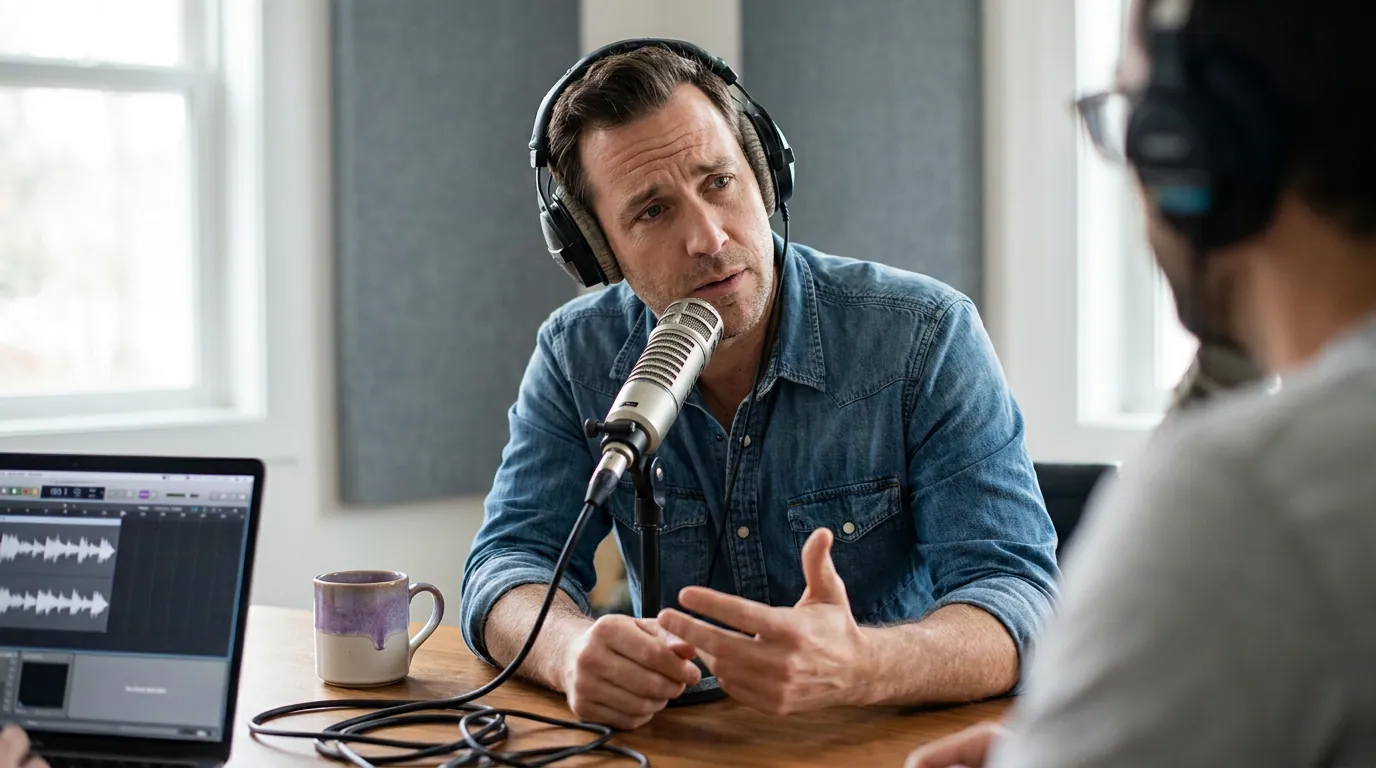
A half-second of drift in a 45-minute episode is a minor irritation; the same half-second in a 20-second clip is the whole thing. Clips are where most people meet your show, and they are unforgiving. Short-form podcast cut-downs now fill every feed, so a viewer's feed is full of competent alternatives a thumb-flick away, and a clip that reads as broken loses them instantly.
Out-of-sync lips read as broken before a single word lands. And because most social video is watched on mute, a widely repeated publisher estimate from Digiday (2016, publisher-reported, roughly 85%), many viewers will scroll past your captioned clip and never notice the audio is the problem. They just feel that something is off and keep moving.
The clap test: which of the three do you have?
Run this before you touch anything. Find a sharp, transient sound in your clip, a clap, a desk tap, a hard consonant like a "p" or "t," or the click of a mug on a table. Scrub to that exact frame and check whether the sound lands when the visual action does. Then check the same kind of sound near the end of the clip. Two data points, start and end, name the cause.
Fix 1, Constant offset (the audio is always early or late by the same amount)
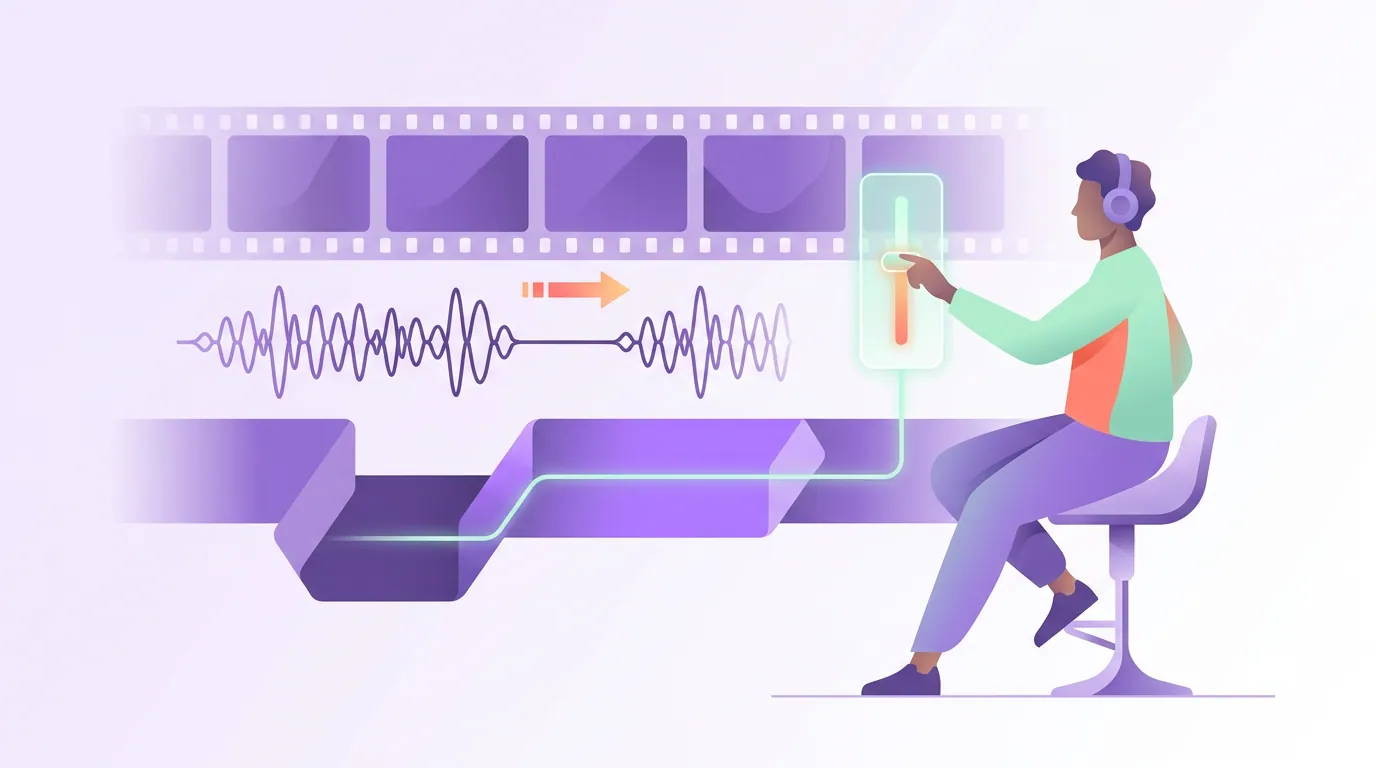
If the gap is identical at the start and the end, you have a fixed offset. This is the only case the standard "nudge the audio" advice solves, and it solves it completely. Move the audio track against the video by the offset amount, usually a handful of frames, and re-export. Earlier audio means slide it later; lagging audio means slide it earlier.
A constant offset typically comes from a recording setup where audio and video were captured on separate devices, or from a delay introduced by Bluetooth headphones or a streaming bridge during recording. The fix is mechanical once you measure it. Count the frames between the sound and the visual at one transient, shift the whole track by that count, done.
Fix 2, Progressive drift (sync is fine at the start, off by the end)
If the start is tight but the end has visibly slipped, do not nudge, you'll just move where the clip is wrong. This is a frame-rate mismatch: your source was recorded at one rate (commonly 29.97, 30, or a variable rate from a phone) and the project or export is treating it as another (often 25 or a clean 30). The audio plays at true speed while the video frames accumulate a tiny error every second until the gap is obvious.
The fix is to make the export frame rate match the true source frame rate. Check your source file's actual fps, set the project and export to that exact value, and render again. Variable-frame-rate phone footage is the usual culprit, converting it to a constant frame rate before editing removes the drift at the root. A single nudge can never fix drift, because the error grows; you'd need a different nudge at every second.
Fix 3, Upload re-encode (perfect in your editor, off only after posting)
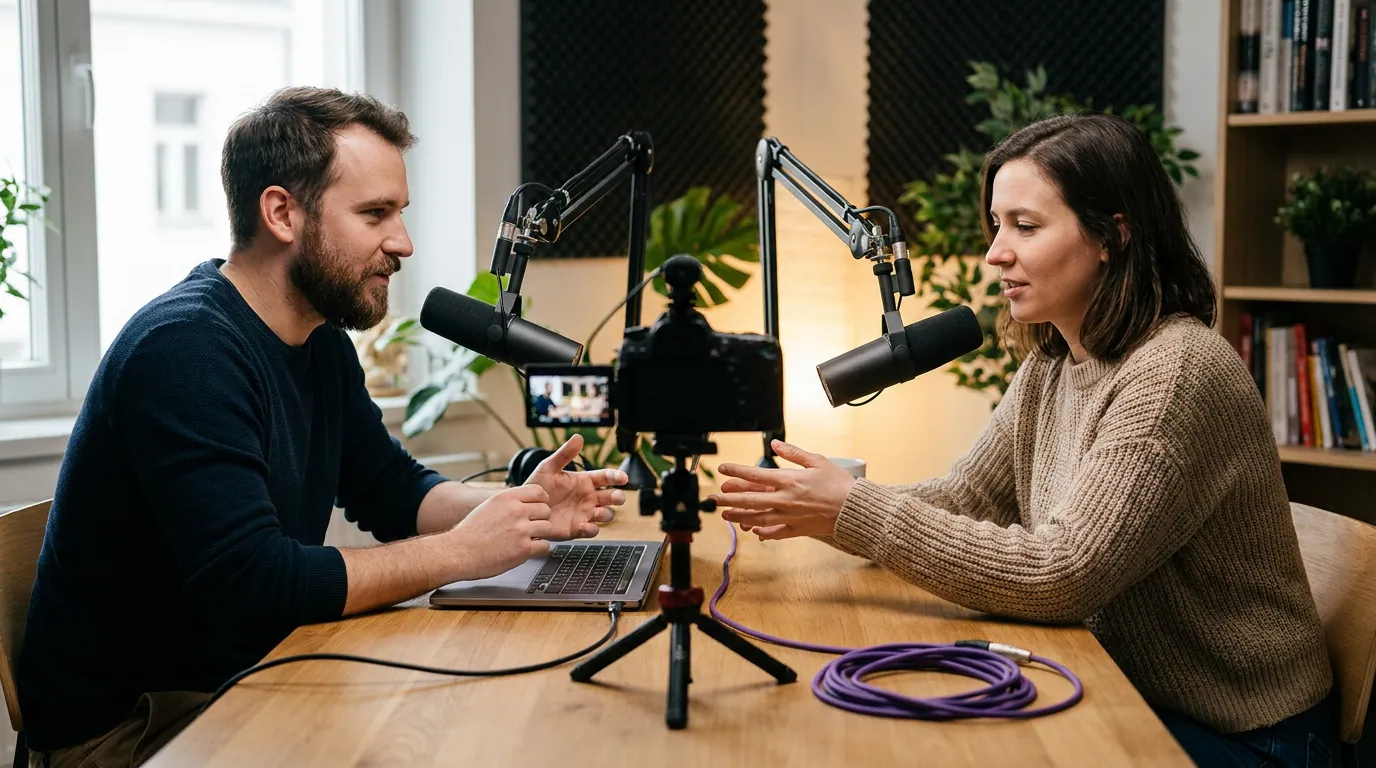
If the clip is dead-on in your editor and only drifts after the platform processes it, the problem happened during the platform's re-encode, not in your file. Instagram, TikTok, and YouTube all transcode what you upload, and a file with an unusual frame rate, a variable frame rate, or an oddly muxed audio stream can come out of that process with the audio shifted.
The fix is to give the platform a file it doesn't have to fight. Export to the platform's recommended spec: H.264 video, AAC audio, a constant frame rate (30 fps is the safe default for most short-form), and standard vertical dimensions. A clean, conventional export survives the re-encode intact far more often than a high-bitrate or variable-rate file. If you're also wrestling with dimensions after upload, the companion case is in clip exported in the wrong aspect ratio.
Common mistakes when fixing audio sync
Nudging before testing. The single most common mistake. A nudge fixes a constant offset and nothing else. Run the clap test at the start and end first, then nudge only if the gap is constant.
Treating drift like an offset. If you nudge a drifting clip until the middle looks right, the start and end are now both wrong in opposite directions. Drift needs a frame-rate fix, not a position change.
Ignoring variable frame rate. Phone and screen-recording footage is frequently variable-frame-rate, which most editors silently mishandle. Convert it to a constant frame rate before you cut, and two of the three problems disappear.
Judging sync on a laptop preview only. Editor playback can drop frames under load and fake a sync problem that isn't in the file, or hide one that is. Verify on an exported file, and for the re-encode case, verify on the actual platform after posting.
Re-fixing every clip instead of the source. If your full episode drifts, fix it once at the episode level before cutting, so every clip inherits clean sync. The same principle applies to fixing caption accuracy, correct upstream and the fix propagates.
FAQ
Why is my audio out of sync only after I export, not in the editor? Your export settings don't match the source. The most common version is a frame-rate mismatch that produces progressive drift, fine at the start, worse by the end. Set the export frame rate to the source's true fps and re-render. If it's perfect on export but off only after uploading, it's a platform re-encode, fixed by exporting a clean H.264/AAC platform-spec file.
How do I know if it's a constant offset or drift? Check a sharp transient sound at the start of the clip and another near the end. If the gap between sound and visual is the same at both points, it's a constant offset, nudge the audio. If the gap is wider at the end than the start, it's progressive drift from a frame-rate mismatch, which a nudge cannot fix.
My lip sync is off in a Reel but the file looks fine. What happened? Instagram re-encoded your upload and the transcode shifted the audio, usually because the file had a variable or unusual frame rate. Re-export at a constant 30 fps with H.264 video and AAC audio at standard vertical dimensions, then re-upload. A conventional file survives the platform's processing intact far more reliably.
Does a nudge ever fix drift? No. Drift grows across the clip, so any single nudge is correct at one moment and wrong everywhere else. Only a constant offset, the same gap throughout, is fixable by moving the audio. Drift requires matching the export frame rate to the source.
Can bad source audio cause sync problems? Sync and clarity are separate problems. A muddy or noisy recording won't drift on its own, but it makes the clap test harder because transients are buried. If audio quality is the real issue, that's a different fix, see working with noisy podcast audio.
If your clips are technically clean but still underperform, sync is rarely the only factor. Choosing the right moments matters as much as exporting them correctly, see how to pick the best AI-suggested clips and fixing bad AI clip cut points. And if the views just aren't coming, work through why your podcast clips get no views before blaming the audio.