
What a Podcast RSS Feed Is and Why It Matters


A podcast RSS feed is a single text file, written in XML, that your host publishes at one web address and keeps updated. Every podcast app reads that one file to display your show: the title, the artwork, every episode, and the audio. You never upload to Apple or Spotify directly. You publish to your host, your host updates the feed, and every app that has the feed's URL pulls in the change on its own.
That last part is the whole reason RSS matters, and it's the part most beginners miss. Apple Podcasts, Spotify, Amazon Music, Overcast, Pocket Casts, they don't store your show. They store a subscription to your feed. Change one thing in the feed and it propagates everywhere within a few hours. Lose control of that feed URL and you can lose your audience overnight. Below is how the whole system works, what each required piece of the feed does, and the one setting that protects you from your host.
What is a podcast RSS feed, exactly?
A podcast RSS feed is one machine-readable file, written in a format called XML, that lists your show's details and every episode in a structure podcast apps know how to read. RSS stands for "Really Simple Syndication." Your hosting platform generates this file automatically and serves it at a fixed URL, that URL is your podcast, as far as the apps are concerned.
Think of the feed as the master record and the apps as windows looking at it. Apple Podcasts doesn't hold a copy of your episodes; it holds your feed URL and checks it on a schedule. When it sees a new
You almost never touch the raw file by hand. You fill in fields in your host's dashboard, title, description, artwork, episode audio, and the host writes the XML for you. But knowing what's in it tells you why certain things break, and why a few settings matter far more than they look.
How a podcast RSS feed actually works, step by step
Here is the full chain from recording to a listener pressing play. None of it requires touching code.
- You publish to your host. You upload an episode's audio and metadata to your hosting platform (RSS.com, Buzzsprout, Spotify for Creators, Transistor, and so on). For a genuinely free way to do this, see our guide to starting a podcast for free.
- Your host updates the feed. The host regenerates the XML file at your feed URL, adding a new
- You submit the feed once per directory. The first time only, you paste your feed URL into Apple Podcasts Connect, Spotify for Creators, Amazon Music, and YouTube. Most hosts offer one-click submission so you don't copy-paste URLs at all.
- Apps poll the feed on a schedule. Each directory rechecks your feed periodically, Apple typically every few hours. When it sees a new item, it lists the episode. You do nothing.
- Listeners stream or download. The app reads the
The reason this matters in practice: you publish in one place and your work shows up in a dozen. You never log into Apple to add an episode. That is the entire value of RSS, submit once, update once, appear everywhere.
What's inside the feed: the required tags and what each one does
A podcast feed has two layers. Channel-level tags describe the whole show and appear once. Item-level tags describe a single episode and repeat for every one. Apple Podcasts publishes the canonical requirements, and a feed that's missing a required field will be rejected or display wrong (Apple Podcasts feed requirements).
The few that cause the most trouble for beginners:
You set every one of these through your host's form fields. The host writes the tags. You just need to know which ones are non-negotiable.
Why owning your RSS feed protects you from host lock-in
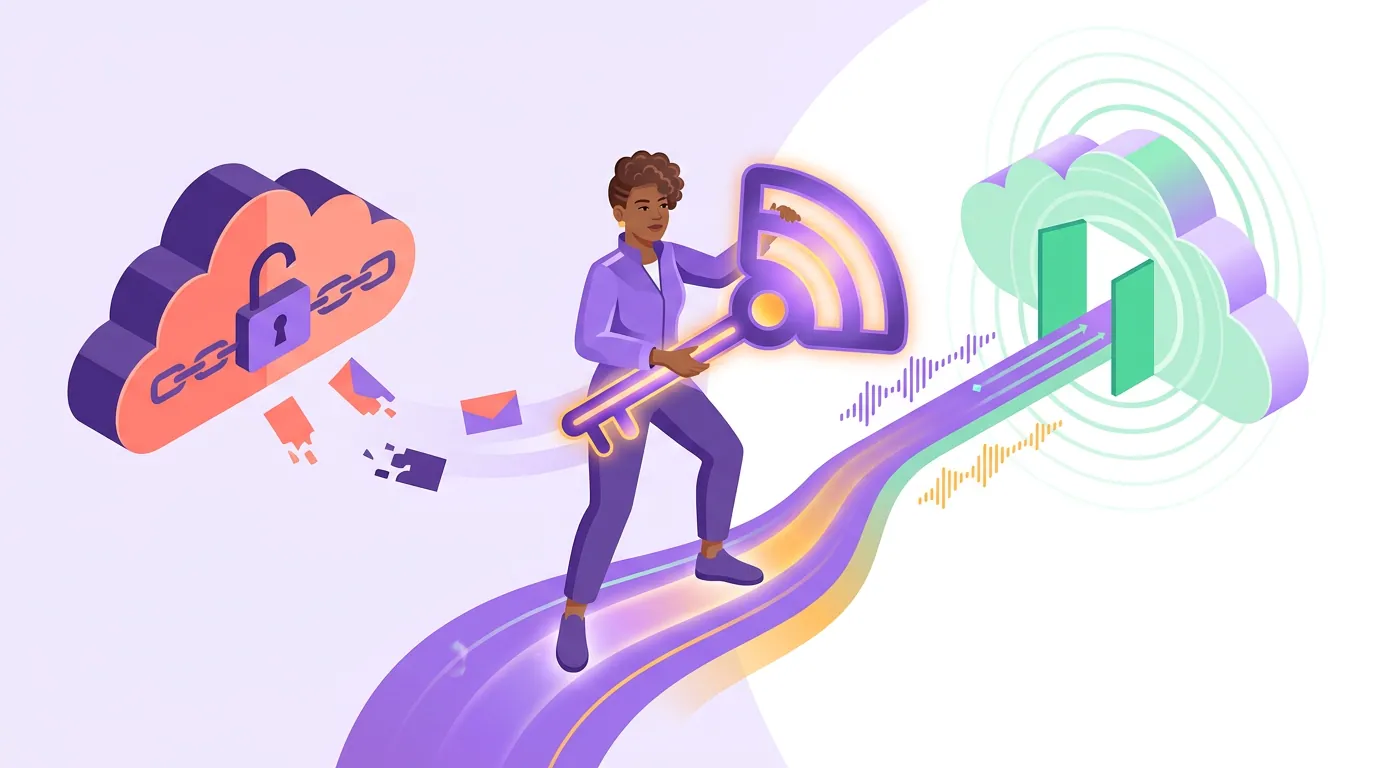
Owning your feed protects you because your audience subscribes to a feed URL, not to you, so whoever controls that URL controls your listeners. If the URL belongs to your host and you ever want to leave, your subscribers can be stranded on the old address, while the new host's feed is a different URL that apps treat as a brand-new, zero-subscriber show. This is the most important idea on the page, and the part most beginners miss.
Two settings decide whether you're free or stuck:
- A redirect. Reputable hosts let you set a 301 redirect that forwards your old feed URL to a new one. When you migrate, this tells every app "the feed moved here," and existing subscribers follow automatically. A host that won't give you a redirect can hold your audience hostage. Ask whether a host offers feed redirects before you sign up.
- Stable GUIDs. Each episode's
The practical rule: before you commit to any host, confirm two things, you can export or redirect your feed, and you keep your GUIDs. If both are yes, you're never locked in. If either is no, you're renting your audience. For more on choosing the host itself, our step-by-step plan to launch your first podcast walks through it.
About 47% of podcasts stop at three episodes or fewer Amplifi Mediapodfade analysis; we break the number down in our podfade statistics study), so the feed-portability question feels abstract at first. It isn't. The shows that survive are the ones that eventually outgrow their first host. When that day comes, the difference between a clean migration and losing your subscribers is the two settings above, set, or not set, on day one.
Common RSS feed mistakes that beginners make
- Treating the apps as the source of truth. They aren't. Your host's feed is. Fix problems at the feed, not in each app.
- Using non-square or undersized artwork. Apple rejects feeds outside 1400–3000px square. Check before submitting (Apple Podcasts requirements).
- Choosing a host with no feed redirect. This is the lock-in trap. Confirm a 301 redirect exists before you publish episode one.
- Editing the feed XML by hand. Unless you really know XML, do everything through the host dashboard. A single malformed tag can knock the whole feed offline.
- Submitting before the feed is finished. Set your title, category, explicit flag, and artwork before you push the URL to Apple. Some fields are slow to update once you're live.
- Not budgeting for hosting. Free hosting exists, but feed-portability features often sit behind paid tiers. See how much it really costs to start a podcast for where the money actually goes.
FAQ
Where do I find my podcast's RSS feed URL?
Your hosting platform shows it, usually in the dashboard under a "Distribution," "RSS," or settings menu, often labeled "RSS feed" or "feed URL." It's a normal web address ending in something like /feed or .xml. Copy that link; it's what you paste into Apple Podcasts and Spotify the first time you submit your show.
Do I have to create the RSS feed myself?
No. Your host generates and maintains the feed automatically. You fill in fields, title, artwork, episode audio, show notes, and the host writes the underlying XML. You only need to understand the feed's contents to know why certain settings matter, not to build it by hand.
Can I move my podcast to a new host without losing listeners?
Yes, if your current host supports a 301 feed redirect and preserves your episode GUIDs. The redirect forwards your old feed URL to the new one so existing subscribers follow automatically, and stable GUIDs stop apps from re-downloading your back catalog (Buzzsprout). Confirm both before you switch.
What's the difference between my RSS feed and my Apple or Spotify listing?
Your RSS feed is the single source, one file your host publishes. Your Apple Podcasts and Spotify listings are just views of that feed; both apps read the same file and display it. Change the feed and both listings update. The apps never hold your show; they hold a subscription to your feed URL.
How often do podcast apps check my feed for new episodes?
It varies by app, but most recheck every few hours; Apple Podcasts typically polls within a few hours of you publishing. You don't trigger it, the apps poll your feed on their own schedule. If an episode is slow to appear, it's usually the app's refresh cycle, not a problem with your feed.