
Speaker Looks Too Small in the Clip? Reframe for Mobile


When the speaker looks too small in a clip, the head is filling too little of the vertical frame, so on a phone the face reads as a distant dot instead of a person talking to you. Punch in, crop tighter on the speaker, until the head fills roughly a quarter to a third of the frame height. Then check one thing before you export: whether the zoom has gone far enough to soften the picture. Past a point, digital punch-in trades "too small" for "too blurry," and blurry usually loses.
That trade-off is the whole article. A wide podcast shot looks fine on a desktop monitor and fails on a phone, because the phone screen is small and the viewer is scrolling fast. They decide in the first second whether a face is worth stopping for, and a tiny, far-away head does not earn the stop. The fix is punching in. The catch is that you are punching in digitally, throwing away pixels, so there is a hard limit set by your source resolution. Below is the head-height rule that tells you how far to go, the resolution math that tells you how far you can go, and what to do when those two numbers conflict.
Why does the speaker look so small once the clip goes vertical?
The speaker looks small because a vertical clip uses only a narrow strip of a wide recording, and if you sat back from the camera, that strip catches a lot of room and not much of you. A 16:9 podcast frame is wide; a 9:16 clip is about a third as wide. Whatever the wide shot put in the middle is what the vertical clip shows, and a distant host with empty space around them stays distant and small.
There are really two separate distances at play. The first is physical: how far you sat from the camera when you recorded. The second is the crop: how tightly the vertical frame is drawn around you. A close, well-framed wide shot gives the cropper plenty of head to work with. A wide-angle lens in a big room, with the host sitting back, gives it a small head adrift in furniture. Most auto-reframe tools find the face and center it, but centering a small face does not make it bigger, it just puts the small face in the middle. You have to tell the tool, or yourself, to punch in. When the box keeps centering on the wrong thing entirely, that is a different reframe problem with its own fix.
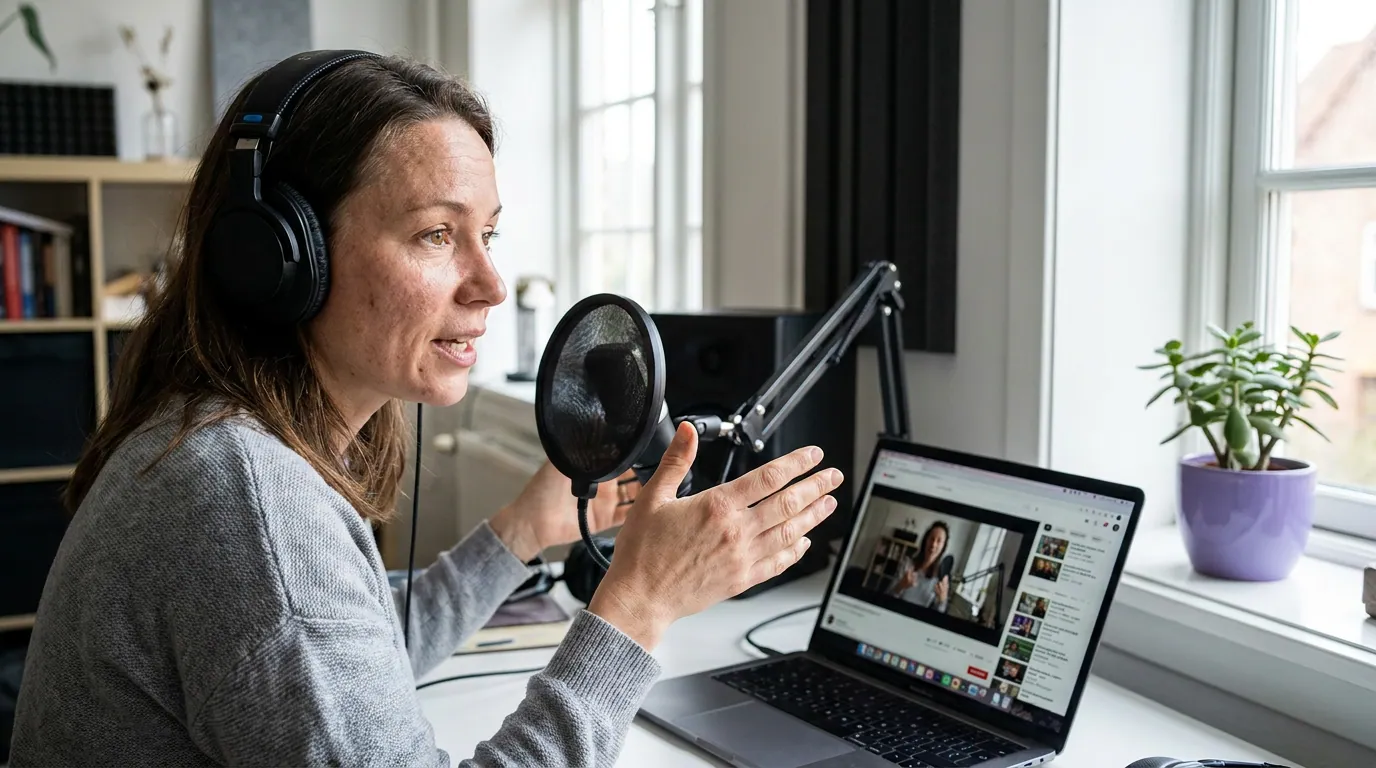
The head-height rule for mobile
Here is the rule worth memorizing: on a vertical clip, the speaker's head should fill roughly 25-33% of the frame height. That is the band where a face reads as present and intimate on a small screen without feeling claustrophobic. Below about 20%, the head is a thumbnail and the clip feels like security-camera footage. Above about 45%, you are in extreme close-up, fine for a single punchy line, tiring for a forty-second clip.
Why this band and not "fill the frame"? Because the clip has to share that frame. Captions live in the bottom fifth, the platform stacks its buttons and username over the edges, and the eye wants a little air around a face. A head at 28% leaves room for all of that and still feels close. This is the inverse of the faces-getting-cut-off problem: there the head is too big or too low and gets chopped; here it is too small and gets lost. Same frame, opposite failure.
The punch-in budget: how far you can zoom before it softens
Punching in on a clip is digital zoom. You are cropping a smaller region of the source and stretching it to fill the export, and stretching means inventing pixels. The honest limit depends entirely on how many real pixels the source had. The number that catches people out: a vertical clip exports at 1080 × 1920, and 1920 pixels of height is taller than most footage's height. So even a baseline vertical crop is often already enlarging the source before you punch in at all.
The arithmetic is straightforward. Take the full height of a vertical strip from your source, divide the export height (1920) by it, and that ratio is how much the picture is being scaled. Below 1.0 you are shrinking the picture (sharp). Above 1.0 you are enlarging it, and softening creeps in as you climb. On a phone, modest enlargement up to roughly 1.25× is hard to notice; past that, edges go mushy.
Run that ratio for each source and the headroom story is stark. A 4K source is 2160 px tall, so even the widest full-height crop shrinks it (1920 ÷ 2160 = 0.89×), you start with margin. A 1080p source is only 1080 px tall, so just filling the vertical frame already enlarges it to 1.78×, past the 1.25× comfort line before you punch in at all. A 720p source starts at 2.67×. That is the non-obvious part most "just zoom in" advice skips: on a 1080p source your sharp punch-in budget is not small, it is already spent.
Read that chart as the practical ceiling. A 4K source gives you genuine room: you can punch in past the baseline and still stay sharp, which is why 4K is the single best insurance against the too-small problem. A 1440p source is roughly break-even, you can punch in a little. A 1080p source is already being enlarged just to fill a vertical frame, so any punch-in on top of that pushes you into visible softness fast. A 720p source has almost no room at all. None of this is a flaw in the editor; it is what it costs to enlarge a picture that does not have the pixels. When the enlargement is what is hurting you, the symptoms overlap with a soft or low-resolution export, and the diagnostic there helps you tell punch-in softness apart from export softness.

The decision rule when "big enough" and "still sharp" fight
The real skill is what to do when the head-height rule says "punch in more" and the resolution budget says "you are out of pixels." The answer depends on two things: whether the problem hits every clip or only some, and how good your source is.
If only some clips look small, just punch in on those, you have the pixels, the problem was the crop. If every clip looks small, the cause is upstream: you sat too far from the camera, and no crop fixes that for the episode already recorded. With a 4K source you can still punch in your way out this time, then sit closer next session. With a 1080p source that is already small, you face the honest trade-off, and the rule is that a slightly-too-wide sharp shot beats a punched-in mushy one. Viewers forgive a head at 22% far more readily than they forgive smeared edges.
Common mistakes that leave speakers tiny or soft
- Treating "center the face" as "make the face bigger." Auto-reframe centers; it does not zoom unless told to. A centered small head is still a small head. Punch in deliberately.
- Punching in past the pixels on 1080p footage. This swaps one problem for a worse one. Most social video is watched on mute and judged on the visual alone, Digiday reported around 85% of Facebook video was watched silent (Digiday, 2016, publisher-reported and directional), so a soft, smeary face has nothing else carrying it. Stay inside the budget.
- Recording wide-angle in a big room with the host sitting back. This bakes the too-small problem into every clip. A wider lens plus distance is the exact recipe for a distant head adrift in furniture.
- Going to extreme close-up to "look professional." A head at 55% reads as intense for one line and exhausting for forty seconds. The 25-33% band exists because clips are watched in full, not as a single frame.
- Judging size on a desktop monitor. A head that looks fine on a 27-inch screen can vanish on a phone. Check the size where it will be watched, on a phone, at arm's length.
Record so you never have this problem again
The cheapest fix is the one that costs nothing in pixels: sit closer and shoot sharper. Set the camera so a single host already fills a healthy share of the wide frame, and the vertical crop inherits a big head for free, no digital zoom required. If you shoot 4K, you keep punch-in headroom in reserve for the moments you want tighter. As Podcast Studio Glasgow argues, treating clips as a production output from day one beats rescuing footage that was never framed for them.
Two hosts who sit far apart create a related headache, you cannot punch in on both at once, which the two-speaker vertical framing guide handles directly. And once the speaker is the right size and sharp, a static clip still needs energy; adding movement to clips that feel flat is the next thing to fix.
FAQ
Why does my speaker look tiny on the phone but fine in the editor? Because the editor shows the full picture and the phone shows it small, at arm's length, while the viewer scrolls. A head that fills 15% of the frame looks acceptable on a big monitor and reads as a distant dot on a phone. Punch in until the head fills 25-33% of frame height, and check it on an actual phone.
How far can I zoom in on a speaker before the clip gets blurry? It depends on your source resolution. A 4K source has real headroom, you can punch in well past the baseline vertical crop and stay sharp. A 1080p source is already being enlarged just to fill a vertical frame, so usable punch-in is small. Past roughly 1.25× enlargement on a phone, softening becomes visible.
Should I punch in or just re-record closer? If only some clips are too small, punch in, the pixels are there. If every clip is too small, you sat too far back. Punch in this time if the source is 4K, then sit closer next session. On a 1080p source that's already small, leave the shot slightly wider rather than ship a soft close-up.
Is a too-small speaker why my clips get no views? It can be part of it. A distant face fails the one-second scroll test, and that is one of several issues behind clips that quietly get no views. Framing alone won't carry a weak moment, but a tiny head will sink even a good one.
Can AI auto-reframe make the speaker bigger automatically? It can track and center the speaker, and many tools punch in toward the face by default, but the framing still needs a human eye, auto-reframe can sit too wide or too tight depending on the shot. How AI clip detection actually works covers where the tooling helps and where you still need to check the size yourself.