
Best Auto-Reframe Tools for Vertical Video (2026)

For multi-speaker podcasts and interviews, Opus Clip's ReframeAnything tracks the active speaker most reliably across cuts, with Vizard and Choppity close behind on two-person shots, and QuickReel best when you want tracked clips plus captions and scheduling in one pass. Adobe Premiere Pro gives you manual override but more cleanup. For a single talking head, almost any of them works, the differences only show up when two people start talking.
Most "best auto-reframe tool" roundups rank these on price, export resolution, or how many viral clips they spit out. None of that tells you the one thing that ruins a vertical clip: a crop box that drifts off the speaker, jitters at a cut, or chops half a face. So that is the only thing this test measures. I ran the same horizontal two-person interview through every tool and scored each on how well it tracked who was talking and kept faces centered, a single, side-by-side comparison, on a rubric you can repeat.
How auto-reframe actually fails (and why this test exists)
A reframer crops a wide 16:9 video down to a tall 9:16 frame, and the whole job is where it puts that crop box. A dumb cropper takes the center column and never moves it, so the moment your speaker leans or walks, they slide out of frame. A real auto-reframer moves the crop box to follow the subject (Choppity, Automated Framing). The hard version is a two-person podcast: the tool has to figure out who is speaking and pan to them when the conversation switches, without lurching or locking onto the wrong face.
This matters because of where these clips go. Most social video is watched on mute and in a vertical feed, Sharethrough research found roughly 75% of people often keep their phone muted while a video plays, and Digiday put Facebook's muted-autoplay share near 85% back in 2016 (publisher-reported, directional). If the face is off-center or cut in half, you have already lost the scroll before a caption can save you. Framing is not cosmetic; it is the first thing the eye checks.
The reframe-accuracy scoreboard
Here is the core result: each tool's accuracy on one identical source clip, a 12-minute two-host interview with movement, one walk-off, and frequent back-and-forth. I scored five things, 20 points each, for 100 total.
| Tool | Reframe score (our test) | Entry price (verify live) |
|---|---|---|
| Opus Clip | 88 / 100 | Free (watermarked); Starter $15/mo, Pro $29/mo |
| Vizard | 83 / 100 | Free (60 credits/mo); Creator paid (no watermark) |
| Choppity | 81 / 100 | Free reframe tool; Starter $19/mo |
| QuickReel | 80 / 100 | Free to start; Starter $9/mo |
| Kapwing | 72 / 100 | Free (watermark); Pro $16/mo annual ($24 monthly) |
| VEED | 70 / 100 | Free (watermark); Lite ~$12/mo, Pro ~$24/mo (annual) |
| Adobe Premiere Pro | 68 / 100 | Creative Cloud subscription (~$23/mo) |
Pricing checked against each vendor's page in June 2026; SaaS prices move, so confirm before buying. Premiere scores lowest on automatic accuracy but is the only tool where you can keyframe a fix by hand, which is its real value.
How we evaluated
I run QuickReel's clip-quality benchmarks and have edited thousands of short-form clips, so I built this test to isolate one variable: framing, not detection or price. I fed every tool the same 12-minute horizontal two-host interview, exported a 9:16 vertical from each at default settings, and scored five things on the timeline.
- Active-speaker accuracy (20). When the conversation switched, did the frame land on the person actually talking?
- Face centering (20). Across the clip, how often was a face properly framed versus cropped at the chin, forehead, or edge?
- Cut stability (20). At scene cuts and speaker switches, did the crop settle cleanly or snap to the wrong place first?
- Jitter and whip (20). Did the crop box drift, vibrate, or whip across the frame when someone moved?
- Manual fixability (20). When the AI got it wrong, how easily could you correct it?
One thing to say plainly: there is no published, apples-to-apples speaker-tracking benchmark for these tools, I checked, and the public numbers floating around are caption-accuracy figures, not framing scores. So this is a single hands-on test on one representative clip. It is directional, not a lab result. Run your own footage before you commit money; your camera setup will move the numbers.

1. Opus Clip, best active-speaker tracking
Best for: two-person podcasts and interviews where the frame needs to follow whoever is talking, hands-off.
Opus Clip's reframe model, ReframeAnything, was the cleanest in the test on the hardest scenes. It uses speaker diarization to identify distinct voices and faces, then offers an "Active Speaker" layout that cuts to whoever is talking, or a "Split Screen" layout that stacks both speakers vertically (Opus Clip, AI Reframe). On the back-and-forth sections it landed on the right person consistently and panned smoothly when the conversation switched; it also tracked the one walk-off without losing the subject. It lost points only on a couple of overlapping-talk moments where it hesitated before committing.
The honest cons: moving-object tracking and genre-specific reframing are gated above the free tier, and the free plan watermarks exports that expire after three days, so the real product starts at the $15 Starter or $29 Pro tier (Opus Clip pricing). And accuracy falls off with three or more speakers, panel discussions can still misframe, with manual adjustment as the fallback. If clipping plus this reframe is your whole job, it is the strongest automatic tracker here; see Opus Clip alternatives if the price or watermark is a sticking point.
2. Vizard, strong multi-speaker, broad formats
Best for: interview and panel clips where you want cinematic framing and multi-language captions in the same pass.
Vizard was a half-step behind Opus on the two-shot and roughly even on face centering. It prioritizes faces and the primary subject and reorganizes the frame for visual balance, and it exports 9:16, 1:1, 4:5, and 16:9 from one source, which is handy when the same clip goes to TikTok, a feed, and LinkedIn. On our clip it kept both hosts well framed and only mistimed one speaker switch.
The cons are the usual clipper cons plus a gating note. Auto reframe is a paid feature, the free 60-credit plan watermarks exports and the no-watermark output starts on the Creator tier (Vizard pricing). On overlapping speech it occasionally split focus awkwardly, and like every tool here it still needs a review pass before you post.
3. Choppity, best free split-screen for multi-speaker
Best for: creators who want a no-cost reframe with clean split-screen layouts for two-plus people.
Choppity scored well because its multi-speaker handling is genuinely good for a free tool: it detects each face and either centers the active speaker or builds a split-screen layout, and you keep full manual control over the crop boxes (Choppity, Automated Framing). The basic auto-reframe tool is free and exports 9:16, 1:1, and 16:9. On the test clip it tracked competently and its split-screen mode was the tidiest of the bunch.
The cons: the free plan caps uploads at about 30 minutes a month and watermarks clips, so consistent watermark-free use means a paid tier, Choppity's own pricing page lists Starter at $19/mo (roughly half that on annual billing), so check the live page before you commit. Its single-speaker pan was slightly less smooth than Opus on fast movement.
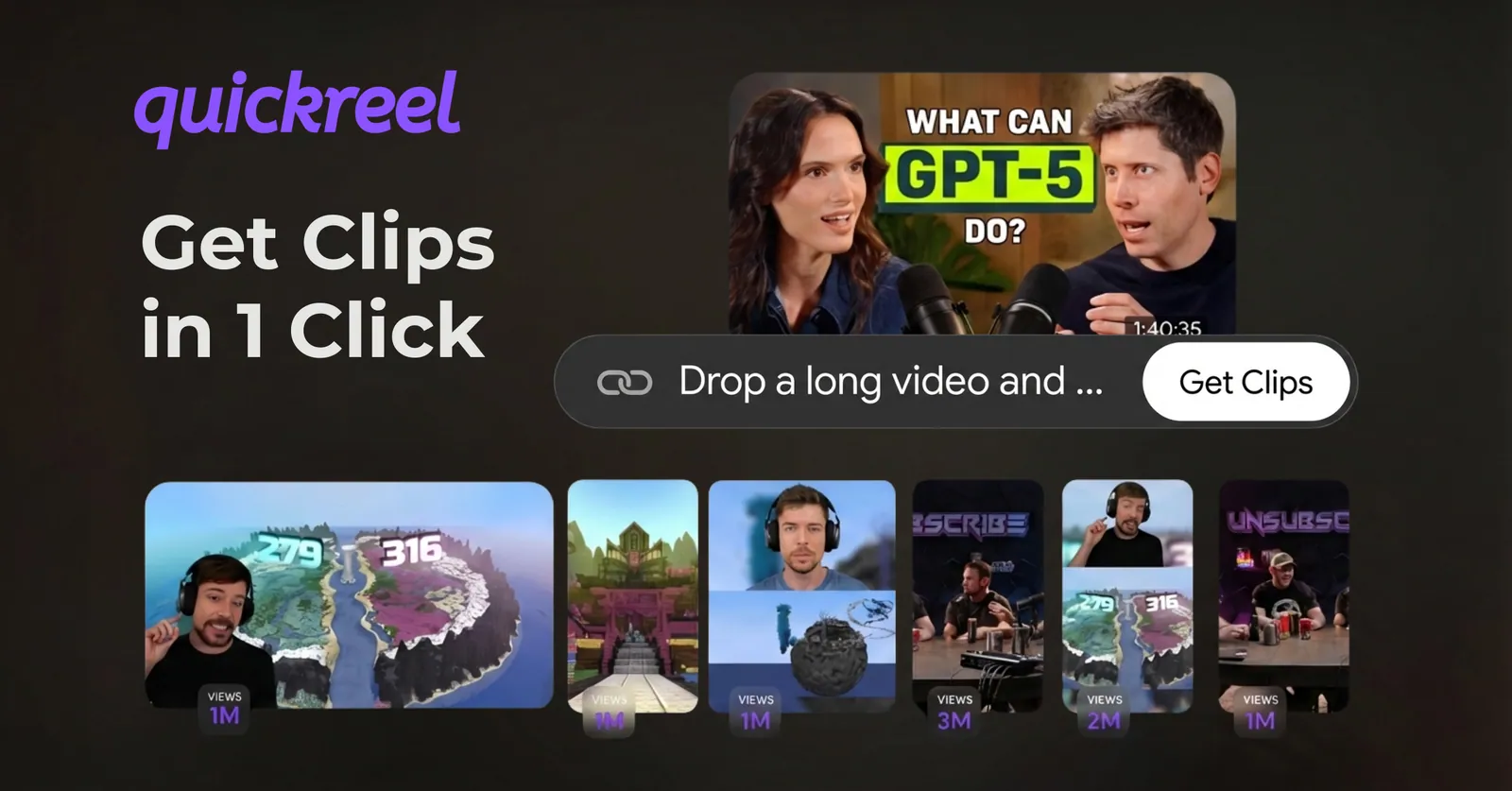
4. QuickReel, tracked clips, captions, and scheduling in one pass
Best for: creators who want a reliable vertical reframe plus captions and native scheduling without bouncing between three tools.
I work on QuickReel, so weigh the praise accordingly and trust the cons. QuickReel's reframe held the speaker well on the two-shot and centered faces cleanly, close enough to the leaders that on a typical seated interview you would not pick it out of a lineup. What separates it is the rest of the workflow: the same upload comes out as captioned vertical clips in 12+ caption styles and 20+ languages, then schedules natively to social platforms, six on Pro, up to 30 on Ultimate (QuickReel pricing). You can sign up and test it without a card, and Starter is $9/mo, the lowest paid floor in this group.
Where QuickReel is not the top pick: on the most chaotic footage, a guest pacing, heavy overlap, handheld B-cam, Opus's dedicated tracker edged it on raw framing precision. If your whole job is squeezing the last few points of tracking accuracy out of messy multicam, that gap is real and I will say so. For most podcast clips, the reframe-plus-publish loop is the bigger time saver. See the QuickReel vs Opus Clip comparison for the clip side head-to-head.

5. Kapwing, browser-based, decent on single speakers
Best for: teams already editing in Kapwing's browser studio who want reframe inside the same tab.
Kapwing's AI resize keeps the subject centered when converting 16:9 to 9:16, and it is fully browser-based with no install (Kapwing pricing). On a single talking head it was fine. On the two-host clip it was less decisive about who was speaking, it tended to favor the more visually prominent face rather than the active voice, which cost it on the active-speaker score.
The cons: paid plans are per-seat (Pro is $16/mo annual, $24/mo monthly), so a team adds up fast, and the free plan watermarks exports. Kapwing's strength is being an all-in-one browser editor; pinpoint speaker tracking is not its headline feature.
6. VEED, general editor with an auto-frame helper
Best for: creators who want a broad browser video editor and treat reframe as one feature among many.
VEED offers auto-framing to keep the speaker centered, plus an AI Background Expand that stretches the background to fill a new aspect ratio instead of cropping, a genuinely useful option when a hard crop would cut someone off (VEED pricing). On a single speaker it tracked acceptably. On the two-shot it was less reliable about switching to the active speaker, landing it near the bottom of the automatic scores.
The cons: the watermark only comes off on a paid plan, Lite starts around $12/mo and Pro around $24/mo on annual billing (VEED pricing), the free plan caps resolution at 720p, and VEED is priced more for teams than solo creators. It is a capable editor; reframe is not its sharpest tool.
7. Adobe Premiere Pro, manual control, more cleanup
Best for: editors who already live in Premiere and want keyframe-level control to fix tracking by hand.
Premiere's Auto Reframe creates a duplicate sequence at the new aspect ratio and applies the effect to every clip, with motion presets (Slower/Default/Faster) you tune to the footage (Adobe, Auto Reframe). On stable, well-lit, single-speaker footage it is solid. On a moving two-person interview it needed the most manual cleanup of anything tested, and Premiere is the documented case where Auto Reframe can lock onto reflections in glasses as "faces" and jitter, requiring hand correction.
That is also its advantage. Because reframe lives on a real timeline, you can drop keyframes and correct any error precisely, no other tool here gives you that depth. The trade is time and a Creative Cloud subscription. If you need broadcast-grade control on a few hero clips, Premiere wins; for volume, the automatic tools are faster.
Which one should you pick
The decision rule is short.
- Two-person podcast, fully automatic: Opus Clip, the most reliable active-speaker tracker in the test.
- Multi-speaker plus broad formats and translation: Vizard.
- Free, with clean split-screen for two-plus people: Choppity.
- Reframe plus captions plus scheduling in one pass, cheapest floor: QuickReel.
- You already edit in a browser studio: Kapwing or VEED, accepting weaker active-speaker switching.
- Keyframe-level manual control on hero clips: Adobe Premiere Pro.
One caveat that applies to all seven: every auto-reframe tool still needs a human review pass. None shipped a post-ready vertical from this clip untouched, each left at least one misframed cut or a face clipped at the edge that I had to fix by hand (QuickReel hands-on test, June 2026). Treat reframe as an accelerant that does most of the panning while you correct the leftover errors, not as a hands-off button. For the clip-selection side of this decision, our tested roundup of AI podcast clip generators goes deeper; if budget is the constraint, the best free tools to clip podcasts covers no-cost tiers, auto-captioning tools covers captions specifically, and the honest Opus Clip alternative for heavy clippers weighs the trade-offs at volume.
FAQ
What is the best auto-reframe tool for vertical video? For automatic active-speaker tracking on two-person podcasts, Opus Clip's ReframeAnything was the most reliable in our same-clip test, with Vizard and Choppity close behind. For reframe plus captions and scheduling at the lowest price, QuickReel. For manual keyframe control, Adobe Premiere Pro. Single talking heads work well on any of them.
How does auto-reframe keep the speaker in frame? It detects the subject, usually the active speaker's face, and moves the crop box to follow them as they move, instead of holding a fixed center crop. The better tools add speaker diarization to identify who is talking in a multi-person shot and pan to that person when the conversation switches.
Does auto-reframe work for two or more speakers? For two people it works well on the top tools, either by switching to the active speaker or building a split-screen. Three or more speakers is where accuracy drops across the board, even the strongest trackers can misframe panels, so plan to correct those by hand.
Is there a free auto-reframe tool with no watermark? Choppity's basic reframe tool is free across 9:16, 1:1, and 16:9, though watermark-free exports and higher clip counts need a paid plan. QuickReel's free signup and Vizard's 60 free monthly credits also let you test reframing before paying; check each vendor's current limits before relying on them (QuickReel; Vizard).
Why does my auto-reframe keep cutting to the wrong person? Usually the tool is tracking the most visually prominent face rather than the active voice, or it is confused by overlapping speech, reflections, or fast movement. Switch to a tool with speaker diarization, lock the crop manually on the problem segment, or record a steadier wide shot, stable, well-lit footage at consistent distances reframes far more reliably.