
Best Clip Tool for TikTok From Podcasts (2026)

For turning a podcast into TikToks, the best clip tool is Submagic if captions are the whole point and you want trend-style word-by-word styles, QuickReel if you want clips plus an editor and direct TikTok scheduling on one plan, and Opus Clip if you want a ranked, hands-off shortlist. CapCut wins on price and native TikTok feel; Vizard suits transcript-first teams. The catch every roundup skips: most tools crop to 9:16 but few frame around TikTok's UI overlays, so your captions can land under the buttons.
That last point is the whole article. A "TikTok clip" is not just a vertical clip, it is a clip that survives TikTok's right-side button rail, top profile strip, and a bottom caption bar that grows as your description grows. Below is a per-tool TikTok scorecard, the overlay zones every clip has to design around, verified June-2026 pricing, and who each tool is honestly for, including where rivals beat us.
The short answer, by who you are
| You make TikToks and you... | Pick | Why |
|---|---|---|
| Care most about caption style and trend looks | Submagic | 35+ animated styles, auto-highlight, big-bold-word; per-video pricing |
| Want clips + an editor + direct TikTok scheduling in one plan | QuickReel | Editable timeline, 12+ caption styles, scheduler on every tier |
| Want a ranked, hands-off shortlist | Opus Clip | Best detection + virality score; TikTok scheduling on Pro tier |
| Want the cheapest, most native-feeling editor | CapCut | Free auto-captions, built by TikTok's parent |
| Clip podcasts and webinars at team volume from transcripts | Vizard | Transcript editing; auto 9:16 + subtitles + scheduling |
The detection gap between these tools is small, feed the same episode to any modern clipper and the shortlists overlap heavily. The TikTok-specific gap is in three things the generic comparisons never test: does it frame around the TikTok UI, does it caption in styles that fit the platform, and can it post or schedule to TikTok without a second tool. Read for those, not for who "finds better clips."
The TikTok problem no generic clip ranking tests
Here is what makes a TikTok clip different from a Reel or a Short: TikTok's interface eats more of the frame than the others, and it eats it in specific places. The canvas is 1080 × 1920, but the usable area is much smaller once you account for the overlays.
According to safe-zone breakdowns from AdaptlyPost and Kreatli (both updated for 2026), the right-side interaction stack, like, comment, save, share, runs 120 px wide down the right edge, the profile strip takes 108 px at the top, and the bottom caption-and-CTA bar runs roughly 320 px deep (call it 250–350 px) because it grows with your description and hashtags (AdaptlyPost, 2026). That leaves a central safe zone of about 900 × 1490 px inside the 1080 × 1920 frame (AdaptlyPost, 2026); Kreatli puts the usable text-safe area a touch wider at ~1080 × 1420 px (Kreatli, 2026).
Two practical consequences. First, captions placed at the bottom of the frame, the default in many tools, sit behind TikTok's caption bar. On TikTok specifically, subtitles should ride higher than they would on Reels, toward the vertical center (Kreatli, 2026). Second, auto-reframe that centers a speaker can drift them under the right rail during a head-turn or a wide shot. The tools that handle this either expose caption-position control or track the active speaker tightly enough to keep them in the centered box.
One more thing changed in 2026: TikTok now turns its own AI captions on by default (AdaptlyPost, 2026). If you also burn in captions at the bottom, you get TikTok's native text stacked on yours, an unreadable double layer. Burn captions in the center, or turn TikTok's native captions off when you post. This is why caption-placement control, not just caption styling, is the real TikTok test.
How we scored each tool for TikTok
We took one real 60-minute, two-speaker interview episode and ran the same source through each tool, then judged three TikTok-specific axes instead of a generic "clip quality" score:
- Safe-zone handling, does it keep the active speaker in the centered box and let you push captions up off the bottom bar, or does it dump everything at the lower edge?
- Trend caption styles, does it offer the animated, word-by-word, big-bold-word looks that read as native TikTok, or only static blocks?
- Direct TikTok posting/scheduling, can it publish or schedule to TikTok from the dashboard, and on which tier does that turn on?
Two honest caveats up front. This is one editor's structured test on one clean episode, not a hundred-episode lab, treat the rankings as directional, and a chaotic crosstalk show would shift them. And we make QuickReel, so I held our tool to the harshest read and named where rivals beat it. Pricing below is from each tool's official page, dated June 2026; verify before you buy, because these prices move often.
The TikTok scorecard (verified June 2026)
| Tool | TikTok caption styles | Direct TikTok posting | Entry paid price |
|---|---|---|---|
| Submagic | 35+ animated, auto-highlight, big-bold-word | Yes, but Pro tier only (submagic.co) | $12/mo Starter (annual), 15 videos; posting needs $23 Pro |
| QuickReel | 12+ styles, editable placement | Yes, scheduler on every tier (quickreel.io) | $9/mo Starter, $17.40 Pro |
| Opus Clip | Animated templates, editor Pro-gated | Posting on Starter, scheduling on Pro (opus.pro) | $15/mo Starter; scheduling needs $29 Pro |
| CapCut | Large template + sticker library | Manual upload (native to TikTok app) | Free; $9.99 Standard |
| Vizard | Auto subtitles, fewer trend styles | Yes, on Creator+ (vizard.ai) | $16.90/mo Creator (annual) |
A note on units, because it changes the real cost. Submagic prices per video, Starter is 15 videos/month at $12 billed annually (submagic.co), so the question is how many finished clips you ship, not how long your episodes are. Opus Clip and Vizard price per minute of source/upload, so a long episode burns credits fast (opus.pro; vizard.ai). QuickReel uses upload-minute credits with the scheduler bundled in. CapCut bills a flat subscription with no per-clip meter. Match the model to your output: if you post 12 TikToks a month, per-video pricing is clean; if you clip many long episodes selectively, per-minute can be cheaper.
The five tools, reviewed honestly for TikTok
1. Submagic, the caption-and-trend specialist
If your TikToks live or die by caption style, Submagic is the pick. It auto-adds captions in 48+ languages with high accuracy, offers 35+ animated styles, auto-highlights key phrases in a second color, and supports the big-bold-word look you see on viral clips (submagic.co). For a podcast whose clips are talking-head moments, that styling does real work, it gives a static face something kinetic to hold a muted scroller.
Where it bites: clipping long episodes is a paid add-on, which is awkward for a tool that markets itself as all-in-one, and reviewers flag recurring export delays and a strict no-refund policy. There is a second catch for TikTok: direct publishing to TikTok is gated to the Pro plan, the $12 Starter removes the watermark and gives you the captions, but the "Publish to TikTok" feature only turns on at Pro ($23 annual, $39 monthly) (submagic.co). Pricing is per video, Starter is 15 videos/month at $12 billed annually, Pro is 40 videos at $23 annually (submagic.co), so if you ship a high volume of clips from each episode, the video count is the cost lever to watch. The free plan caps at 3 watermarked videos at 1 minute 30 seconds each, which is enough to judge the captions and not much else.
Best for: creators whose TikToks are caption-forward and who ship a predictable handful of polished clips a week.
2. QuickReel, clips, an editor, and TikTok scheduling on one plan
Full disclosure: this is us, and I scored it skeptically. On the TikTok axes, QuickReel's edge is that caption placement is editable and the scheduler is on every tier, you can push subtitles up off TikTok's bottom bar in the same editor where you trim, then schedule the clip to TikTok without exporting to a second app (quickreel.io). It ships 12+ caption styles and 20+ languages, and pricing runs $9 Starter (100 credits, 1 platform) → Pro at $17.40/mo (250 credits, 6 platforms) → Pro+ $29.40/mo (500 credits, 10 platforms) → Ultimate $89/mo (1,000 credits, 30 platforms) (quickreel.io), with free signup and no card.
Where it is not the answer: Submagic has more animated caption styles and a stronger trend-look library, so if caption aesthetics are the entire job, it wins on variety. And if you want a pure ranked shortlist with a confidence score and zero touching, Opus Clip's hands-off flow is cleaner. QuickReel assumes you will spend a minute or two per clip in the editor, that is the trade for placement control.
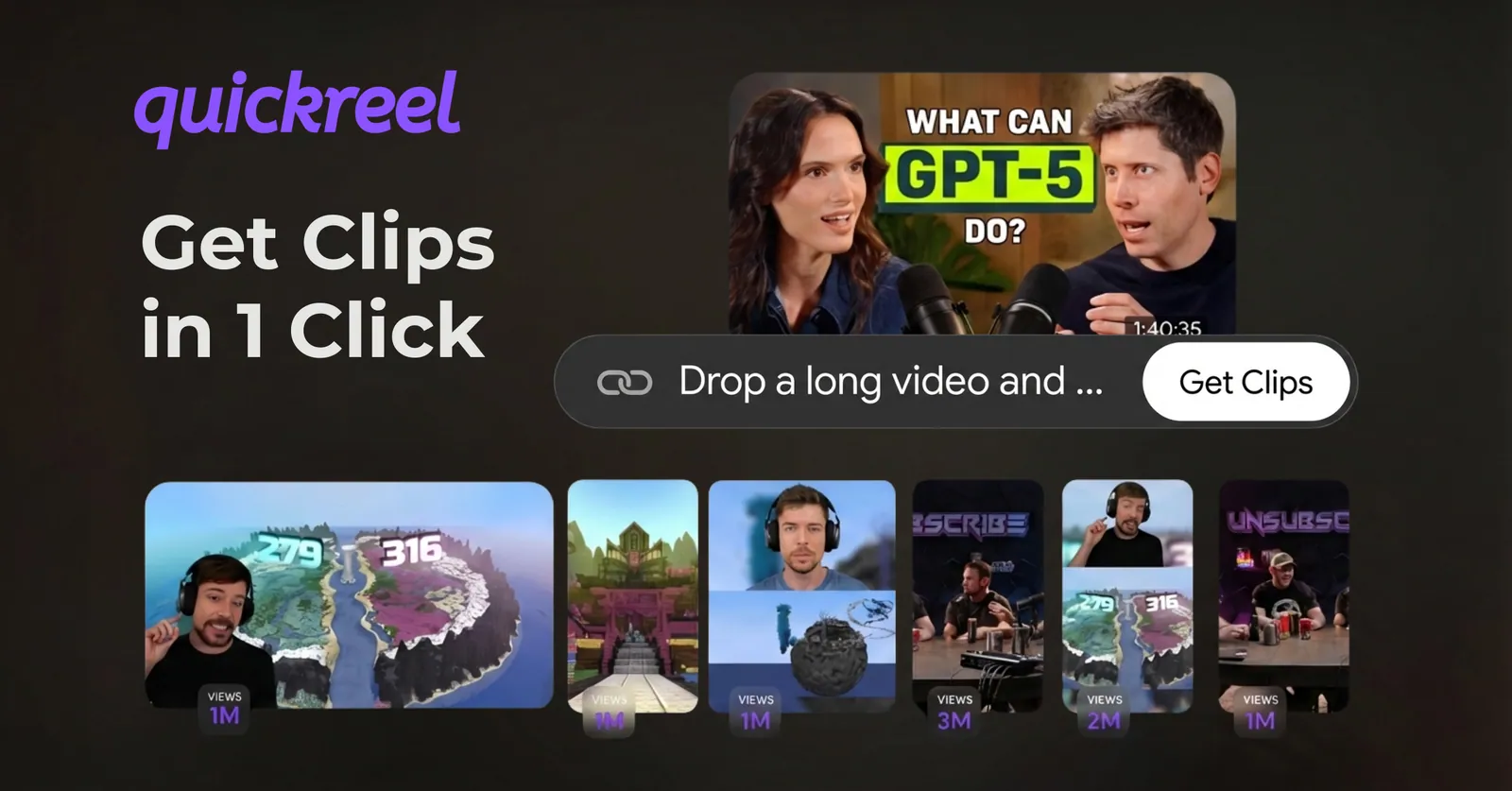
3. Opus Clip, the ranked, hands-off shortlist
Opus Clip earns its reputation on detection: a multimodal engine and a 0–100 virality score that genuinely helps you decide which clip to post first, and it is among the most-used tools in the category (opus.pro). For "give me a ranked shortlist of TikTok candidates and leave me alone," it is hard to beat.
For TikTok specifically, two things to price in. Basic posting to TikTok is on the $15 Starter, but scheduling is Pro-tier only ($29/mo), Starter lets you push a finished clip to YouTube, TikTok, and Instagram, while the scheduler and the wider posting set (X, Facebook, LinkedIn) turn on at Pro (opus.pro plans). So if you want to queue TikToks ahead instead of posting them one at a time, budget for Pro. And the cost model is per input minute: a 60-minute episode spends 60 credits whether it yields 5 clips or 50, so a weekly hour-long show needs ~240 credits/month, which exceeds Starter's 150 and fits Pro's 300 (opus.pro plans). The free tier watermarks exports and deletes them after 3 days. If Opus is your shortlist, the QuickReel vs Opus Clip cost breakdown runs the math at 5, 15, and 40 hours of source.
Best for: solo creators who want ranked TikTok candidates with minimal editing and clip selectively enough that 300 minutes covers them.
4. CapCut, cheapest and most native to TikTok
CapCut is built by ByteDance, TikTok's parent, so its templates, fonts, and trending-sound sync feel native to the platform, and auto-captions are free, up to 10 minutes per project, with no watermark on standard exports (CapCut, 2026). For a creator who wants to hand-craft a few TikToks from podcast moments on a budget, it is the value pick, and its caption editor can export subtitles to SRT (a paid feature) if you want to reuse them elsewhere.
The honest gaps for podcast clipping: CapCut is a manual editor, not an auto-clip engine, it will not scan a 60-minute episode and surface the best moments for you, so you do the moment-picking by hand. And it has no direct-to-TikTok scheduler from the tool; you export and upload (which, since CapCut is TikTok-native, is a short hop, but still a manual step). Standard is $9.99/mo and Pro jumped to $19.99/mo in early 2026, adding 4K and the full AI toolkit (CapCut pricing, 2026). Prices vary by region and are cheaper via the web than the app store.
Best for: budget creators who pick their own moments and want the most TikTok-native editing feel.
5. Vizard, transcript-first clipping for teams
Vizard is the pick if your team clips podcasts, interviews, and webinars in bulk and prefers editing by transcript, highlight the text, get the clip. Its TikTok flow auto-reframes to 9:16, adds subtitles, and posts or schedules directly once you connect your account on Creator+ (vizard.ai). The credit model is 1 credit per upload minute, gentler than per-source billing if your episodes are tight.
Its honest weakness is structural: transcript-led clipping is less effective on loose, free-flowing conversation, and it offers fewer trend-style animated caption looks than a caption specialist like Submagic. For a structured Q&A podcast it is excellent; for a three-friends-riffing format it misses more, and the captions read cleaner than they read native to TikTok. Creator runs $16.90/mo billed annually ($29 monthly) with 600 upload-minute credits, the watermark removed, and scheduling included (vizard.ai).
Best for: content teams clipping structured spoken-word podcasts at volume who post to several platforms, not only TikTok.
Caption-first vs clip-first: the real fork
For TikTok from a podcast, the choice usually collapses to one fork: do you need a tool that styles captions beautifully or one that finds and frames clips at volume? They are different jobs, and most tools lean one way.
A practical rule: if you ship a small number of carefully styled clips, go caption-first (Submagic, or CapCut for free). If you clip long episodes and want a shortlist plus auto-framing, go clip-first (Opus Clip, Vizard). If you want both jobs and direct TikTok scheduling without exporting between apps, a hybrid like QuickReel removes the hand-off. None of these is universally "best", the best one removes the most steps between your episode and a posted TikTok.
The caveat no tool's marketing will tell you
Every tool here still needs a human pass before a clip is TikTok-ready. In our run, roughly a quarter to a third of suggested clips needed a retrim, a caption fix, or a discard, and on TikTok the extra failure mode is placement: a caption that looked fine at export sits under the bottom bar in the live feed. That matters because most mobile video is watched on mute, Verizon Media's April 2019 study with Publicis Media found 92% of consumers watch video on mobile with the sound off (83% on desktop) (3Play Media, reporting the Verizon Media + Publicis Media study), so a caption hidden behind the UI is a clip nobody can follow. Always preview a clip inside the actual TikTok frame before posting, not just in the editor.

Verdict: who should pick what
- Caption style is the whole point? Submagic, 35+ animated styles and trend looks; per-video pricing.
- Want clips, an editor, and direct TikTok scheduling on one plan? QuickReel, editable caption placement and a scheduler on every tier, free to try with no card.
- Want a ranked, hands-off shortlist? Opus Clip, best detection and virality score; budget for per-input credits and Pro-gated posting.
- Cheapest and most TikTok-native, and you pick moments yourself? CapCut, free auto-captions, native feel, manual clipping.
- Clipping structured podcasts at team volume? Vizard, transcript-first, auto 9:16, scheduling on Creator+.
For the broader head-to-heads, the full test of AI podcast clip generators scores six tools on detection and time-to-export, best Opus Clip alternatives in 2026 maps each option to a specific pain point, and the best free tools to clip podcasts without a watermark covers which free tiers hold up in practice. If captions are your main concern, the best auto-captioning tools for video clips goes deeper on accuracy and styling, and heavy clippers should read the honest Opus Clip alternative for high-volume podcasters.
FAQ
What is the best free clip tool for TikTok? CapCut is the strongest free option, free auto-captions up to 10 minutes per project and no watermark on standard exports (CapCut, 2026), but it is a manual editor, not an auto-clip engine, so you pick the moments yourself. QuickReel's free signup (no card) auto-finds and reframes clips; test both on one episode.
Do TikTok clip tools place captions in the safe zone automatically? Not all of them. Many default captions to the bottom of the frame, where TikTok's caption bar covers them. On TikTok, subtitles should ride higher, toward the center (Kreatli, 2026). Pick a tool with editable caption placement, or preview every clip in the live TikTok frame before posting.
Which tools post directly to TikTok? QuickReel (scheduler on every tier from $9), Vizard (Creator tier and up), Submagic (Pro tier, $23 annual), and Opus Clip (posting on the $15 Starter, scheduling on the $29 Pro) post or schedule to TikTok from the dashboard (quickreel.io; vizard.ai; submagic.co; opus.pro plans). CapCut has no direct scheduler, you export and upload, though it is native to the app.
Why do my burned-in captions look doubled on TikTok? Because TikTok now turns its own AI captions on by default in 2026 (AdaptlyPost, 2026). If you also burn captions at the bottom, the two layers stack. Fix it by placing burned-in captions toward the center, or by turning TikTok's native captions off when you post.
Are AI-picked TikTok clips good enough to post without checking? No. The detection finds the region of a good moment, not the exact frame, and about a quarter to a third of suggestions need a retrim or caption fix. Add TikTok's placement trap, captions hidden under the UI, and a preview pass in the real frame is non-negotiable before a clip goes live.