
Best Clip Tools for Instagram Reels (2026)

For podcast clips on Instagram Reels, pick QuickReel if you want captions above Instagram's UI, cover-frame control, and a scheduler in one pass; CapCut if you want a free, precise vertical editor and don't mind manual work; or Opus Clip for the strongest hands-off moment detection. Most tools find the same moments. The winners keep your text out of the dead zones and let you choose the thumbnail.
That last part is where generic "best clip tool" lists go quiet. A Reel is not a blank 9:16 canvas, Instagram lays its own interface over the bottom and right of every frame, and it crops your clip differently in the feed and on your profile grid. A tool can pick a perfect moment and still hand you a clip with the caption buried under the share button. So we scored these seven on the three things that actually decide whether a Reel lands.
The short answer, by who you are
| You are... | Pick | Why |
|---|---|---|
| A podcaster who wants captions, cover control, and scheduling in one pass | QuickReel | Caption placement above the UI, editable cover frame, built-in scheduler |
| A hands-on editor who wants free and precise | CapCut | Full vertical timeline, 1080p export, free auto-captions with limits |
| A solo creator who wants ranked clips, hands-off | Opus Clip | Strongest moment detection plus a virality score |
| A transcript-first team | Vizard | Edit the clip by editing the words; clean 9:16 |
| A captions-obsessed short-form creator | Submagic | Animated, template-driven captions that read well on mute |
The three things that actually matter for Reels
Across our own testing of these tools, the big AI clippers surface most of the same obvious moments, the strong reactions, the clean quotes, the laugh lines. Detection is no longer the differentiator. What separates the tools is how many clicks sit between a video link and a finished, posted clip. For Reels specifically, three of those clicks matter more than the rest.
1. On-screen text above the UI overlay. Instagram covers the bottom and right of every Reel with its own interface, username, caption, audio bar, and the like/comment/share column. Third-party safe-zone guides converge on keeping critical text clear of roughly the bottom 280–440px and the right ~120px of a 1080×1920 frame (TryMyPost; MergeImages, 2026). None of these are official Meta numbers, so treat them as a buffer, not a contract, but a tool that drops captions dead-center or lets them ride the bottom edge will lose words to the overlay. The tools that win let you nudge caption position up.
2. Cover-frame / thumbnail control. Reels show in two places: the full-screen feed and your profile grid, which crops to roughly 3:4. The frame Instagram grabs by default is rarely the one you'd choose, and a mid-blink frame on your grid is a quiet conversion leak. Tools that let you set the cover frame, or design a separate thumbnail, protect the grid.
3. Aspect-ratio fidelity (true 9:16). Reels want 1080×1920, 9:16. Anything else either letterboxes or gets cropped by the feed. The question is whether the tool reframes a horizontal podcast into a clean vertical that keeps the speaker centered and the action in frame, not a stretched or off-center crop.
The scorecard
Scored on those three axes, the spread is wider than the marketing suggests. A full dot means the tool does it well without a workaround; a half dot means it's possible but manual or gated behind a higher tier; an empty dot means it doesn't really do it. This is our hands-on read, not a vendor claim.
Here is how the seven compare on Reels essentials and verified entry pricing. All prices are from each vendor's pricing page in June 2026; SaaS prices and tiers move, so re-check before you buy.
| Tool | Reels-specific strengths | Entry price (verified June 2026) |
|---|---|---|
| QuickReel | Caption position control, editable cover frame, scheduler, 20+ languages | $9/mo Starter; free sign-up (quickreel.io) |
| CapCut | Precise manual vertical timeline, 1080p, free auto-captions (limited) | Free; Standard $9.99/mo (CapCut) |
| Opus Clip | Strongest auto moment detection, virality score, multi-aspect | Free (watermark); Starter $15/mo (opus.pro) |
| Vizard | Transcript-first editing, clean 9:16 reframe | Free (60 min); Creator $29/mo, or ~$14.50/mo billed annually (vizard.ai) |
| Submagic | Animated caption templates, fast captioning | Free (3 videos); Starter ~$19/mo (Submagic) |
| Klap | Long-form to Shorts, 4K on Pro, AI dubbing | $29/mo Standard (klap.app) |
| Instagram in-app | Native trim, native captions inside the safe zone | Free |

The seven, reviewed honestly
QuickReel, best for captions, cover control, and scheduling in one pass
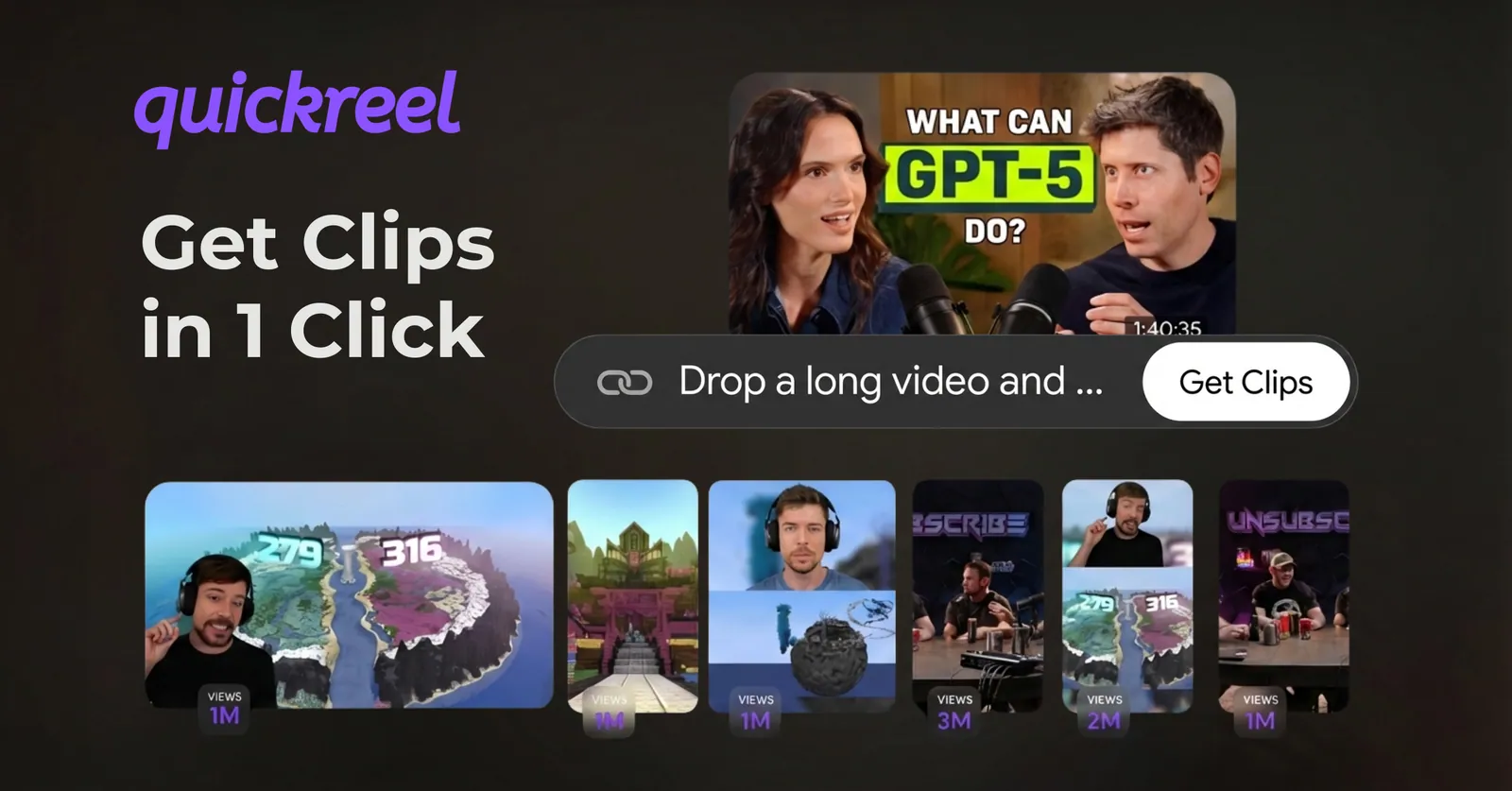
QuickReel turns a long episode into vertical clips with captions you can reposition above Instagram's overlay, an editable cover frame so the grid thumbnail isn't a blind grab, and a built-in scheduler that posts to Instagram and other platforms. It supports 20+ languages and ships 12+ caption styles, with plans from $9/mo Starter and a free sign-up (quickreel.io/pricing).
The honest cons: like every AI clipper, it needs a human review pass, in our testing, plan on adjusting roughly a quarter to a third of auto-picks before posting. And for pure hands-off moment ranking, Opus Clip's detection still has an edge. QuickReel's case is the full Reels-to-grid workflow in fewer clicks, not the smartest single algorithm.
CapCut, best free, precise vertical editor
If you want full control and your time is cheaper than a subscription, CapCut is hard to beat. The free tier gives you a real vertical timeline, 1080p export, and auto-captions (capped at about 10 minutes per video on free) (CapCut comparison). You can place text exactly where you want it, well clear of the overlay, and set any frame as the cover.
The honest cons: it's manual. CapCut doesn't find your clippable moments, you scrub for them. The watermark policy has been in flux in 2026 (some templates and AI exports add one; standard manual edits generally don't), so verify before you rely on a clean free export. Standard is $9.99/mo to remove watermark ambiguity.
Opus Clip, best hands-off moment detection
Opus Clip remains the strongest at picking moments unattended and ranking them with a virality score. The free plan gives 60 processing minutes a month but watermarks exports and locks you to 9:16; Starter is $15/mo for 150 minutes, watermark-free, with social posting to Reels, and Pro is $29/mo with the editor and multiple aspect ratios (opus.pro/pricing).
The honest cons: credits burn on input length, not output, a 60-minute episode costs 60 minutes whether it yields 5 clips or 50, so heavy podcasters drain plans fast. The clip editor, caption repositioning, and aspect ratios beyond 9:16 live behind Pro ($29/mo) per Opus's own plans page (opus.pro). For Reels caption placement on a budget, that Pro requirement is a real ceiling.
Vizard, best transcript-first workflow
Vizard's edge is editing the clip by editing the words. Delete a sentence from the transcript and the video trims with it, which makes tightening a rambling answer fast. Its 9:16 reframe is clean, and the free plan covers 60 upload minutes; Creator is $29/mo billed monthly (about $14.50/mo if you commit annually), with 720p on free and up to 4K on paid (vizard.ai/pricing).
The honest cons: caption styling is more functional than flashy, and if you want animated, attention-holding captions for Reels, Submagic does it better. Free is 720p, which is soft for a polished feed.
Submagic, best animated captions
Submagic is built around captions, and it shows. Its animated, template-driven caption styles are among the best for short-form, and they hold attention in a muted feed, which matters, since as much as 85% of Facebook video gets watched with the sound off, per multiple publishers cited by Digiday (publisher-reported and directional, not a single audited study). The free plan allows 3 videos a month with a watermark and a 90-second cap; Starter is around $19/mo (Submagic).
The honest cons: it's a captioning-and-editing tool more than a long-form clipper, so finding moments across a full episode is more manual. Entry pricing is higher than QuickReel or CapCut for fewer end-to-end podcast features.
Klap, best for long-form to Shorts at scale
Klap turns long videos into clips with solid 9:16 output and AI dubbing across many languages on higher tiers. It's aimed at volume, Standard at $29/mo covers 10 uploads up to 45 minutes each, and Pro at $79/mo handles 30 uploads up to 2 hours each in 4K (klap.app/pricing).
The honest cons: the entry price is the highest of the AI clippers here, with no free working tier, and the value only makes sense at real volume. For a weekly show that posts a handful of Reels, it's more plan than you need.
Instagram in-app, best for a quick native trim
Don't overlook posting and trimming inside Instagram itself. The native editor keeps captions inside the safe zone by default and costs nothing. For a single clip you've already cut elsewhere, adding native captions in-app can be the cleanest path, Instagram's own caption sticker never collides with its UI.
The honest cons: there's no moment detection, no batch workflow, no horizontal-to-vertical reframe of a wide podcast, and no scheduling. It's a finisher, not a clip factory.
How we evaluated
We scored each tool on the three Reels-specific axes above, cover-frame control, on-screen text placement above the UI overlay, and 9:16 fidelity, rather than generic "clip quality," because moment detection is largely commoditized: across our own hands-on runs, the major clippers flag most of the same obvious moments. Pricing and plan limits were pulled from each vendor's own pricing page in June 2026 and are noted inline; they change often. The one rule we apply to every clipper, ours included: budget a human review pass on roughly a quarter to a third of auto-generated clips before posting. None of these is set-and-forget.
The verdict
Pick by your bottleneck, not the brand. If your bottleneck is time and clicks, captions, cover frame, and scheduling for Reels in one pass, QuickReel is the most direct, starting free. If it's budget and you'll do the work, CapCut's free vertical editor is excellent. If it's finding moments across hours of audio without lifting a finger, Opus Clip's detection leads, with the caveat that caption control and 1080p sit behind Pro. For transcript-driven trimming, Vizard; for the best captions, Submagic; for high-volume Shorts factories, Klap.
For deeper head-to-heads, see our direct QuickReel vs Opus Clip comparison, the best AI podcast clip generators we tested, and the best free podcast clip tools. If captions are your priority, the best auto-captioning tools goes deeper there, and heavy clippers should read the honest Opus Clip alternative breakdown and our roundup of the best Opus Clip alternatives in 2026.
FAQ
What aspect ratio do Instagram Reels need? Reels want 9:16 vertical at 1080×1920 pixels. Other ratios either letterbox or get cropped by the feed and grid. Design for the full 9:16 frame but keep critical content centered, because Reels are also cropped to roughly 3:4 on your profile grid (MergeImages, 2026).
Where should captions sit so Instagram's UI doesn't cover them? Keep captions and hook text clear of roughly the bottom 280–440px and the right ~120px of the frame, where the caption, audio bar, and engagement buttons sit. Place text in the upper-middle. These are third-party safe-zone estimates, not official Meta numbers, so leave a buffer (TryMyPost, 2026).
What's the best free tool for Reels clips? CapCut is the strongest free option for hands-on manual editing, with a free 1080p export and auto-captions capped near 10 minutes. Vizard and Opus Clip both offer free AI moment detection, but watermark or quality-cap the free tier. QuickReel's free sign-up lets you test the captioned-clip-plus-scheduler workflow before paying.
Do I still need to edit AI-generated clips? Yes. Every AI clipper still needs a human pass, in our testing, plan on adjusting roughly a quarter to a third of auto-picks for trim, caption accuracy, and cover frame before posting. Treat these tools as an accelerant, not a replacement editor.
Why does the cover frame matter for Reels? Your profile grid crops every Reel to about 3:4 and shows whatever frame Instagram grabs by default, often a mid-blink. A tool that lets you set the cover frame keeps your grid clean, which is the first thing a new visitor judges.