
How to Add Captions to Podcast Clips (Full Workflow)

To add captions to a podcast clip, run five steps in order: transcribe the audio to text, style the caption (font, size, position, highlight), sync the words to the timing, burn them into the video, and export vertical. The fastest route is an AI captioner that does all five in one pass, you correct the handful of words it gets wrong, then export. Do it for the whole episode before you cut clips, and every clip inherits clean captions.
Most people overcomplicate this. They think captions mean wrestling with.SRT files in a free desktop editor at midnight. For a single clip, maybe. For a show, three to five clips a week, every week, you want a repeatable pipeline where the transcript is done once and the style is a saved preset. Below is that pipeline, start to finish, plus a decision tree so you pick the route that fits your episode length and budget instead of defaulting to whatever a tutorial showed you.
Why captions decide whether a clip works
Captions are not a finishing touch on a clip. On social, they are the clip. A widely repeated estimate puts around 85% of social video viewed with the sound off (Digiday, from 2016 publisher-reported data), treat that as directional, not gospel, since the publishers in that same report span a wide band (PopSugar reported 50–80%, others 85–90%) and the original figure is a decade old. The exact percentage moves; the direction does not. Most people who meet your show do it on mute, in a feed, reading.
That matters more for clips than almost any other format, because clips are often the front door to the whole show. One studio's client data puts clips at 20–40% of new audience, with reach lifts of 2–5× for video shows (Podcast Studio Glasgow), one source's directional range, not a platform-wide audit, but the thrust holds. A clip with no captions, or sloppy ones, is a front door that won't open for the silent majority scrolling past.
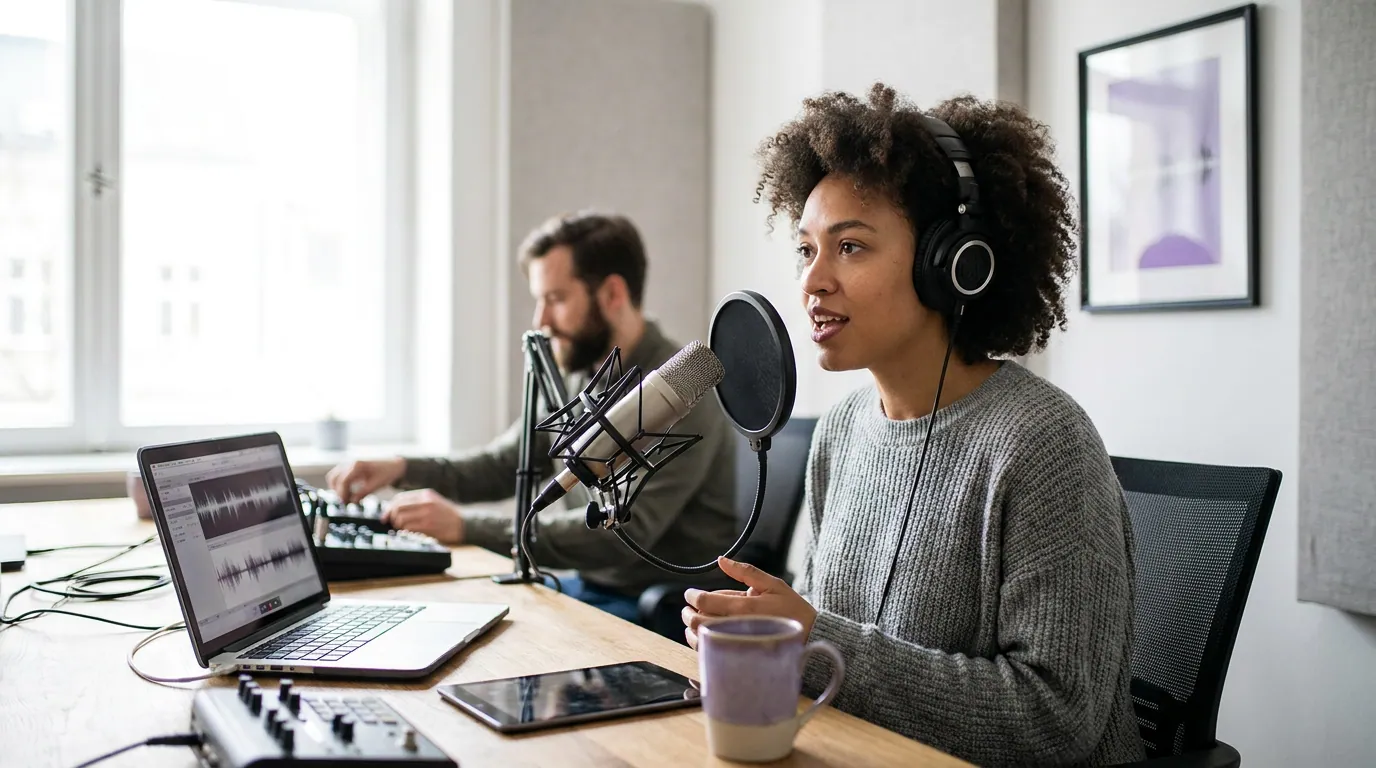
The full workflow: from raw audio to a captioned clip
The whole job is five steps. The trick is doing them in the right order and at the right altitude, caption the episode, not each clip, so the work compounds.
Step 1, Transcribe the audio to text
Captions start as a transcript. You have three ways to get one: type it by hand (accurate, brutally slow), upload to an AI transcription tool (fast, and on clean single-speaker audio it gets the large majority of words right), or use a captioner that transcribes as part of clipping. For anything past a one-off, use AI. The biggest time-saver is to transcribe the full episode once, then cut clips from the captioned source, so you never transcribe the same words twice.
If you're working from audio only and want a simple captioned waveform rather than a talking-head video, you're making an audiogram; the transcription step is identical, you just place the captions over a waveform or static frame instead of footage.
Step 2, Style the caption (and save it as a preset)
Pick the font, size, position, and highlight style once, then save it so every future clip matches. The defaults that work for podcast clips: a heavy sans-serif at a size you can read at arm's length on a phone, positioned in the middle third (not the very bottom, where platform UI and the progress bar cover it), with a contrasting outline or background so text survives any background. Keep it to one or two lines on screen at a time.
Two style choices deserve their own decision. First, whether to show the whole sentence or animate one word at a time, see word-by-word animated captions for when the karaoke style earns its keep and when it just distracts. Second, the typeface itself; the wrong font reads as amateur instantly, so pick a caption font built for small vertical screens rather than whatever your editor defaults to.
Step 3, Sync the words to the timing
Captions have to land on the word as it's spoken, or they fight the audio. AI captioners do this automatically with word-level timestamps. If you're doing it manually, this is the step that eats your evening, nudging each line's in and out point by hand. When you review auto-sync, watch for two things: lines that flash too fast to read, and lines that linger after the speaker has moved on. Fix the timing in the source transcript and it propagates to every clip drawn from that section.
Step 4, Burn the captions into the video
You can either burn captions permanently onto the pixels (hardcoded, "open" captions) or keep them as a separate toggleable track ("soft," closed captions). For clips posted natively to Shorts, Reels, and TikTok, burn them in, you control the look, and they show whether or not the viewer enables anything. Soft captions matter more for accessibility compliance and long-form. The full tradeoff is in burned-in vs soft captions for podcast clips; for short social clips, hardcoded is the standard answer.
Step 5, Export vertical and check it muted
Export at 1080×1920 (9:16) for Shorts, Reels, and TikTok. Then do the one test almost everyone skips: play it back on mute, on a phone, and read the captions cold. You know what you said, so your brain auto-corrects errors on screen. Muting forces you to read what's actually there, the same way a stranger will. That 30-second check catches the wrong name, the cut-off line, and the caption hidden behind the play button.
Decision tree: which captioning route fits you
There is no single "best" way to caption. The right route depends on three things: how long your episodes are, what you can spend, and how many clips you ship per week. Here is the rule I use.
Read it plainly:
- One clip, ever. A free editor with built-in auto-captions (CapCut, your phone's editor, or a desktop tool) is the right call. It's $0 and you'll only suffer the slow timing-sync step once.
- Weekly clips, short episodes (under ~30 min). Use an AI captioner with a saved style preset and a quick human review pass for the words it misses. The math flips here: your time is worth more than the subscription.
- Weekly clips, long episodes (45 min+). Same AI route, but caption the full episode once and lean on a custom dictionary for recurring names, brands, and jargon, see fixing AI caption errors with a reusable word list. On a long show, re-typing "Kubernetes" or a guest's surname across a season is the single biggest time sink, and a dictionary kills it.
The budget reality: free editors cost $0 and your evenings. Paid AI captioners run roughly $9–30/month at the tier most creators land on (verify current pricing on each tool's site before you commit). If captioning a week of clips by hand takes you more than an hour or two, the subscription is cheaper than your time within the first month.
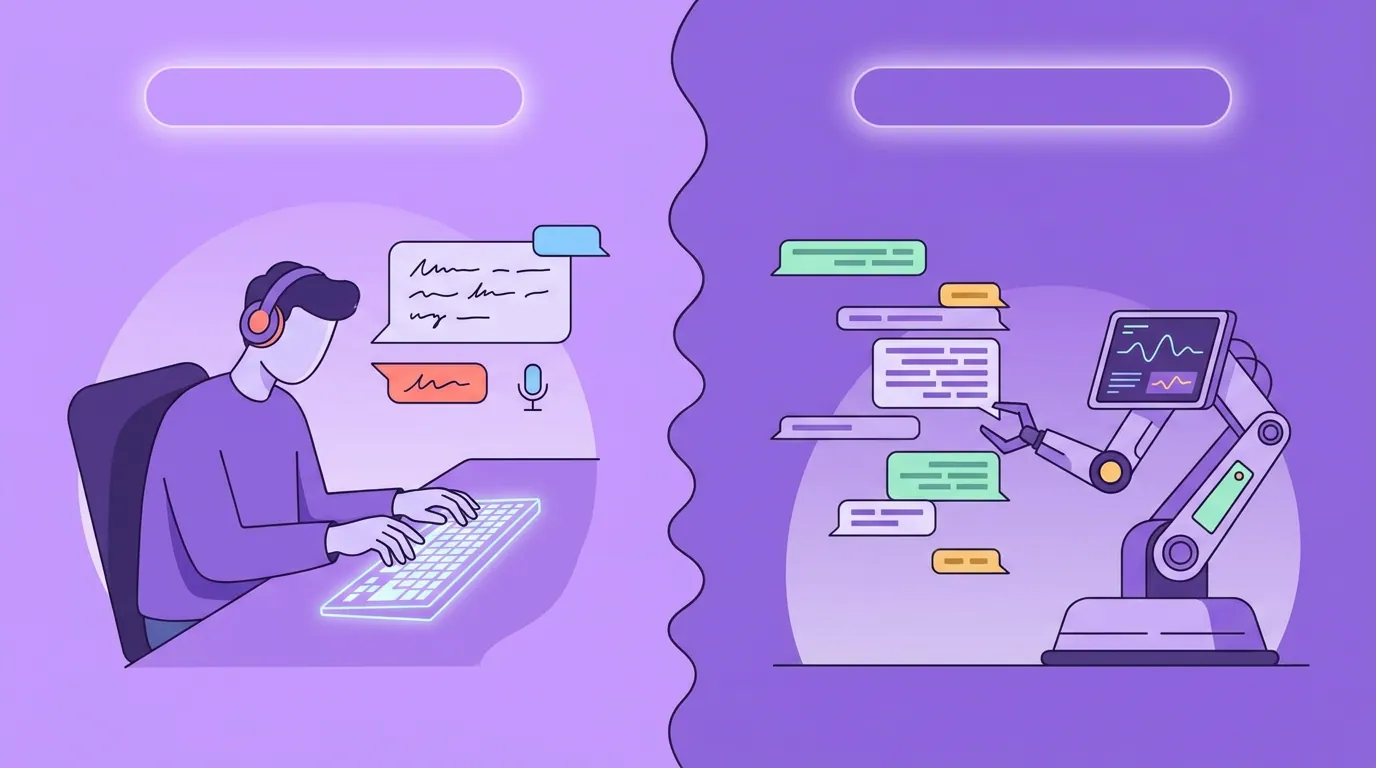
Auto vs manual: the honest comparison
People treat this as auto-versus-manual. The right answer is auto first, then a human review pass, neither pure extreme.
On a pristine benchmark, clean, single-speaker, read audio, modern speech-to-text is near-perfect; OpenAI's Whisper large-v3 posts about 2.7% word error rate on LibriSpeech test-clean (Artificial Analysis), i.e. roughly 97% of words correct. Real podcasts are messier: on conversational audio with crosstalk and accents, independent benchmarks put error rates closer to 8–12%, so plan for roughly 88–92% right on a normal episode. The catch is that the wrong slice isn't spread evenly, it clusters on proper nouns, brand names, numbers, crosstalk, and accents, which are usually the most important words in the clip. So you don't read every line equally; you review those five categories and move on. The deeper breakdown of where each route wins is in auto vs manual captions: which is worth it. The short version: manual for a single career-defining clip, AI-plus-review for the show.
Common mistakes when captioning clips
Captioning each clip instead of the episode. Transcribe the whole episode once and cut clips from the captioned source. Re-transcribing and re-styling per clip is the most common reason captioning feels endless.
Putting captions in the very bottom third. Platform UI, the progress bar, the username, the buttons, covers the bottom strip on Shorts, Reels, and TikTok. Position captions in the middle third so nothing clips them off.
Reading captions with the sound on. Your brain auto-corrects errors when you can hear the audio. Mute playback and read cold; the wrong name and the cut-off line jump out.
Cramming too much text on screen. One or two lines at a time, large. A wall of small text is unreadable on a phone in a feed and reads as a transcript, not a caption.
Over-polishing speech into clean prose. Keep the natural "yeah" and "you know." Rewriting captions into tidy sentences desyncs them from the audio and reads as inauthentic to anyone listening.
Skipping the muted export check. Thirty seconds of watching the finished clip on mute catches more problems than any other single habit. Make it the last step, every time.
FAQ
What's the fastest way to add captions to a podcast clip? An AI captioner that transcribes, styles, syncs, and burns in one pass, then you fix the handful of wrong words and export. For a show, caption the full episode once and cut clips from the captioned source, so each clip inherits clean captions instead of being captioned from scratch.
Should captions be burned in or a separate file? For clips posted natively to Shorts, Reels, and TikTok, burn them in (hardcoded). You control the look and they display no matter what the viewer enables. Soft, toggleable captions matter more for long-form and accessibility. The full tradeoff is in burned-in vs soft captions.
Where should captions sit on a vertical clip? In the middle third of the frame, not the very bottom. Platform interface elements, progress bar, username, action buttons, cover the bottom strip on most apps and will clip your text off. Middle placement keeps every word visible across platforms.
Are free captioning tools good enough? For a one-off clip, yes, a free editor with built-in auto-captions does the job, you just pay in time on the manual timing-sync step. For a weekly show, a paid AI captioner (roughly $9–30/month at the common tier; verify current pricing) usually costs less than the hours you'd spend doing it by hand.
How accurate are AI captions? Near-perfect on clean benchmark audio (Whisper large-v3 hits about 2.7% word error rate on read, single-speaker speech), but plan for roughly 88–92% on a real podcast, where crosstalk and accents push errors up. The mistakes cluster on names, brands, numbers, crosstalk, and accents, the load-bearing words, so always review those five categories rather than trusting the average.