
YouTube Channel Setup for a New Podcast: A Checklist


Set up a YouTube channel for a new podcast in this order: create the channel and verify it, lock your name and handle, write the description for search, then build the three podcast-specific pieces most guides skip, a channel trailer for non-subscribers, a banner that states your publishing day, and Sections that separate full episodes from clips. Do those before your first upload, not after.
The order matters because each step depends on the one before it. You cannot set a trailer until you have a video to use; you cannot lay out Sections until you have a playlist to feature. Below is the launch-day checklist in dependency order, with the podcast-specific reasoning behind each piece. It assumes you are publishing a video show, which, for a new podcast, is where the audience now is. YouTube reported more than a billion monthly podcast viewers in early 2025 (Variety), and 53% of new US weekly listeners say they prefer to watch (Backlinko).
Why setup order matters for a podcast channel
Because half the elements that make a podcast channel work depend on something existing first. A channel trailer needs a video; featured Sections need a playlist; a "subscribe to watch every Tuesday" banner needs you to have actually decided your cadence. Set them up out of order and you ship a half-built channel page that the first wave of clip viewers lands on, and a clip viewer who hits an empty, generic page does not subscribe.
A podcast channel also has a job a normal channel does not: it has to convert people arriving from short clips into people who watch long episodes. That hand-off happens on the channel page and in the Sections layout, not in the videos themselves. Set the page up for that hand-off from day one and you stop leaking the reach your clips work so hard to earn. The mechanics of that hand-off are the whole point of the clips-to-channel funnel for YouTube podcasts.
Step 1, Create the channel and verify it
Create a channel under a Google account you control long-term, then verify it by phone. Verification is what turns on the things a podcast channel needs on day one: custom thumbnails, videos longer than 15 minutes, and live streaming (YouTube Help, verify your account). A full episode runs well past 15 minutes, so an unverified channel literally cannot upload one.
Use a Brand Account, not your personal one, so you can add co-hosts or an editor later without sharing your personal Google login. This is a five-minute decision that is painful to reverse once you have uploads and subscribers attached.
Step 2, Lock your name, handle, and channel art
Set three things together because they're how a stranger decides in two seconds whether your channel is a real show: the channel name, the @handle, and the art (profile picture and banner). Match the name to your podcast exactly, if people search the show title, the channel should be the first result. Claim a handle that matches across platforms so your clips, your bio links, and your channel all point to the same identity.
The banner is the one piece of podcast channel art most new shows waste. Do not fill it with a generic stock background. Put two things in it: the show name and your publishing schedule, "New episodes every Tuesday." YouTube recommends a banner at least 2048 × 1152 px and warns that the banner displays differently per device, with a smaller central area always visible on phones, its minimum safe area for text and logos is 1235 × 338 px (YouTube Help, manage your channel branding). Keep the name and schedule inside that center. A stated cadence sets the expectation that earns a subscribe, a stranger subscribes to a schedule, not a single video.
Write the channel description for search, not for you. The first sentence should say what the show is, who it's for, and how often it publishes, in plain words a person would type. The description feeds YouTube's understanding of the channel and shows in the About tab and search.
Step 3, Set a channel trailer for non-subscribers
This is the podcast-specific element almost every setup guide skips, and it's the one with the highest payoff. YouTube lets you set a different default video for two audiences: a channel trailer that auto-plays for people who are not subscribed, and a featured video for people who already are (YouTube Help, customize your channel layout). A stranger arriving from one of your clips lands on the channel page and sees the trailer. That's your one shot to convert clip reach into a subscriber.
Make the trailer 30 to 90 seconds, and treat it like a clip, not a corporate intro. Open with the single best moment from your show, a strong claim, a laugh, a surprising number, then say in one line who the show is for and when new episodes drop, then ask for the subscribe. Do not explain your origin story. The viewer arrived because a clip earned their attention; the trailer's job is to prove there's more where that came from.
Step 4, Lay out Sections so clips and episodes don't collide
A podcast channel publishes two formats with two jobs: long episodes that hold watch time, and Shorts that win reach. If they're jumbled together on the channel page, a clip viewer who wants to find a full episode can't, and your home page looks like noise. The fix is channel Sections: customizable rows on the home tab that group content by playlist or type (YouTube Help, customize channel layout).
Set this layout for a new podcast, top to bottom:
- Channel trailer (handled in step 3), the first thing a non-subscriber sees.
- A "Full Episodes" playlist row, every long episode, in order, so a binge-watcher can roll from one to the next. Playlists are what turn a single good episode into a session.
- A "Clips" or "Shorts" row, the short pieces that brought people in, kept separate so they don't bury your episodes.
- Playlists by theme or guest type as you accumulate them, these become binge entry points later.
This separation is what makes the Shorts-to-episode hand-off possible. A viewer who found a 45-second clip can see, one row down, that full conversations exist, the move that converts a casual watcher into a subscriber. The deeper playbook for that conversion is turning Shorts viewers into long-episode watchers, and the Shorts side of the system is a Shorts strategy built for podcast channels.
Step 5, Set upload defaults before your first upload
Set your upload defaults once and every future episode inherits them, which protects the cadence that a new show lives or dies on. In YouTube Studio under Settings, set default visibility, a default description template (with your links and a line pointing to the full episode), default tags, and a default category (YouTube Help, set default upload settings), note these apply only to videos uploaded through your browser. For a video podcast, also confirm the channel is flagged as a podcast in YouTube's podcast settings if available in your region, so episodes can appear in YouTube's podcast destinations.
The payoff is mundane and large: when uploading takes 30 seconds instead of 10 minutes of re-typing the same description, you publish on schedule. Publishing consistency is the single biggest predictor of a podcast surviving at all, defaults remove the friction that breaks it.
Common mistakes when setting up a podcast channel
These are the patterns that leave a new channel looking abandoned on the day its first clips start landing.
- No channel trailer. The most common and most expensive miss. Clip viewers arrive, see a generic page, and leave. A 60-second trailer is the difference between borrowed reach and a subscriber.
- A banner with no schedule. "New episodes every Thursday" sets the expectation that earns a subscribe. A pretty background with no information does not. Keep the text inside the banner's central safe area so it shows on phones, where the visible strip is smallest (YouTube Help, manage your channel branding).
- Skipping verification. Unverified channels can't upload videos over 15 minutes or use custom thumbnails, both non-negotiable for a podcast (YouTube Help).
- One undifferentiated feed of episodes and Shorts. Without Sections, a clip viewer can't find a full episode and your home page reads as clutter. Separate the two from day one.
- Renting your whole audience. A subscribe lives in YouTube's feed; an email is yours. Add a newsletter link to your channel and description from the start, a podcast email list from zero and a five-email welcome sequence for new subscribers turn one-time viewers into people you can reach directly.
Tools: where clipping fits in setup, honestly
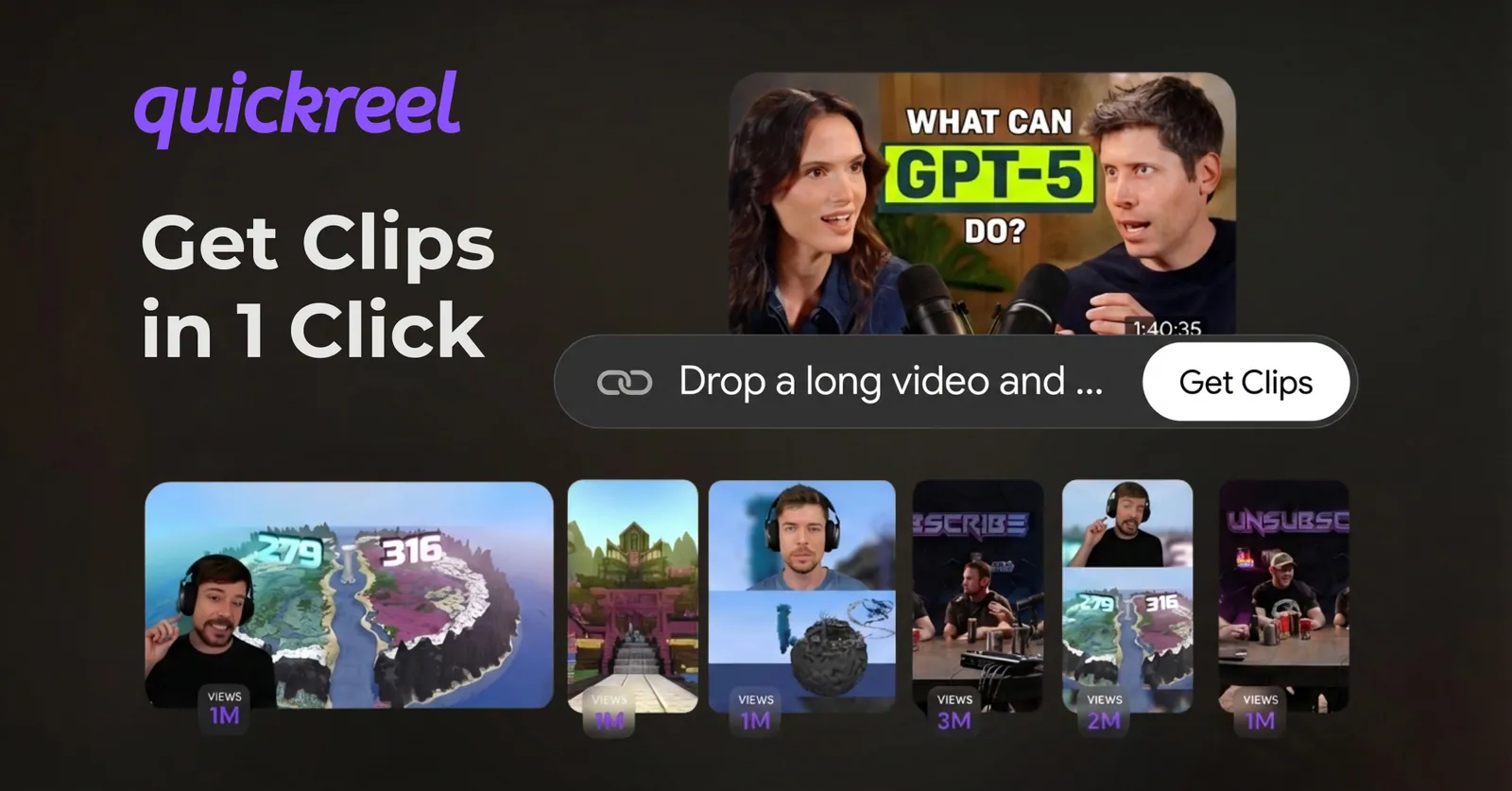
Two of these setup steps need video before you can finish them: the channel trailer (step 3) and the Clips row (step 4). You can cut both by hand in a free editor, the cost is time, and time is what kills the early cadence. The honest case for an AI clipper is throughput: it turns one episode into a batch of captioned vertical clips in minutes, giving you trailer raw material and a first set of Shorts on launch day.
The honest caveat applies to every tool in this category, QuickReel included: AI clipping still needs human review. Expect to re-trim, re-caption, or discard roughly 20-40% of auto-generated clips before posting, and to hand-pick the single best moment for your trailer yourself. A tool gets you to a strong draft fast; the editorial choice of which moment travels is still yours.
FAQ
Do you need a separate YouTube channel for a podcast? For a video podcast, yes, give the show its own channel so the name, handle, and art all match what people search. A dedicated channel lets you set a podcast-specific trailer, banner schedule, and Sections layout. Hosting episodes on a personal or unrelated channel dilutes the show's identity and confuses the recommendation system.
What size should podcast channel art be? YouTube recommends a banner of at least 2048 × 1152 px, but only a smaller central safe area is guaranteed to show on every device, its stated minimum for text and logos is 1235 × 338 px (YouTube Help, manage your channel branding). Keep your show name and publishing schedule inside that center. The profile picture should be a clear logo or host face that reads at a small size.
What should a podcast channel trailer say? Open with your single best moment in the first few seconds, then state who the show is for and when new episodes drop, then ask for the subscribe, all in 30 to 90 seconds. It auto-plays only for non-subscribers (YouTube Help), so treat it as a conversion tool for clip-driven traffic, not an origin story.
Should clips and full episodes go on the same channel? Yes, but in separate Sections. Put a "Full Episodes" playlist row and a "Clips/Shorts" row on your home tab so a viewer who arrived from a clip can find the long conversations one row down. Mixing them into one feed buries episodes and makes the hand-off from clip viewer to subscriber harder.
Do you have to verify a YouTube channel to upload a podcast? Yes for any real podcast workflow. Phone verification enables uploads longer than 15 minutes, custom thumbnails, and live streaming (YouTube Help). Since a full episode runs well past 15 minutes, an unverified channel cannot publish one, do this on day one.