
Software for Recording a Video Podcast (2026)


For most video podcasts, Riverside is the safest default, it records each person to a separate 4K track, locally, so a guest's bad Wi-Fi never wrecks your footage. If you record solo or in one room, OBS Studio is free and gives you total control. If you want recording, editing, and a transcript in one place, Descript with SquadCast is the best value. The right pick comes down to one question: how does your video get out of the tool and into a clip?
That last part is where most roundups go quiet. A video podcast isn't finished when you stop recording, it's finished when the episode becomes a thumbnail on YouTube and a stack of vertical clips on every other feed. So the tools below are scored on what a video show actually needs: separate tracks per speaker, real camera and screen-share support, how high the resolution and frame rate go, and whether the export is clean enough to clip without a fight. Every spec was checked against the official pages in mid-2026, and where vendor pages and reviewers disagree, I say so.
This matters more every year. YouTube now reports over 1 billion monthly podcast viewers (Variety, Jan 2025), and 53% of new US weekly listeners say they prefer to watch a podcast, up from 30% in April 2022 (Backlinko). Recording video isn't a bonus anymore. It's the format.
The 30-second comparison table
Here is the short version in snippet form. Prices are the entry paid tier, billed monthly unless noted, confirm on each vendor's page before you buy, because SaaS pricing moves.
| Tool | Best for | Entry price |
|---|---|---|
| Riverside | Remote video podcasts; stable 4K | $29/mo Pro ($24 annual) |
| OBS Studio | Solo or in-room shows; full control | Free, forever |
| Descript + SquadCast | Record and edit in one place | $24/mo Hobbyist ($16 annual) |
Sources: riverside.com/pricing, squadcast.fm/pricing, obsproject.com. The full seven-tool field is below, these three are where most people land.
What "video podcast recording software" actually has to do
A tool can have a slick interface and still fail you in the edit. For video, four capture decisions made during recording can't be fixed later, so they decide which tool you should use.
- Separate track per speaker. If everyone shares one mixed video, you can't reframe or clip one person cleanly. Tools that record an isolated video and audio file per participant give you the freedom to crop to whoever is talking, the single most important feature for clipping.
- Camera and screen-share support. A video show needs real webcam or DSLR/mirrorless input, and most interview and tech shows need screen share. Some tools treat screen share as a second-class source that doesn't get its own track.
- Resolution and frame-rate ceiling. 4K is overkill for many shows, but crop a 1080p recording into a 9:16 clip and you throw away most of the pixels. A higher source resolution leaves the vertical crop sharp. Frame rate matters for motion, 30fps is standard, 24fps for a cinematic look.
- Clean export. Can you get the raw files out without a watermark, in a format an editor or clipping tool will accept? Free tiers often cap exports at 720p and stamp a logo on everything, which kills them for serious use.
Get those four right and the rest is preference. Get them wrong and you'll feel it on every episode.
The seven tools, with an honest con for each
1. Riverside, best for remote video podcasts
What it's genuinely good at: Riverside records each participant locally in up to 4K with isolated audio and video tracks, so remote interviews look and sound like everyone shared a room. It does progressive uploads, each device streams its recording to the cloud while you record, so a guest's crash costs seconds, not the episode. Built-in transcription, AI clips, and a teleprompter make it close to a complete video studio. The free plan gives 2 hours but caps video at 720p with a watermark, per its pricing page.
The real con: it's the priciest mainstream option at $29/mo Pro ($24 annual), 4K exports and the best features live on higher tiers, and recording hours are capped, heavy users hit overage charges sooner than expected. It's also not an all-in-one: you still need separate hosting, and serious edits move elsewhere.
2. OBS Studio, best free, full-control recorder
What it's genuinely good at: OBS is free, open-source, and records locally with no resolution cap your hardware can't handle, 4K and beyond, at whatever frame rate your machine supports. You can add multiple cameras, capture cards, screen captures, and audio sources, then record each to its own track and switch between scenes live. For a solo host, an in-studio two-person show, or a gameplay/screen-share format, nothing else gives you this much control for $0, per independent comparisons.
The real con: there is no built-in way to bring in a remote guest. You bolt that on with a separate video call plus virtual audio/video cables, which is fiddly. The learning curve is steeper than every other tool here, and a misconfigured encoder can drop frames or desync audio. It's the most capable and the least beginner-friendly tool on the list.
3. Descript + SquadCast, best for record-then-edit in one place
What it's genuinely good at: since Descript acquired SquadCast, the two ship bundled, subscribe to either and you get both. You record remote guests locally in separate tracks (up to 4K on the Creator tier and above) and edit in Descript's transcript-based editor, where deleting a word deletes the audio and video. For solo creators who want one subscription to cover recording and editing, it's the best value at $24/mo Hobbyist ($16 annual), per SquadCast's pricing and Descript's announcement.
The real con: it's mid-transition. Descript is folding SquadCast's recording into a built-in "Rooms" feature, so the standalone app's future is uncertain. 4K is gated to paid tiers (the free plan caps at 720p with watermarks), recording hours are monthly and don't roll over, and transcription hours count recording and imports against the same cap.
4. Zencastr, best all-in-one for a video show
What it's genuinely good at: Zencastr records up to 4K video and 48kHz WAV audio in separate tracks per participant, and it supports the largest remote group here, up to 11 people in a session. Beyond recording it bundles editing, hosting with an RSS feed, AI clips, and analytics, so one login covers the whole show. For a panel or roundtable that needs both the seats and the back-end, nothing else on this list matches its scope.
The real con: breadth over depth. Its 4K sits behind a higher tier (the cheaper plan records 1080p), and some users have reported the free tier being restructured. A tool that does seven jobs rarely beats a specialist at any one, Riverside still edges it on pure video reliability. For a head-to-head, see our Riverside vs Zencastr vs SquadCast comparison.
5. StreamYard, best if you also go live
What it's genuinely good at: StreamYard is a browser studio built for live streaming to YouTube, LinkedIn, Facebook, and more at once, with on-screen branding, banners, and guest management. On paid tiers it also records per-participant local tracks (audio as WAV) for clean post-production, and its top tier reaches 4K local recording, per its own comparison. If your show is live first and on-demand second, it's the easiest way to do both without a complex rig.
The real con: the free plan caps local recording at 2 hours per month and stamps a watermark, and 4K local recording only arrives on the Advanced tier ($88.99/mo, or $68.99/mo billed annually). Live streams themselves still cap at 1080p, the 4K is recording-only. As a pure recorder for a non-live show, it's more tool than you need, and most of its glowing comparisons live on StreamYard's own blog, so weigh them accordingly.
6. Ecamm Live, best for a Mac-based studio setup
What it's genuinely good at: Ecamm Live is a Mac-only production app that turns a single computer into a live studio, multiple cameras, screen share, lower-thirds, overlays, instant replays, and clean recording. For a host who wants a polished, broadcast-style video podcast and lives in the Apple ecosystem, it's one of the most capable single-app setups, and it pairs naturally with a Mac-based recording rig.
The real con: it's Mac-only, so it's off the table for Windows users, and like OBS it doesn't natively host remote guests, you bring them in through a call plus virtual camera, or with Ecamm's own call feature, which adds complexity. It's a subscription, and the learning curve sits between OBS and the browser studios.
7. Zoom, only as a last resort
What it's genuinely good at: everyone already has it, your guest already knows it, and it can produce a 1080p cloud or local recording of a video call with almost no setup. For a one-off, a guest who refuses to install anything, or a true emergency, it's better than not recording at all.
The real con: Zoom is a meeting tool, not a recording studio. Its recording compresses the live call rather than capturing each person's pristine local file, so quality dips when bandwidth dips, and gallery-view recordings mix everyone into one frame instead of separate tracks. You can't reframe or clip one speaker cleanly from a Zoom mix. Use it when you have no other option, then upgrade as soon as the show is real.
How we evaluated
I scored each tool on the four capture axes a video podcaster feels in the edit: separate track per speaker, camera and screen-share support, resolution and frame-rate ceiling, and clean exportability. Every spec came from the vendor's official pricing or feature page in mid-2026, cross-checked against independent 2026 reviews. Where a vendor page and reviewers disagreed, StreamYard's tier-gated 4K, SquadCast's mid-transition status, I flagged the uncertainty instead of taking the rosier number. I did not collapse the axes into one rank on purpose. A solo screen-share show and a remote two-guest interview want opposite tools, which is the point of a matrix.
Why "clean files ready for clipping" is the axis that gets ignored
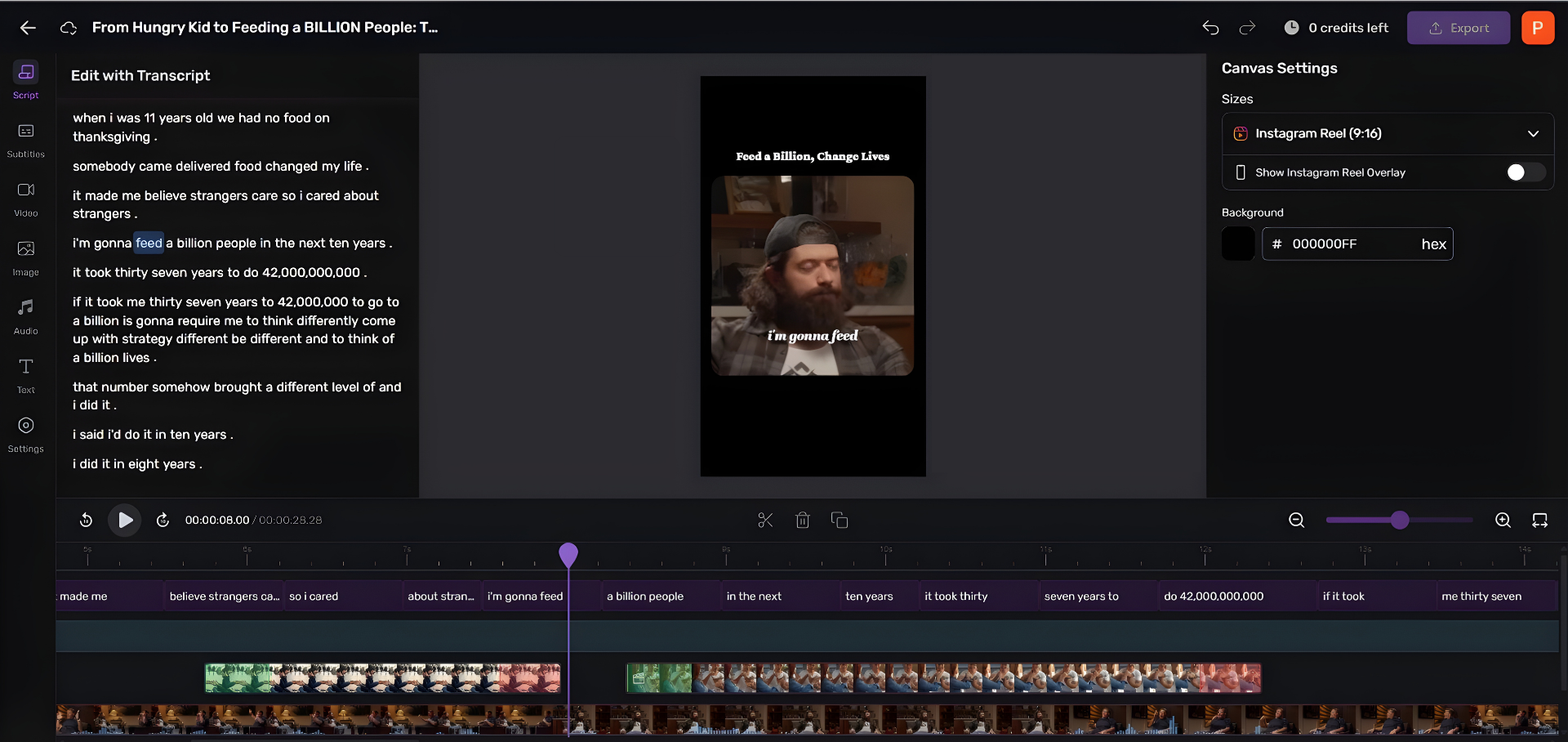
The recording tool you pick decides how hard your clips are to make weeks later, the part most equipment roundups skip. Industry estimates put clips at 20–40% of new audience for video shows (Podcast Studio Glasgow, citing NewMedia), so this isn't a side concern. Two recording choices make or break it.
Separate tracks let you reframe to the right person. When each speaker has an isolated video track, a vertical clip can crop to whoever is talking and cut between them cleanly. When everyone is baked into one mixed frame, the Zoom problem, your clip is stuck showing a tiny gallery, and no caption or hook saves a clip you can't crop.
Resolution is crop insurance. A 9:16 vertical clip uses a tall slice of a wide recording. From a 4K source, that slice is still sharp on a phone. From a 1080p source it's softer, and from a watermarked 720p free-tier export it often looks unusable. Record higher than you think you need, because clipping spends those pixels.
Which one should you pick?
- Remote interview show, video-first: Riverside. Stable 4K, separate tracks, and the strongest crash recovery justify the higher price when the clips and the channel are video.
- Solo host or one-room show on any budget: OBS Studio. Free, full control, and no resolution ceiling, accept the learning curve and the lack of remote guests.
- One subscription for record + edit: Descript with SquadCast. Best value if you want recording and a transcript editor in the same place.
- Big panel or all-in-one back end: Zencastr, for the 12-person ceiling plus hosting and analytics.
- Live show first, on-demand second: StreamYard. Multistream and record per-participant tracks on paid tiers.
- Mac studio with overlays and multicam: Ecamm Live.
- No other option, today: Zoom, record it, then upgrade before the next episode.
Whatever you choose, the recording is raw material. Discovery comes from the short, captioned clips you cut afterward and post across feeds, and that step is the same regardless of which tool above captured the episode.
FAQ
Do I need 4K to record a video podcast? No, 1080p is fine for most YouTube channels, and audio-only shows don't need video resolution at all. But if you plan to cut vertical clips, a higher source resolution survives the crop better, so 4K is worth it when you can get it without paying up several tiers. Don't pay for resolution you'll never publish or clip.
Can I record a video podcast remotely with separate tracks for free? Partly. Free tiers of Riverside and Descript/SquadCast record separate tracks but cap video at 720p and add a watermark, which makes them fine for testing and rough for publishing. OBS is fully free but doesn't host remote guests natively. See free podcast recording software that's actually usable for the realistic free options.
What's the difference between a meeting tool and recording software? A meeting tool like Zoom captures the live, compressed call, quality drops with bandwidth, and everyone often lands in one mixed frame. Recording software captures each person's pristine file locally on their device, then uploads it, so the result is broadcast-quality and split into separate tracks you can edit and clip independently.
Does the recording tool affect how easy clipping is later? Yes, more than people expect. Separate tracks let a clip reframe to whoever is talking, and higher resolution gives a vertical crop room to stay sharp. A mixed, low-resolution recording limits what any clipping tool can do with it afterward.
What about editing after I record? Recording and editing are separate steps, and most recording tools only handle light edits. After you record, a transcript-based editor or a dedicated clipping tool does the heavy lifting. Start with podcast editing software for total beginners for the next step in the workflow.
Software is only half the rig. If you're still building the recording side, start with the best podcast mics by budget tier and the best podcast mic under $100 before you spend on software seats.