
Podcast Recording Software Terms, Explained


The terms you need before you compare recording software: a double-ender is two people each recording locally and combining the clean tracks; multitrack keeps each person on a separate track; lossless means uncompressed audio (WAV/FLAC) with no quality thrown away; sample rate and bit depth set audio resolution; progressive upload backs up your recording to the cloud as you go; and ASIO is a low-latency audio driver on Windows. The rest of this page defines each one and, more usefully, tells you when it should change your buying decision.
Every recording-software comparison, ours included, is dense with words vendors assume you already know. "Local progressive recording, 32-bit float, ASIO support, separate WAV tracks per participant." Read that as a beginner and the honest question is: which of these do I actually need, and which is a spec sheet showing off? Each term below answers both, a plain definition, then a one-line "why it matters when choosing software" verdict. Skim the table, then read the entries for the terms that decide your purchase.
The quick-reference table
The fast version. If a term's verdict says "rarely the deciding factor," don't let a vendor charge you up a tier for it.
| Term | One-line meaning | Why it matters when choosing |
|---|---|---|
| Double-ender | Each person records locally, tracks are combined later | Core feature for remote shows, the whole point of modern recording tools |
| Multitrack | Each participant on a separate, isolated track | Essential if you edit, fix one mic, or clip individual speakers |
| Lossless | Uncompressed audio (WAV/FLAC), nothing discarded | Worth it for the recording; you compress at the end anyway |
| Sample rate | Audio "snapshots" per second (44.1 / 48 kHz) | 48 kHz if you publish video; 44.1 kHz is fine for audio, not a tier decider |
| Bit depth | Resolution of each snapshot (16 / 24 / 32-bit float) | 32-bit float is real insurance against clipping; nice-to-have, not mandatory |
| Progressive upload | Continuous cloud backup while recording | Critical for hard-to-rebook guests; a crash costs seconds, not the episode |
| ASIO | Low-latency audio driver (Windows) | Matters only if you record with an interface on Windows and hear lag |
| Local recording | Captures on each device, not the live call | The reason remote audio sounds clean, non-negotiable for interviews |
The recording model
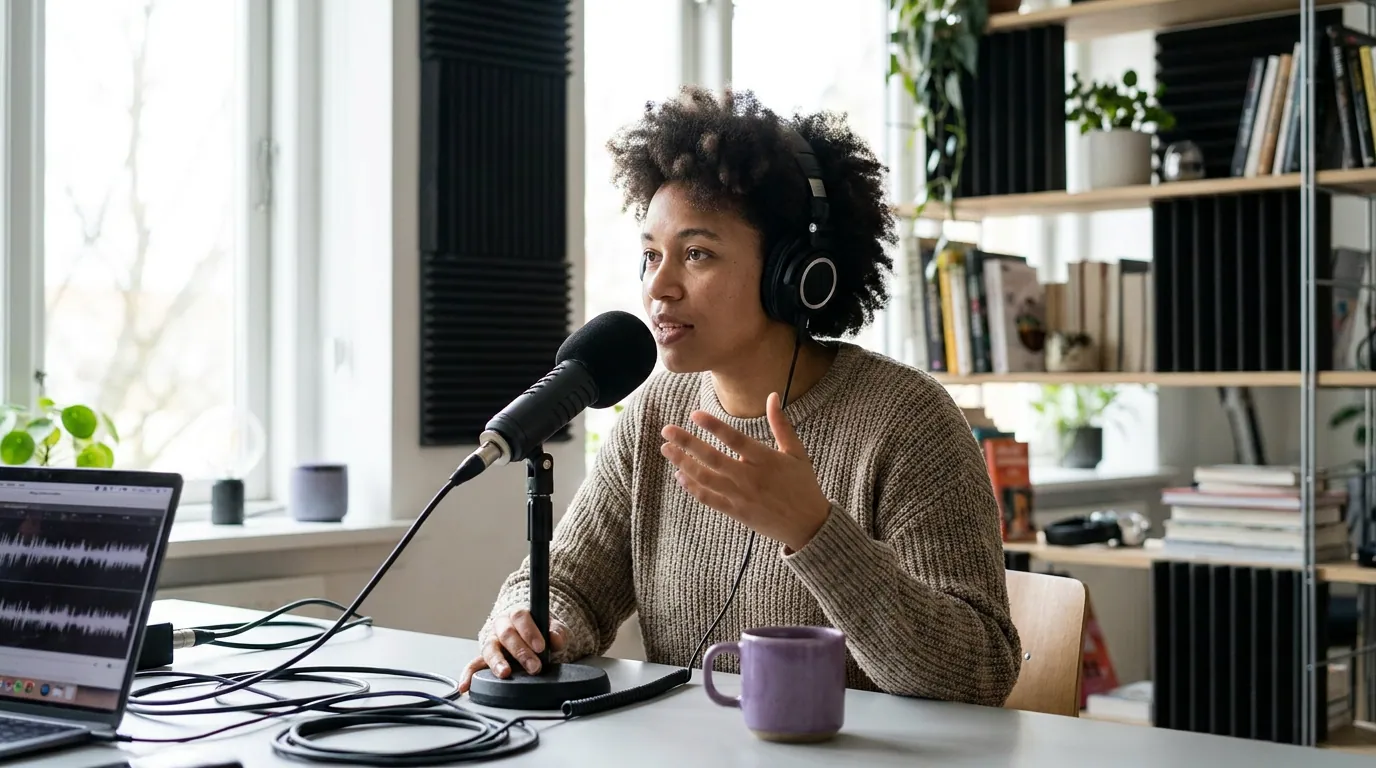
A spec is just a word until you know what it does to your recording day. The terms below are grouped the way you meet them: first the recording model, then the file-quality settings, then the reliability and plumbing. This first group describes how the software captures sound, and from whom.
Double-ender
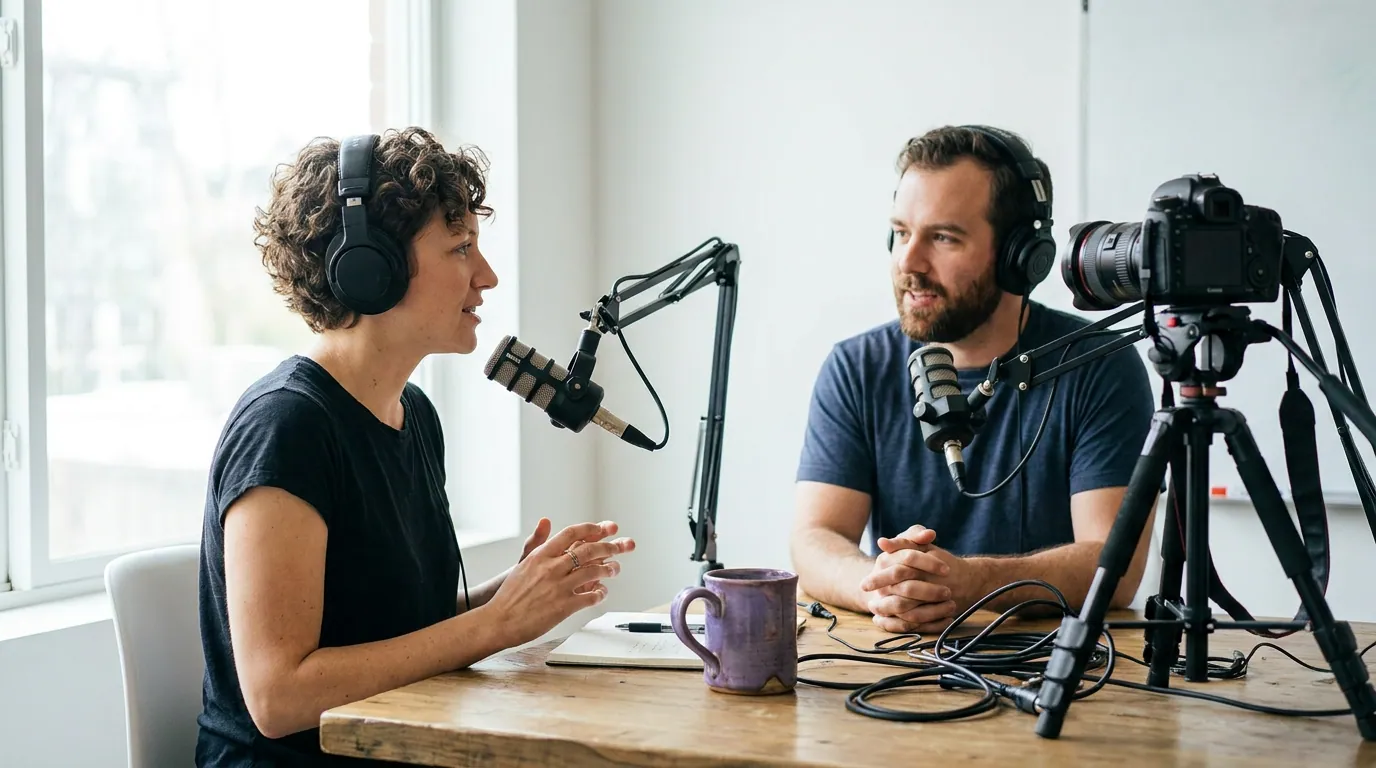
A double-ender is when two people in different locations each record their own audio (and video) locally on their own device, and the separate, high-quality files are combined afterward, instead of recording the compressed live call. The name comes from radio: both "ends" of the conversation record themselves. Tools like Riverside, Zencastr, and SquadCast automate the messy part, they upload both ends and sync them for you, so you don't trade WAV files over email.
Why it matters when choosing: If your show is ever remote, guests, co-hosts, interviews, this is the single feature that decides everything. A tool without it is recording your call quality, not your microphone. For solo audio shows in one room, it's irrelevant.
Local recording
Local recording means each participant's audio and video are captured directly on their own machine, then uploaded, rather than streamed live and recorded server-side. It's the mechanism that makes a double-ender possible. The payoff: a guest's flaky Wi-Fi degrades the call you both hear, but not the file that gets saved, because the file never traveled over the connection while recording.
Why it matters when choosing: This is the dividing line between a real recording tool and "hit record on Zoom." If a comparison lists "local recording" and "cloud recording," local is what you want for quality. Non-negotiable for interview shows.
Multitrack
Multitrack recording keeps each person, and sometimes each source, like screen-share audio or music, on its own separate audio track. The opposite is a single mixed-down file where everyone is baked together and unfixable. With separate tracks, you can lower one loud guest, cut a cough on the host's track without touching the guest's, or pull one speaker out cleanly for a clip.
Why it matters when choosing: Essential the moment you edit at all, and doubly so if you make short clips, where you often want one speaker isolated. A tool that only exports a single mixed file will frustrate you by your third episode.
File quality: sample rate, bit depth, lossless
This trio is where spec sheets get intimidating and overselling is common. Here is what each one is, and the honest verdict on how much to care.
Sample rate
Sample rate is how many times per second the software measures the sound wave, in kilohertz (kHz). The two you'll see are 44.1 kHz (CD standard, common for audio podcasts) and 48 kHz (the video standard, used in film and most video platforms). Higher rates exist (96 kHz, 192 kHz) but are studio-music territory, not podcasting, they mostly just inflate file sizes.
Why it matters when choosing: Pick 48 kHz if you publish video, 44.1 kHz if you're audio-only, and stay consistent. Nearly every recording tool supports both, so it's almost never a reason to choose one tool over another. If a vendor pushes 96 kHz as a selling point for a talk show, that's a spec showing off.
Bit depth
Bit depth is the resolution of each of those snapshots, how finely the volume is measured. 16-bit is CD quality and perfectly fine, and more common in browser recorders than spec-sheet bravado suggests. Riverside, for instance, records uncompressed WAV using Linear PCM at up to 16-bit depth and 44.1 or 48 kHz, per Riverside's own help docs. 24-bit gives more headroom for editing and is common in desktop DAWs and many audio interfaces. 32-bit float is the interesting one: it captures such a wide range that audio is very hard to clip (distort by getting too loud), so a guest who suddenly shouts won't blow out the take, you turn it down in the edit. You'll find it in desktop tools like Audacity and most modern DAWs, less often in browser recorders. One caveat the format's fans skip: 32-bit float is not literally unclippable, if your mic or preamp distorts before the signal reaches the converter, no bit depth recovers that.
Why it matters when choosing: 32-bit float is genuine insurance against ruined takes, so it's a nice tiebreaker, but it isn't mandatory, and millions of good podcasts ship at 16- or 24-bit. Treat it as a bonus, not a requirement, and don't pay up two tiers for it alone.
Lossless
Lossless means the audio is stored without throwing any data away, formats like WAV and FLAC. The opposite is lossy compression (MP3, AAC), which permanently discards information to shrink the file. Lossless files are large but editing-friendly; lossy files are small but already degraded. The rule of thumb: record and edit in lossless, then export a compressed file for publishing.
Why it matters when choosing: You want a tool that records in lossless (WAV) so your source is pristine, every serious recording tool does. What you publish will be compressed anyway, because hosts and apps need small files. So "lossless recording" is the spec to want; "lossless delivery" is not something your listeners need.
Reliability and plumbing
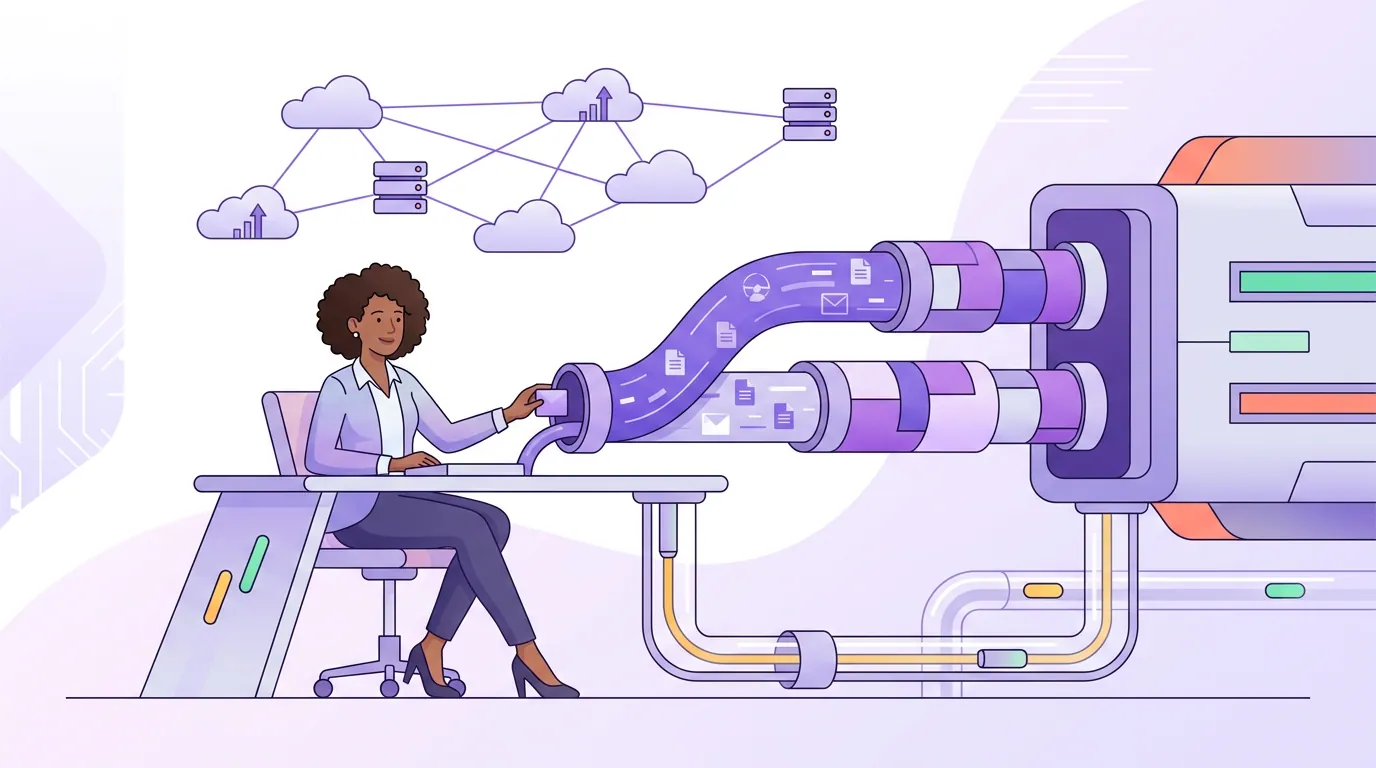
The last group is about what happens when something goes wrong, and the technical glue underneath.
Progressive upload
Progressive upload (sometimes "continuous" or "incremental" upload) means the software streams a copy of your local recording to the cloud while you record, instead of waiting until the end. So if a laptop crashes or a browser tab dies mid-sentence, the cloud already has everything up to a few seconds ago. It's the difference between losing a sentence and losing the whole interview.
Why it matters when choosing: This is the spec I'd weight most heavily for interview shows. Booking a busy guest is the hard part; losing that recording to a crash is the nightmare. If two tools are otherwise tied, pick the one with progressive upload.
ASIO
ASIO (Audio Stream Input/Output) is a low-latency audio driver standard on Windows, created by Steinberg. Windows' built-in audio path adds delay, which you hear as lag when monitoring your own voice through headphones. ASIO drivers, often the ones bundled with an audio interface, or the free ASIO4ALL, cut that delay so what you hear matches what you say. On Mac, Core Audio handles this natively, so ASIO is a Windows-only concern.
Why it matters when choosing: This only matters if you record on Windows with an audio interface and you're hearing latency. If you record in a browser-based tool or on a Mac, you can ignore it entirely. For most beginners on USB mics, it never comes up. If you're choosing a desktop DAW on Windows, ASIO support is worth confirming, see the best podcast recording software for Mac for how the platform choice changes which terms apply to you.
A few more you'll bump into
These come up less often, but they trip people up.
- Bitrate, for exported MP3/AAC, how much data per second (e.g., 128 kbps). Higher is better quality and bigger files; 128–192 kbps is standard for spoken-word podcasts. Don't confuse it with bit depth (a recording setting).
- Mix-minus, an old hardware/software trick that sends each caller everyone's audio except their own, preventing echo on phone-in shows. Modern double-ender tools handle this automatically, so you rarely set it by hand anymore.
- Latency, the delay between sound happening and you hearing it back. Low latency matters for live monitoring; ASIO (above) is one way to reduce it on Windows.
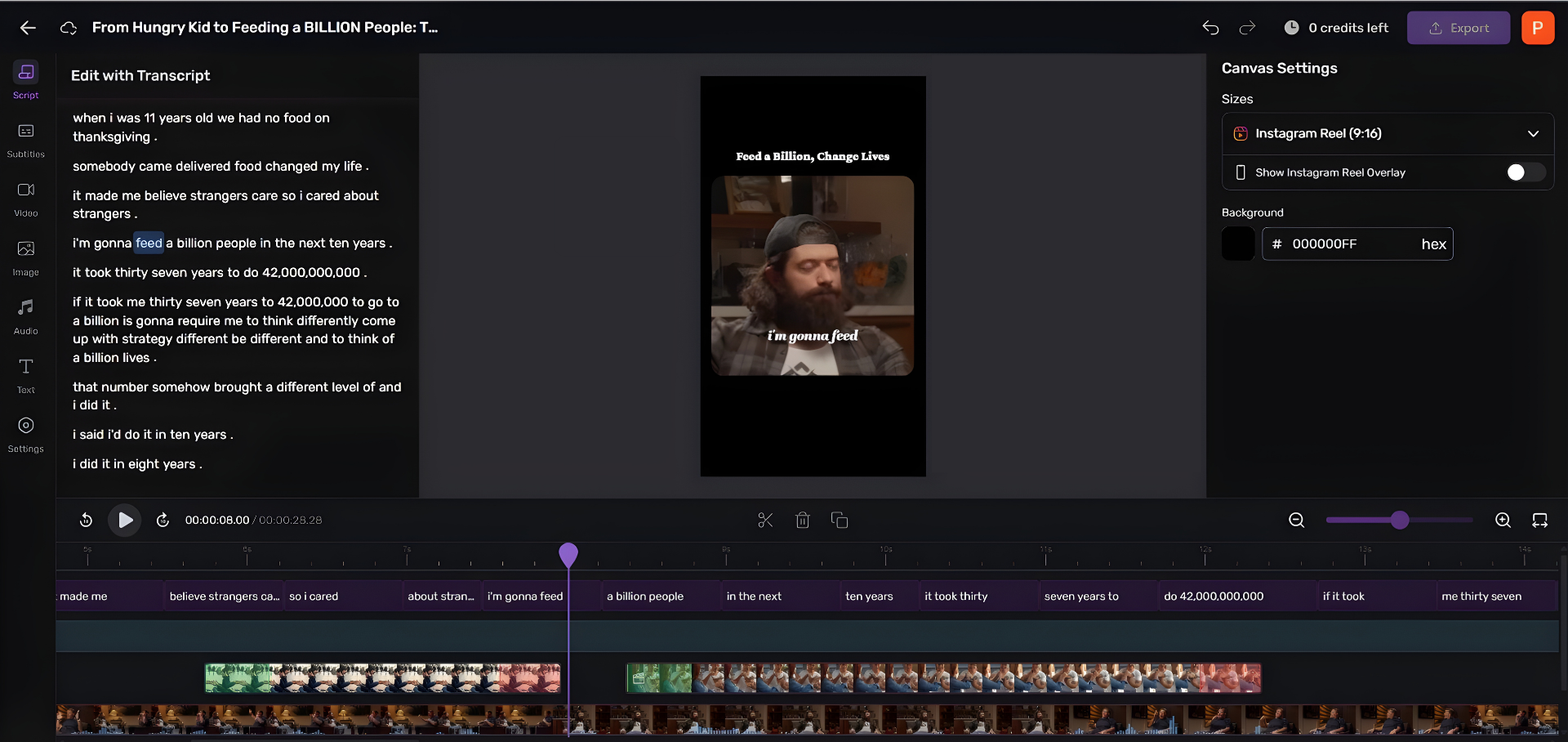
- Punch-in recording, re-recording over a specific section to fix a flub without redoing the whole take. A DAW feature, not usually a browser-tool one.
- Noise gate / noise suppression, automatically silences or reduces background sound below a threshold. Useful, but aggressive settings can clip the start of words; use them lightly.
How to use this glossary as a buying tool
Here's the decision rule the whole page builds to. When you read a recording-software comparison, sort every listed term into one of three buckets:
- Deciding factors, local recording, double-ender, multitrack, progressive upload. If your show is remote or you edit at all, a tool that's weak on these is the wrong tool. Weight them heavily.
- Nice tiebreakers, 32-bit float, native 4K video, the highest sample rates. Use them to break a tie between two otherwise-equal tools. Don't pay up a whole tier for them alone.
- Mostly noise, 96/192 kHz sample rates, "lossless delivery," and any spec that doesn't map to a problem you actually have. Vendors list these to look thorough.
That sorting is the real skill. Most recording tools clear the deciding-factors bar these days, which is why the smarter comparisons, like our Riverside vs Zencastr vs SquadCast breakdown, end up turning on guest limits, price, and reliability rather than raw audio specs. If you want to see the terms applied to free options, free podcast recording software that's actually usable runs the same checklist on tools that cost nothing.
FAQ
What does double-ender mean in podcasting? A double-ender is a remote recording where each person records their own audio and video locally on their own device, and the separate high-quality files are combined afterward, instead of recording the compressed live call. It's why modern remote interviews sound like everyone shares a studio. Any serious remote-recording tool does this automatically.
Do I need 48 kHz or is 44.1 kHz fine for a podcast? Use 48 kHz if you publish video (it's the video standard), and 44.1 kHz is perfectly fine for an audio-only show. The audible difference for spoken word is negligible; the practical difference is consistency with your delivery platform. It is almost never a reason to pick one recording tool over another.
Is 32-bit float worth paying more for? It's genuine insurance against clipping, a guest who suddenly shouts won't ruin the take, because the range is wide enough to recover in editing. But it's a nice-to-have, not a requirement; countless strong podcasts record at 16- or 24-bit. Treat it as a tiebreaker, not a must, and don't jump two pricing tiers for it.
What's the difference between lossless and lossy audio? Lossless (WAV, FLAC) stores audio with no data discarded, big files, perfect for editing. Lossy (MP3, AAC) permanently throws away data to shrink the file. Record and edit in lossless to keep a pristine source, then export a compressed lossy file for publishing, since hosts and apps need small files.
Do I need ASIO for podcasting? Only if you record on Windows with an audio interface and you hear lag when monitoring your voice. ASIO is a low-latency Windows driver; Mac handles this natively through Core Audio, and most browser-based tools and USB-mic setups never need it. For most beginners, it never comes up.
What hardware should I pair with this software? Software and gear are separate decisions, but they interact. A clean recording starts with a decent mic in a quiet room, see the best podcast mics by budget tier and the best podcast mic under $100. If you're brand new to editing the files these tools produce, podcast editing software for total beginners is the gentle next step.
Knowing the vocabulary is the cheap part. The expensive mistake is buying a tier for a spec you'll never use. Sort each term into deciding factor, tiebreaker, or noise, and most software comparisons get a lot shorter, and a lot cheaper.