
Local vs Cloud Podcast Recording: Pick by Failure Mode


For an interview that matters, record locally on each end, a double-ender, and treat any cloud stream as backup. For an uncertain guest or connection, use progressive upload: a local file that ships to the cloud in chunks as you talk. Use pure cloud capture only on a fast, stable line where convenience beats quality. The choice isn't "local good, cloud bad", it's which failure you can survive.
Most guides frame this as a quality contest and stop there. That misses the real question. Both methods can sound great when nothing goes wrong. The decision is what happens when something does, and something always does on episode 30. So this guide sorts the three methods by how they fail, then matches each failure to your connection speed and how much the episode is worth.
What's the actual difference between local and cloud recording?
Local recording captures full-quality audio on each person's own device, then uploads the files afterward. Cloud recording streams everyone's audio to a server in real time, where it's mixed and saved. Local trades convenience for quality and resilience; cloud trades them back for convenience. Everything below follows from that one split.
The wrinkle is that the popular tools blur the line. Riverside, Zencastr, and SquadCast all record locally on each participant's device and stream a backup to the cloud, a "local-first" hybrid. Tools like Zoom or a plain Google Meet recording capture in the cloud (or to one host's machine) at call quality. When someone says "I recorded in the cloud," they could mean either. The method matters more than the brand, so let's name the three real methods.
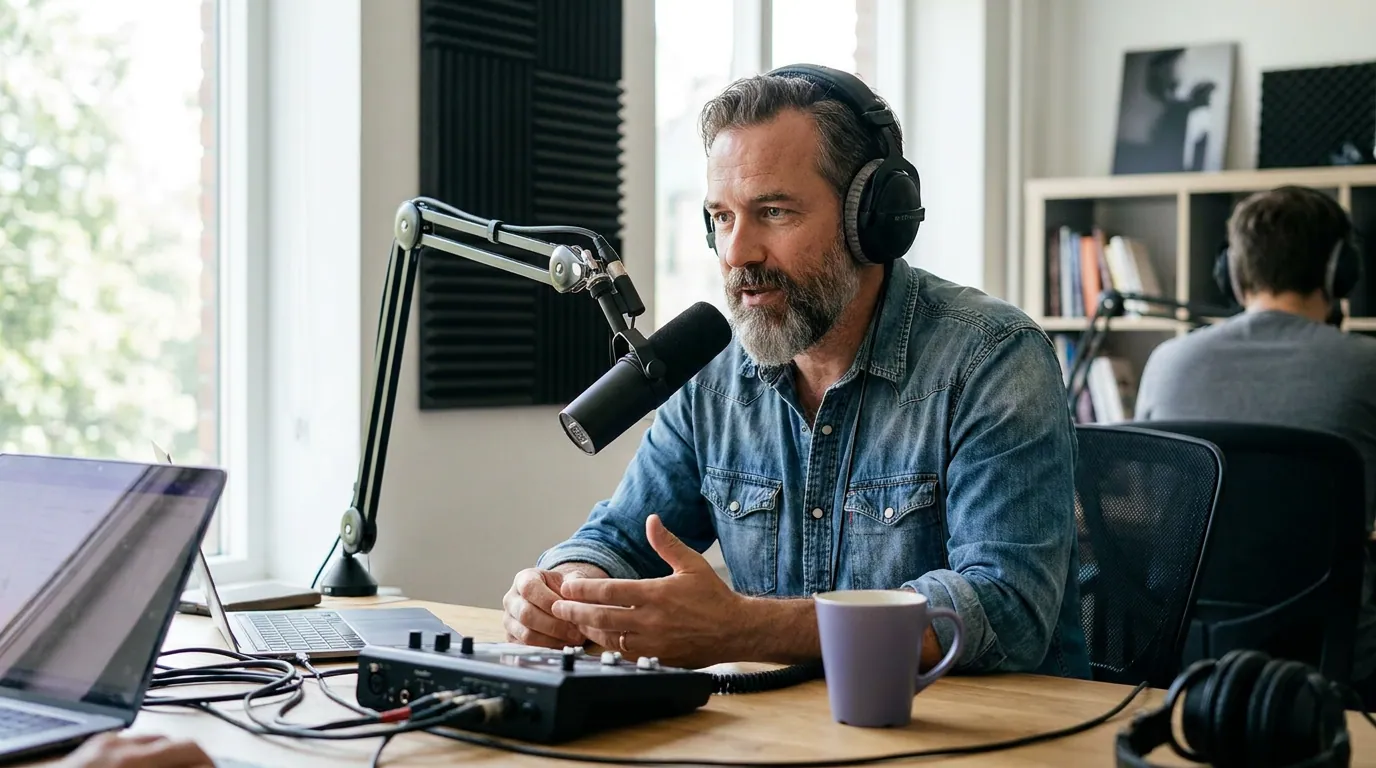
The three methods, by how they fail
Skip the marketing language and there are three ways to capture a remote episode. Each has a signature failure, the thing that goes wrong when you're unlucky. Choose the failure you can live with.
| Method | How it works | Signature failure |
|---|---|---|
| Double-ender (local-first) | Full-quality file on each device, uploaded after | Local file loss: a crash or full disk and the take is gone |
| Progressive upload | Local file that uploads in chunks during the call | Partial-chunk gaps if the connection dies mid-upload |
| Pure cloud capture | Streamed and saved on a server in real time | Dropouts and compression baked into the master |
That table is the whole article in three rows. The rest is the reasoning behind each, and how your upload speed pushes you toward one.
1. Double-ender (local-first), best quality, scariest failure
A double-ender records a separate, full-resolution file for each person on their own device. Because the audio never travels over the internet to be saved, a laggy connection during the call has zero effect on the recording's quality. You get clean, separate tracks for every speaker, the thing you actually want when you later edit, balance voices, or cut clips. This is what Riverside, Zencastr, and SquadCast do under the hood, and it's why studios default to it.
The honest catch is the failure mode, and it's a brutal one: the master lives on each participant's hardware until it uploads. If your guest's laptop crashes before the upload finishes, if their disk was full, if they closed the tab in a hurry, that track can be gone. There is no server copy of the local file by definition. A bad upload turns a great interview into a lost one.
- Pro: highest quality, immune to in-call connection problems, separate tracks per speaker for clean editing.
- Pro: what professional and most "podcast-grade" remote tools use by default.
- Con: the master depends on local hardware and a successful upload, the most catastrophic failure mode of the three.
- Con: asks more of a non-technical guest: keep the tab open, don't close the laptop, wait for the upload bar.
Use it when the episode is worth re-recording grief, your flagship interview, a hard-to-book guest, anything you'd be sick to lose. Always confirm the upload finished before anyone leaves the call.
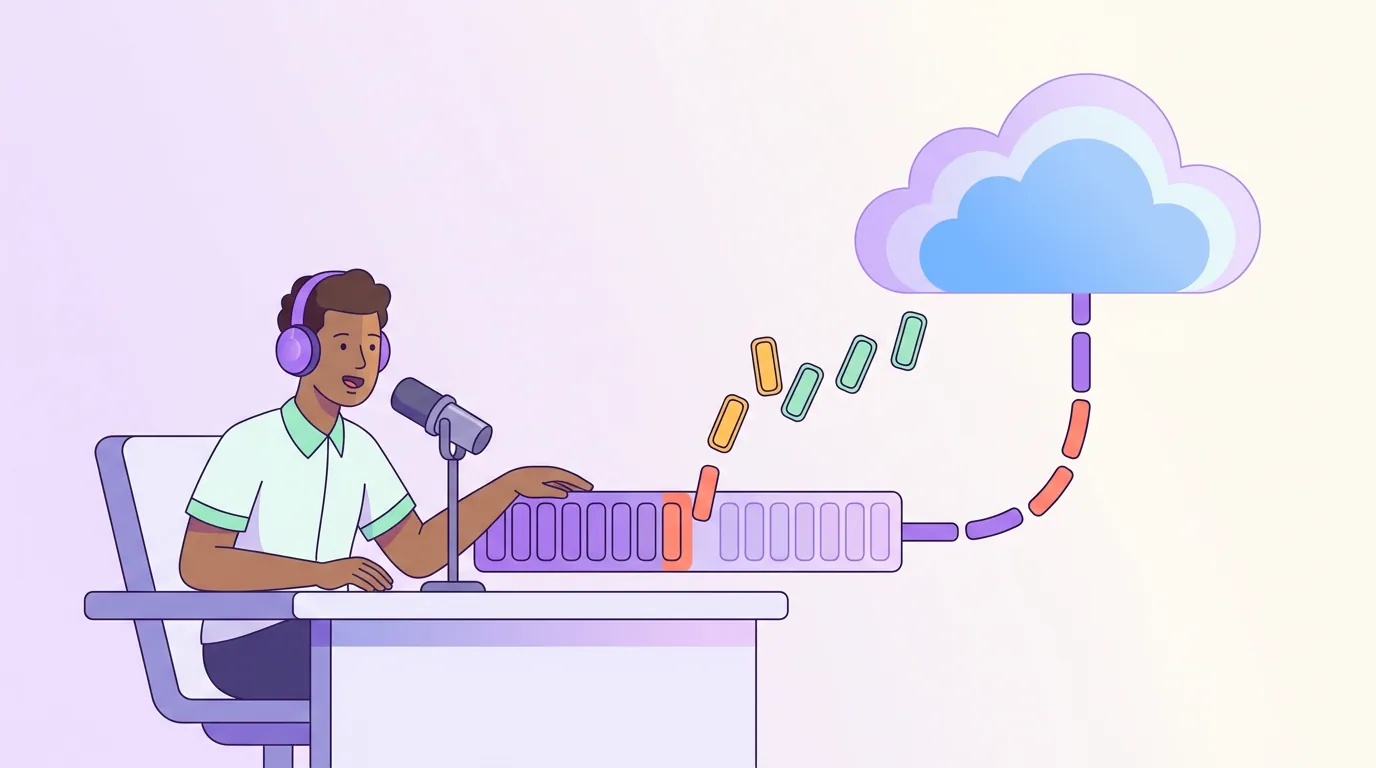
2. Progressive upload, the resilience compromise
Progressive upload is the answer to the double-ender's scary failure. It still records a full-quality local file, but instead of waiting until the end to upload, it sends that file to the cloud in small chunks while you're still recording. By the time you say goodbye, most of the episode is already on the server. Riverside describes progressive uploading as recording locally on each device and uploading those files to the cloud in chunks in real time, so an internet outage mid-session doesn't stop the whole take from making it up (Riverside, on progressive video uploading).
The trade is subtle. You keep local-quality audio, and you shrink the window where a crash loses everything down to "whatever hadn't uploaded yet", often just the last few seconds or minutes. The remaining risk is that a connection dying mid-session can leave a gap between uploaded chunks if the local file is also lost. It's a smaller, narrower failure than a pure double-ender, which is exactly the point.
- Pro: local-first quality with most of the recording continuously backed up to the cloud.
- Pro: a guest's mid-call crash usually costs seconds, not the episode.
- Con: it leans on the connection during recording, a flaky guest line slows the chunk uploads and can still leave a thin gap if the local copy is lost too.
- Con: not a magic fix; you should still verify the final file synced.
Use it when you can't fully trust the setup on the other end, a guest who's never recorded before, a shaky home connection, a single take you can't repeat. This is the safest default for most remote shows.
3. Pure cloud capture, most convenient, least forgiving
Pure cloud capture streams everyone's audio over the internet to a server, which saves the mix in real time. There's nothing to upload afterward and nothing for a guest to misconfigure, they click a link and talk. For a fast, stable connection on both ends, modern cloud tools sound perfectly fine for a conversational show, and the zero-friction setup is a real advantage when your guest is non-technical or short on patience.
The failure mode is the one you can't fix: whatever the connection did during the call is baked into the recording. A dropout becomes a chunk of missing words. A weak upstream on the guest's side becomes audible compression, that watery, slightly robotic texture. Because the master is the stream, there's no clean local file to fall back on. You edit around the damage or you re-record. That's a fine bet on a great connection and a poor one on a coffee-shop Wi-Fi link.
- Pro: zero setup friction for guests, nothing to upload, hardest method to get "wrong" procedurally.
- Pro: fine quality on a strong, stable connection for talk-format shows.
- Con: dropouts and compression land in the master and can't be removed later.
- Con: quality is hostage to the worst connection on the call, usually your guest's.
Use it when convenience genuinely outranks the last few percent of quality: an internal show, a low-stakes weekly chat, or a guest who simply won't manage anything more involved than clicking a link.
How we evaluated this
This is a setup decision, not a lab benchmark, so the criteria are practical:
- Worst-case outcome. What's the most expensive thing that can go wrong, and can you recover from it. Lost masters rank above audible artifacts because you can edit around a glitch but not around silence.
- Dependence on the connection. How much the in-call internet affects the saved result, separate from how it affects the live conversation.
- Demand on the guest. How much can go wrong because the person on the other end isn't technical, the single biggest source of real-world remote-recording failures.
- Editing payoff. Whether you get separate tracks per speaker, which decides how clean your edit and your clips can be.
Priya has set up remote recording for shows on connections from fiber to rural DSL, and the pattern is consistent: the method that survives a bad guest connection beats the method that sounds marginally better on a perfect one. Treat this as general guidance, not a guarantee for your specific tools, always run one test recording end to end before a real guest.
Match the method to your upload speed
Connection speed, specifically upload, since you're sending audio out, is the variable most guides ignore. For a working benchmark: Riverside lists roughly 5 Mbps up and down as the floor for progressive uploading to keep pace, and recommends pausing the live upload below that (Riverside). Treat 5 Mbps as the line where the connection stops being a free variable and starts dictating your method. Here's the rule.
| Your setup | Upload picture | Recommended method |
|---|---|---|
| Fast, stable on both ends | Comfortable headroom, rarely drops | Double-ender or pure cloud both fine |
| Your end fine, guest unknown | Can't verify the other side | Progressive upload |
| Slow or flaky on either end | Frequent dips, limited upstream | Double-ender, upload after the call |
The logic: a strong connection makes any method viable, so you can choose on convenience. An unknown guest connection is the most common real situation, and progressive upload hedges it. A genuinely slow or unstable line is the one case where you should avoid anything that depends on the connection during recording, record locally and upload the file afterward, when a slow trickle doesn't matter because no one's waiting.

The honest verdict: who should pick what
If you record remote interviews and the episode matters, default to a local-first tool with progressive upload, that's the combination that gives you near-studio quality and the smallest catastrophic-failure window. Riverside, Zencastr, and SquadCast all sit here; the differences between them are workflow and price, not the core method, which we break down in Riverside vs Zencastr vs SquadCast compared.
If you record solo, the whole debate softens. There's no guest connection to fail, so a clean local recording on your own machine in a free tool is plenty, see free podcast recording software that's actually usable. Pure cloud capture earns its place for low-stakes, convenience-first shows on a reliable connection, where clicking a link beats every setup step. And whatever you record with, the file still has to be edited, so pair your choice with podcast editing software for beginners and, on Apple hardware, the best podcast software for Mac.
The trap to avoid is choosing on quality alone. A double-ender that sounds 5% better but loses one episode a year is worse than a method that's 5% softer and never loses anything. Survival beats specs.
Whichever method you land on, a clean source pays off twice: in the episode and in everything you cut from it. Crisp, separate-track audio survives the compression that TikTok, Reels, and Shorts apply; muddy cloud audio from a bad line only gets worse after the platform re-encodes it. Since short clips are how most new listeners find a show, the recording choice you make today quietly sets the ceiling on your discovery later.
FAQ
Is local or cloud recording better for podcasts?
Local recording is better for quality and resilience because the audio is captured at full resolution on each device and isn't affected by the connection during the call. Cloud recording is better for convenience and simplicity. For interviews that matter, record locally; reserve pure cloud capture for low-stakes shows on a strong, stable connection.
What is a double-ender in podcasting?
A double-ender is a remote recording where each participant records their own full-quality audio locally on their own device, then uploads the files afterward so they can be synced. Because the audio never depends on the live connection, dropouts during the call don't affect the saved recording. The trade-off is that a crash before upload can lose a local file.
What is progressive upload and do I need it?
Progressive upload records a full-quality local file and sends it to the cloud in small chunks while you're still recording, so a crash usually costs seconds instead of the whole episode. It's the safest default for remote shows, especially with a non-technical guest or an uncertain connection. You don't strictly need it on a rock-solid setup, but it's cheap insurance.
Does cloud recording lower audio quality?
It can. Pure cloud capture streams audio over the internet, so a weak or unstable connection bakes dropouts and compression directly into the saved file, where they can't be removed later. On a fast, stable connection the quality is fine for talk shows. Local-first tools avoid this by recording the master on-device regardless of the connection.
What internet speed do I need to record a podcast in the cloud?
Around 5 Mbps up and down on both ends is the practical floor, the level Riverside cites for progressive uploading. Stability matters more than the headline number: you need steady upload headroom throughout, since each person sends audio out. If either side is flaky, record locally and upload afterward, when a slow trickle costs nothing.
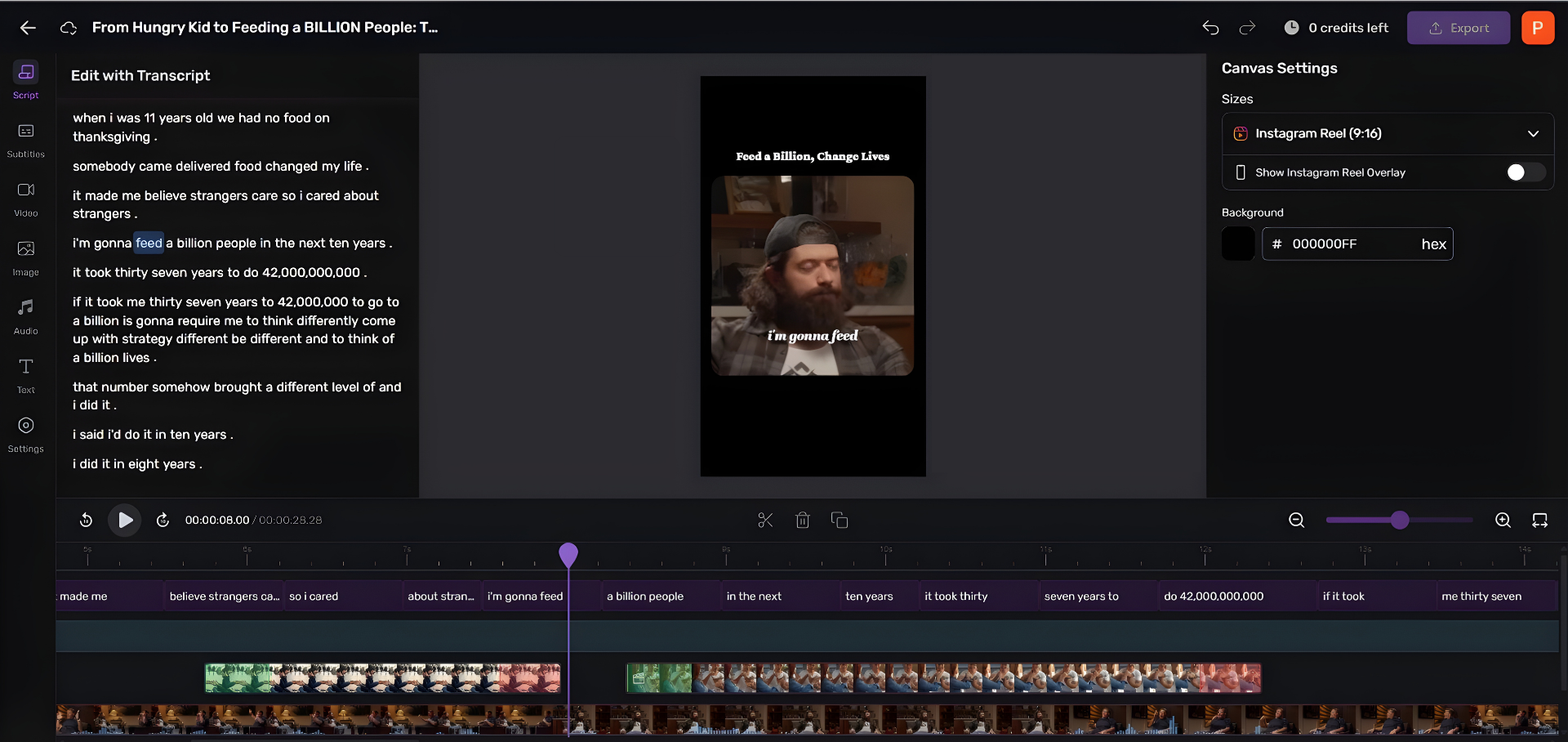
Will my recording method affect my clips?
Yes, indirectly. Cleaner source audio, especially separate tracks per speaker from a local-first recording, holds up far better through the heavy compression social platforms apply to clips. Muddy or dropout-ridden cloud audio sounds worse after re-encoding. The better your master, the better every short clip you cut from it sounds.
The one-line rule
Choose by failure, not by spec. Record local-first with progressive upload when the episode matters, fall back to recording locally and uploading after when the connection is shaky, and use pure cloud only when convenience genuinely outweighs the quality you'd lose on a weak line. Then match the tool to your platform with our Mac recording software guide and get the rest of your rig right with the mics-by-budget breakdown.